Commission Plans
This page is a short end-user guide for managing Commission Plans from the administration UI. It explains the screens, the fields you will interact with, and common tasks.
Access the Commission Plans screen
- Sign in to the administration console.
- Open the Commissions section from the left-hand navigation.
- Select Commission Plans.
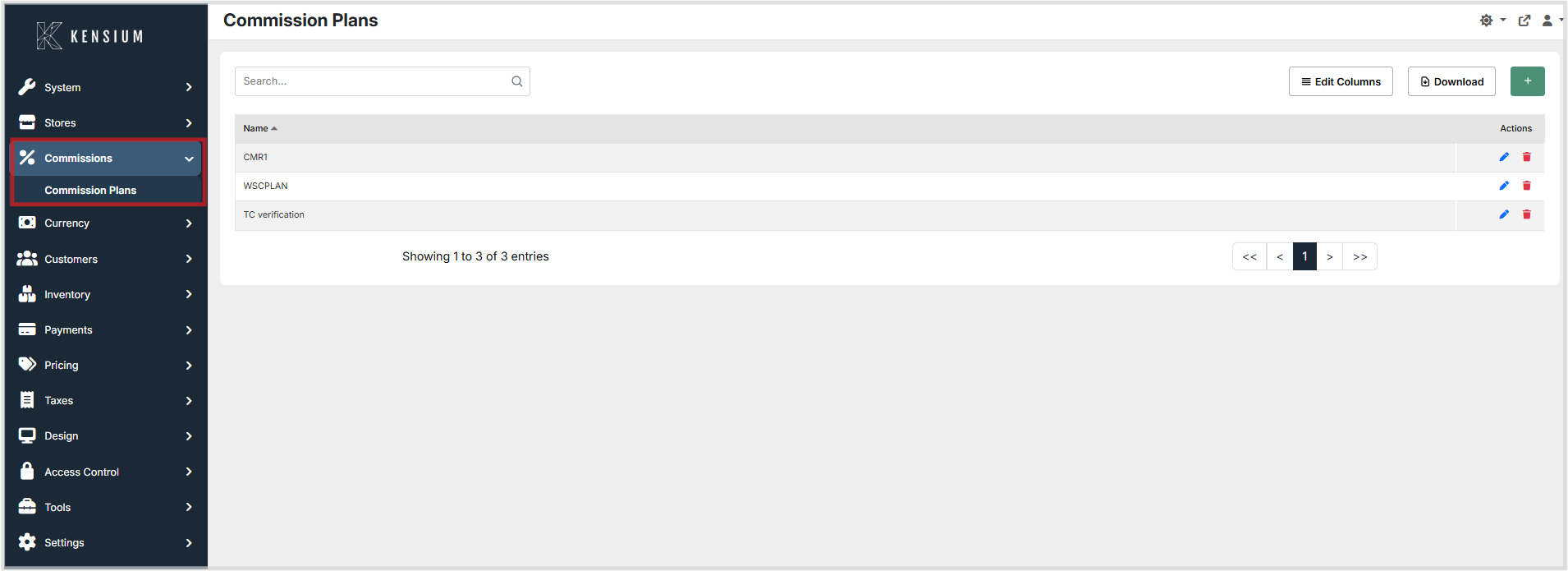
The list view shows existing plans. Use the search box to filter by plan name, the + button to create a new plan, or the edit/delete actions at the right of each row.
Create a new plan
- Click the green
+button on the Commission Plans list screen. - Enter a unique Plan Name.
- Use the Plan Rules area to add one or more rules. Click the
+button in the Plan Rules heading to open the "Add Plan Rule" dialog.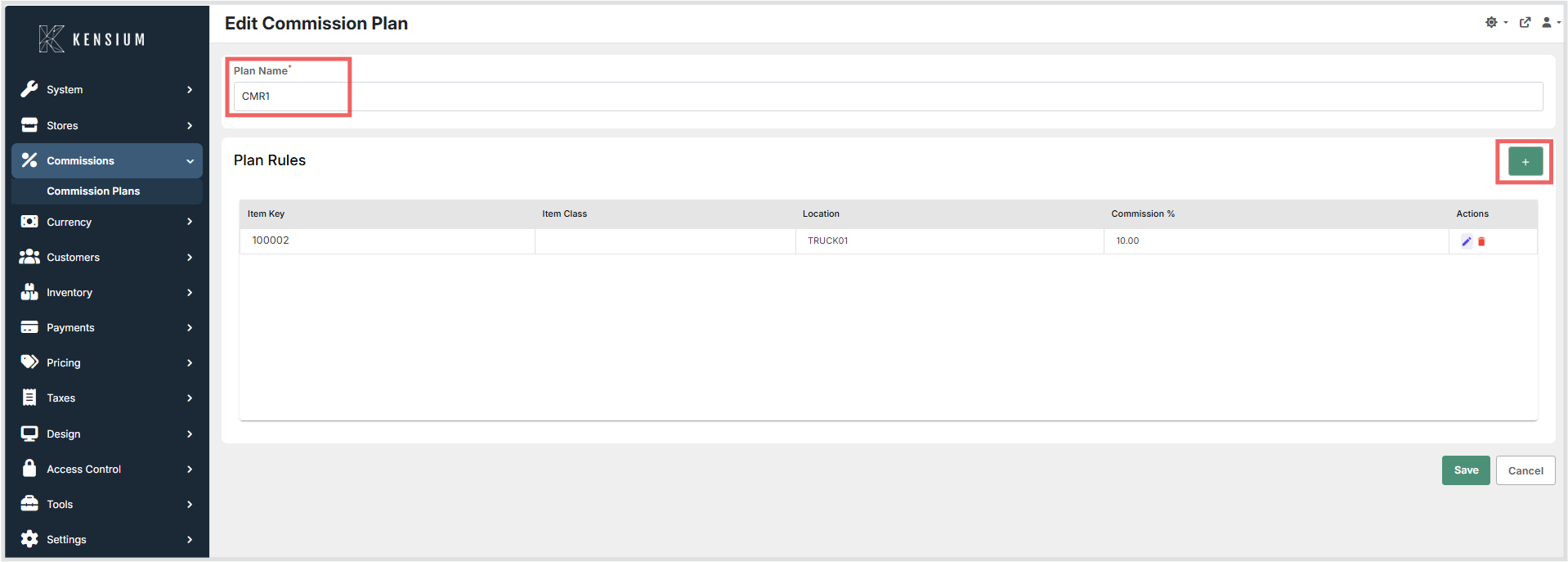
-
In the Add Plan Rule dialog supply the following fields:
-
Applies to - select All items using the radio button, or select Items matching the following rules to apply filters.
- Item Key - click the search button to select a specific item. This field is mutually exclusive with Item Class - you cannot select both.
- Item Class - click the search button to select an item class. This field is mutually exclusive with Item Key - you cannot select both.
- Location - click the search button to select a location.
-
Commission Percentage - enter the commission as a percentage value (for example
1.5for 1.5%). Must be between 0 and 100 (exclusive). -
If you selected Items matching the following rules, at least one filter (Item Key, Item Class, or Location) must be specified before saving.
- Click Save on the rule dialog to add the rule to the plan.
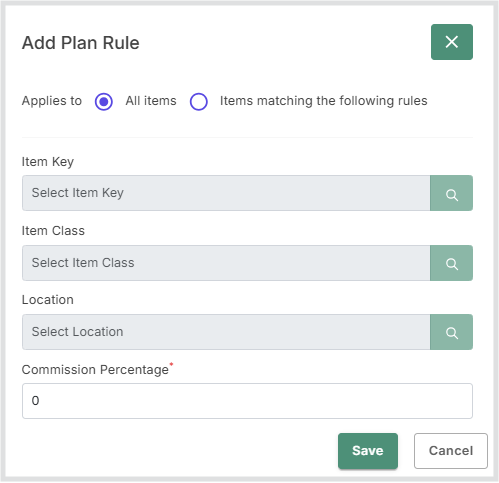
- Repeat adding rules as required, then click Save on the plan editor to persist the plan.
Edit or remove rules
- To edit a rule, click the pencil icon in the Actions column for that rule, change the fields and save.
- To remove a rule, click the trash icon for the rule and confirm deletion.
Field reference
- Plan Name - the user-facing name for the plan; must be unique.
- Item Key - optional identifier for a specific item. Click the search button to select an item. Mutually exclusive with Item Class.
- Item Class - optional item class to match multiple items. Click the search button to select a class. Mutually exclusive with Item Key.
- Location - optional location identifier. Click the search button to select a location.
- Commission Percentage - the commission rate as a percentage value (e.g.
1.5= 1.5%). Must be greater than 0 and less than 100. - Applies to - select All items to apply the commission to all items in the system, or select Items matching the following rules to restrict the rule to items matching one or more filters.
Examples
- Apply 1.5% to all items: select All items radio button and set
Commission Percentage=1.5. - Apply 2.0% to items in class
Beveragesat locationSTORE01: select Items matching the following rules, setItem Class=Beverages, setLocation=STORE01, and setCommission Percentage=2.0.
Troubleshooting and tips
- Ensure
Plan Nameis unique; the UI enforces uniqueness when saving. - When you select Items matching the following rules, you must specify at least one filter (Item Key, Item Class, or Location).
- Item Key and Item Class are mutually exclusive - you cannot specify both in the same rule. Choose one or the other, or use Location only.
Commission Percentagemust be entered as a percentage value (e.g.1.5,25.75) between 0 and 100, not as a decimal (e.g. not0.015).- Use specific filters (Item Key or Item Class) before adding a global rule to avoid unintended overlaps.
- If multiple rules match an item, the system will apply the most specific rule (for example, a rule with an Item Key filter takes precedence over a rule that applies to all items).