Price Sheets
| Summary Information | |
|---|---|
| Menu Path: | Pricing — Price Sheets |
| Required Feature(s): | Pricing |
Navigation:
Pricing → Price Sheets
The Price Sheets module allows administrators to create and manage named price-sheet entries. A price sheet is a short code and description that serves as a stable identifier for grouping pricing definitions used across your business or integrations. It does not hold individual price lines in this Admin view.
Purpose of Price Sheets
Price sheets are used to:
- Provide a stable reference identifier for pricing definitions used across stores and integrations.
- Group pricing configurations under a single named label for reporting and management.
- Enable integrations and ERP systems to reference consistent pricing identifiers.
Creating or Editing a Price Sheet
To create a new price sheet or modify an existing one:
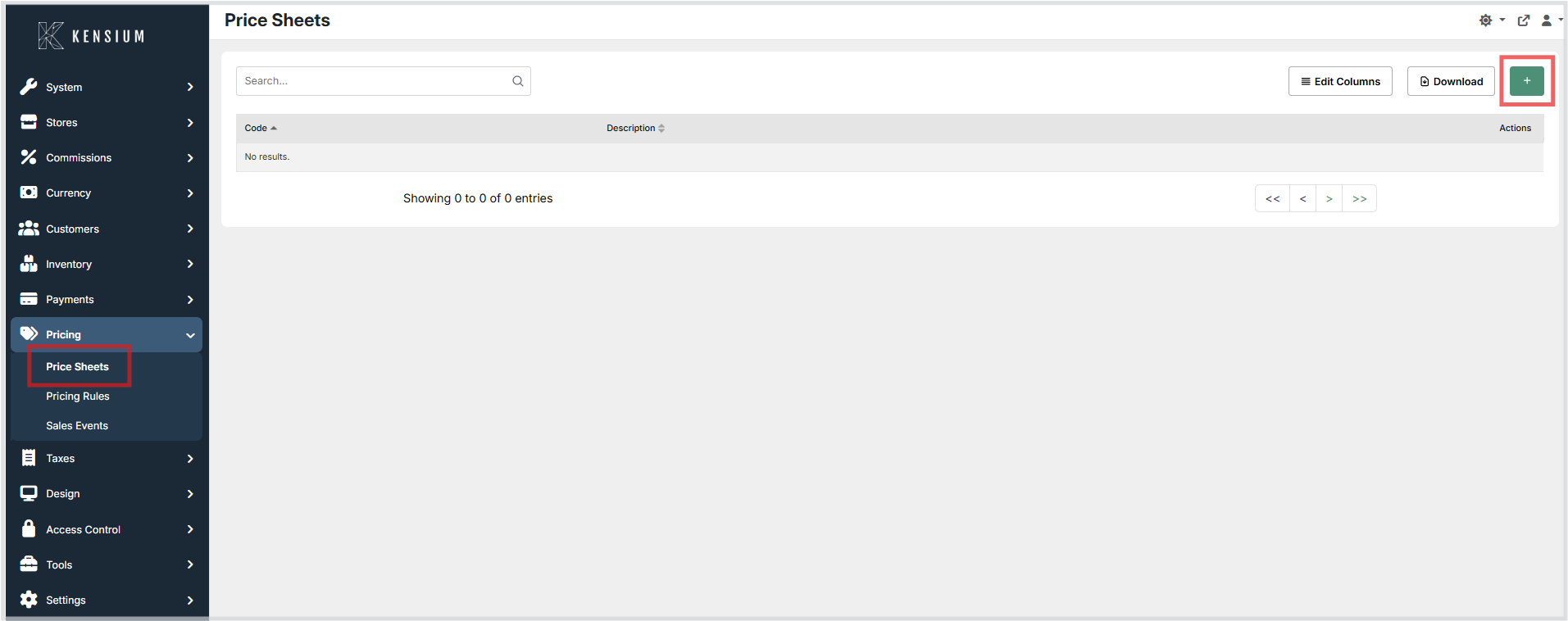
- Navigate to Pricing → Price Sheets.
- Click the green + button to open the create form.
- Enter a short, unique Code and a clear Description.
- Click Save to apply the configuration.
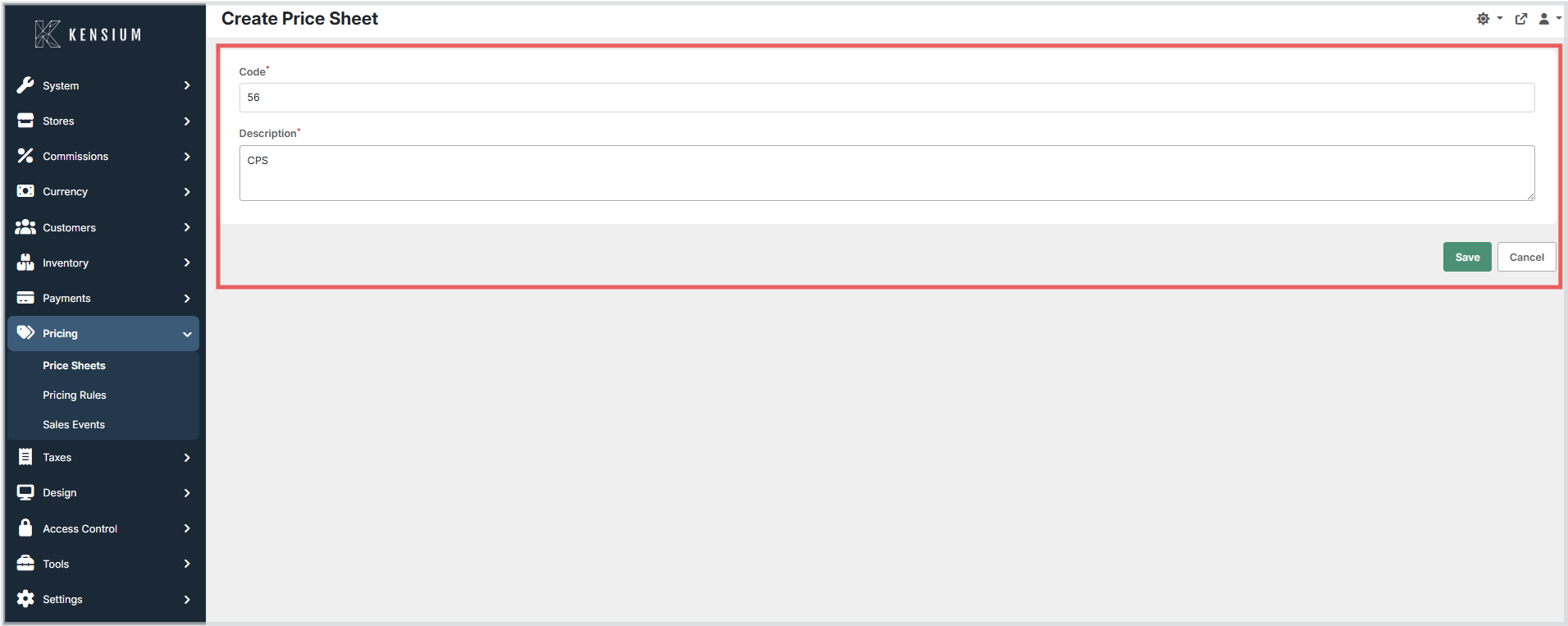
To edit an existing price sheet, open it from the list, update the fields, and click Save.
Available Fields
| Field | Description | Field Behavior |
|---|---|---|
| Code | A short, unique identifier for the price sheet (for example, WEB_RETAIL or WHOLESALE). |
Required. Choose a stable, human-readable code this is how systems and integrations will reference the price sheet. Avoid spaces; use underscores or dashes if needed. |
| Description | A clear name or explanation of the price sheet's purpose. | Required. Use a concise description that explains when the price sheet applies (for example, "Online retail pricing" or "Wholesale partner rates"). |
Deleting and Inactive Price Sheets
Price sheets are not permanently removed through this form. Records marked as deleted are hidden from normal lookup lists. If a price sheet is no longer needed, prefer marking it inactive and confirm that no customers, stores, or imports reference it before deleting.
Operational Considerations
- Stable identifiers: Treat price sheet codes as stable identifiers. Avoid changing or renaming them once in active use. If a change is necessary, update all systems and imports that reference the code.
- Integration ownership: If your ERP or import process manages price sheets, do not create or edit codes in Admin without coordinating with your integration team. Confirm whether the ERP expects codes to be created in POS or creates them automatically.
- Deactivation vs. deletion: Prefer deactivating a price sheet over permanently deleting it. Verify that no customers, stores, or imports reference the price sheet before removing it.
- Changes apply going forward: Updates to a price sheet affect future imports, lookups, and transactions only. They do not retroactively change historical sales data.
- Permissions: Only users with appropriate admin rights should add or modify price sheets to prevent accidental disruptions.
- Testing changes: After creating or updating a price sheet code, verify that it appears in the expected dropdowns and that sample transactions or import previews behave as expected.
- Bulk operations: Use the Download/Upload (export/import) workflow for large-scale changes. Test on a non-production environment first.
Tips
- Pick meaningful codes they make reports and integrations easier to read.
- If your ERP or pricing import process assigns price sheets, confirm whether the ERP expects you to create the code in POS or if it will create them automatically.
- Avoid renaming a code once it is in active use. If a change is necessary, update all systems and imports that reference it.