Applying Sale Discounts
Reduce the total price of an entire customer transaction by applying a discount to all items proportionally.
Sale discounts reduce the final amount by applying a discount to an entire purchase. Unlike item discounts that target specific products, sale discounts benefit all items in the transaction equally. This function supports store-wide promotions, loyalty member benefits, and negotiated pricing.
Sale discounts apply when:
- A store-wide promotion applies to all items.
- Loyalty members receive discount on total purchase.
- Customers qualify for bulk purchase discounts.
- Customers qualify for senior, military, or student discounts.
- Managers negotiate total transaction prices.
- Promotional events apply to entire sales.
Sale discounts apply to the complete transaction and affect the final amount due.
Navigation:
Process Sales → Discount Sale (F3)
Applying Sale Discounts
Step-by-Step Process
Sale discounts reduce the final transaction amount by applying a single discount across all eligible items proportionally. Unlike item discounts that target specific products, sale discounts benefit the entire purchase.
- All items should be verified as added to the transaction (count the items to ensure nothing was missed)
- The sale total should be reviewed for accuracy before applying discount
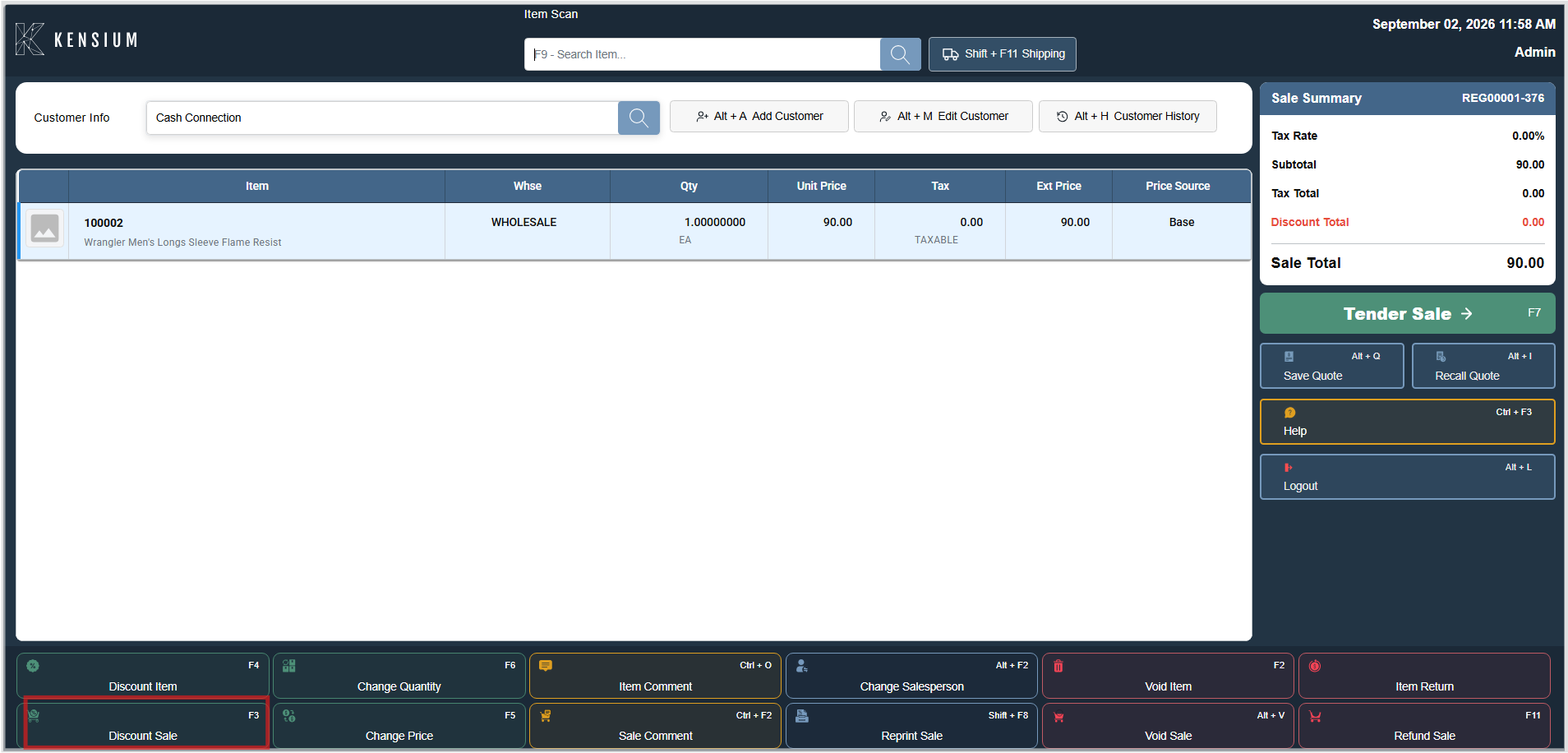
- F3 should be pressed or the Discount Sale button (located in the Action Grid at the bottom of screen) should be clicked
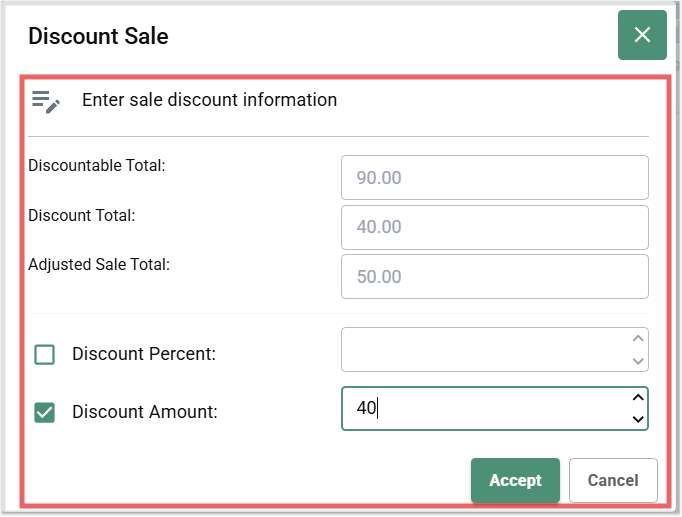
- The Discount Sale dialog opens, showing the current transaction total
- Select the discount method:
- Percentage (%): For promotional or percentage-based discounts
- Fixed Dollar Amount ($): For manager approvals or negotiated prices
- Enter the discount value (e.g.,
20for 20% off, or5.00for $5 off) - Review the Adjusted Sale Total to ensure the calculation looks reasonable
- Click Accept to apply the discount and lock it in, or Cancel to close without applying
Important:
The discount is ONLY applied when you click Accept. Closing the dialog without clicking Accept will discard the discount.
Tip
Discounts apply before payment. Multiple item discounts may be applied before the sale discount.
Modifying an Existing Discount
- Discount Sale should be clicked again (the dialog opens with the current discount).
- The discount value should be changed.
- Accept should be clicked.
Note
Discounts can only be modified before payment is processed.
Removing a Discount
- Discount Sale should be clicked.
0(zero) should be entered as the discount value.- Accept should be clicked.
The sale total returns to the original amount without discount.
Keyboard Shortcuts
| Shortcut | Action |
|---|---|
| F3 | Open Discount Sale dialog. |
| Ctrl+F2 | Add sale comment. |
Available Screen Fields
The Discount Sale dialog displays:
| Field | Description |
|---|---|
| Discountable Total | Sum of all items in the sale before any reductions |
| Discount Total | The discount amount to deduct from the sale |
| Adjusted Sale Total | Calculated final total after discount is applied |
| Discount Percent | Checkbox option for percentage-based reduction (for example, 10 for 10% off) |
| Discount Amount | Checkbox option for fixed dollar amount reduction (for example, 20.00 for $20 off) |
| Accept | Apply the discount. |
| Cancel | Close without applying. |
Item Discount vs. Sale Discount
| Situation | Use This | Notes |
|---|---|---|
| "This one shirt is on sale" | Item Discount | Applies to that specific item only. |
| "All shirts are on sale today" | Sale Discount | Applies to entire transaction. |
| "Give $5 off this item" | Item Discount | Targets specific product. |
| "Give $10 off the whole order" | Sale Discount | Reduces total transaction amount. |
| "10% off for loyalty members" | Sale Discount | Applies proportionally to entire sale. |
| "Senior discount on this purchase" | Sale Discount | Applies to whole transaction. |
Related Documentation
Remember
All items must be in the sale before applying a discount. The calculated total should be checked before clicking Accept. A manager should be asked if the discount limit is exceeded.