Item Masters
| Summary Information | |
|---|---|
| Menu Path: | Inventory — Item Masters |
| Required Feature(s): | Inventory |
Navigation:
Inventory → Item Masters
The Item Masters module is the central repository for all inventory items in the POS system. It defines the core properties of each item, such as its identifier, descriptions, categorization, physical attributes, and behavioral rules during sales. Once an item master is created, it can be assigned to specific locations, included in promotions, and sold at the register.
Creating or Editing an Item Master
To configure a new item master or modify an existing one:
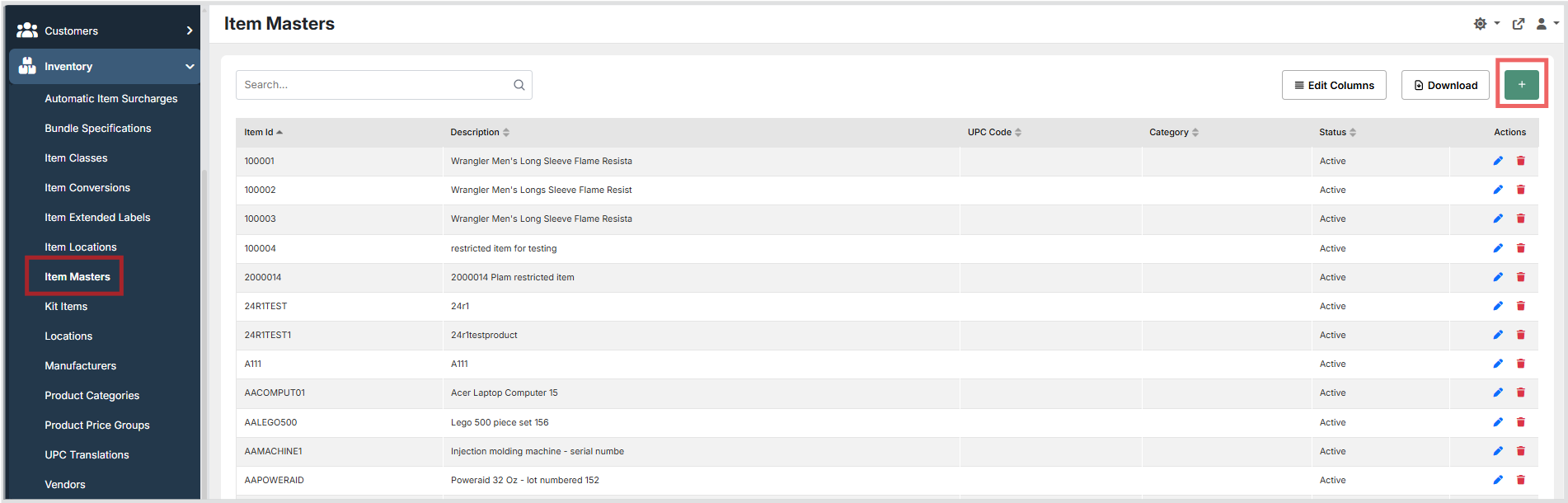
- Navigate to
Inventory → Item Masters. - Click the + button to create a new item master, or use the grid Actions to edit an existing entry.
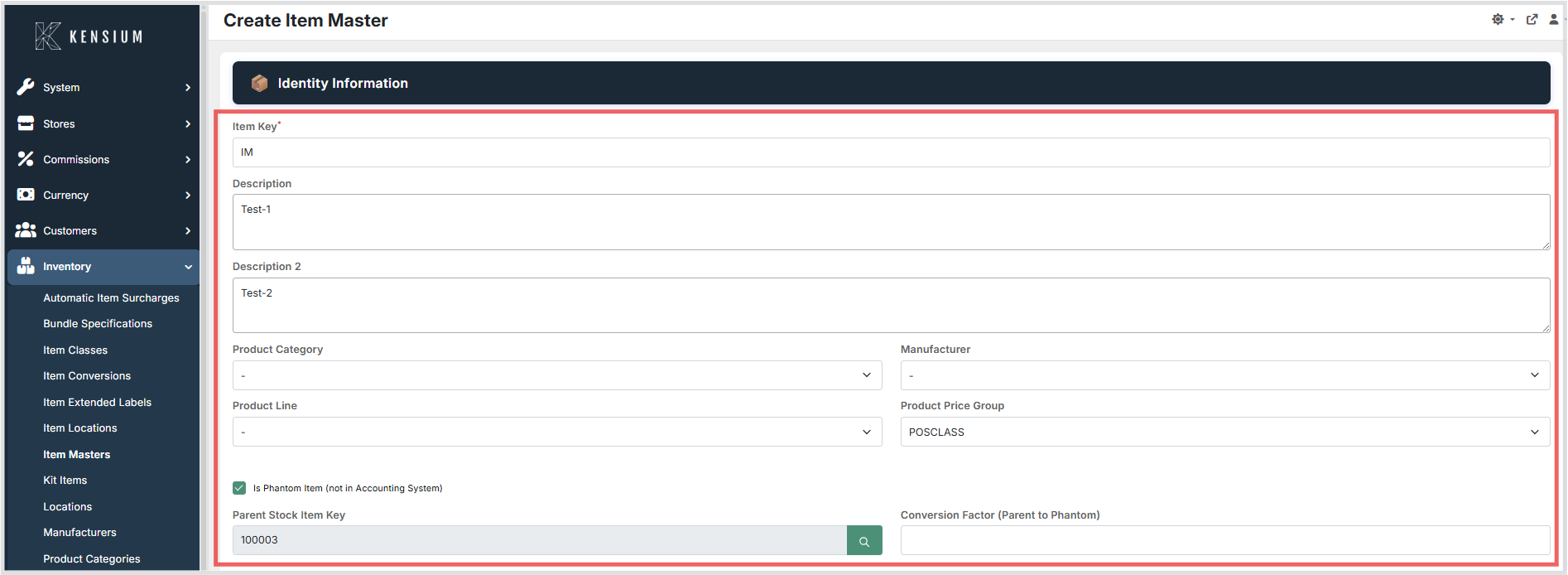
- Fill in the required Identity Information, starting with a unique Item Key.
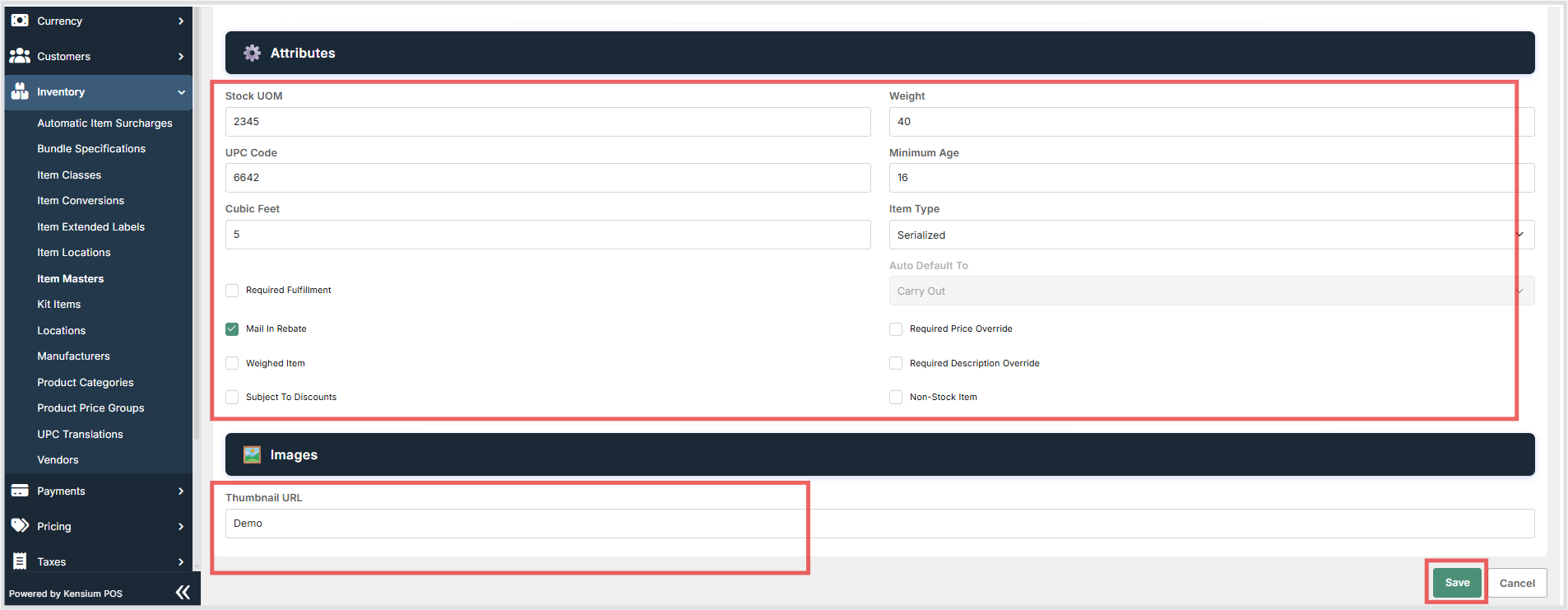
- Click Save. The portal will take you to the full configuration section where you can fill each section, or Cancel to discard the changes.
Note
Changes to an item master will affect how the item behaves across all locations unless overridden by specific Item Location settings.
Available Fields
The Item Master page is split into independent sections so you can update them separately.
Identity Information
| Field | What It Does | When Enabled/Disabled |
|---|---|---|
| Item Key | The unique identifier for the item (typically a SKU). | Required. Must be unique across the system. |
| Description | The primary description of the item shown on the POS and receipts. | Text entry for the main description. |
| Description 2 | A secondary description for additional details. | Text entry for supplementary information. |
| Product Category | Groups the item into a specific product category. | Selects the category for reporting and navigation. |
| Manufacturer | Identifies the manufacturer of the item. | Selects the manufacturer from the configured list. |
| Product Line | Associates the item with a specific product line. | Selects the product line. |
| Product Price Group | Links the item to a price group for centralized pricing rules. | Selects the price group. |
| Is Phantom Item | Indicates if the item is a phantom item (not tracked in the accounting system). | Enabled: treated as a phantom item. Disabled: standard item. |
| Parent Stock Item Key | The parent item if this is a phantom item. | Used to link the phantom item to its parent. |
| Conversion Factor | The conversion ratio from the parent item to this phantom item. | Determines the quantity relationship. |
Attributes
| Field | What It Does | When Enabled/Disabled |
|---|---|---|
| Stock UOM | The unit of measure used when stocking the item (for example, EA, BOX). | Defines the stocking unit. |
| Weight | The item's weight, used for shipping or weighed items. | Sets the physical weight. |
| UPC Code | The standard barcode used to scan the item at the register. | Defines the scannable barcode. |
| Minimum Age | Minimum age required to purchase the item. | Set a value to enforce age restrictions; zero disables. |
| Cubic Feet | The volume measurement of the item. | Sets the physical volume. |
| Item Type | Defines if the item is serial tracked, lot tracked, or not tracked. | Selects the tracking behavior. |
| Required Fulfillment | Requires the clerk to specify a fulfillment type when added to a sale. | Enabled: fulfillment type required. Disabled: not required. |
| Auto Default To | The default fulfillment type (for example, Carry Out). | Pre-selects the fulfillment type if required. |
| Mail In Rebate | Indicates if the item is eligible for mail-in rebates. | Enabled: eligible for rebates. Disabled: not eligible. |
| Required Price Override | Forces the clerk to manually enter a price when the item is sold. | Enabled: price prompt shown. Disabled: uses configured price. |
| Weighed Item | Indicates the item must be weighed at the register. | Enabled: scale prompt triggered. Disabled: standard quantity entry. |
| Required Description Override | Forces the clerk to enter a custom description when sold. | Enabled: description prompt shown. Disabled: uses default description. |
| Subject To Discounts | Allows the item to be discounted during a sale. | Enabled: discounts allowed. Disabled: discounts blocked. |
| Non-Stock Item | Marks the item as non-stock (for example, a service or fee). | Enabled: treated as non-stock. Disabled: standard inventory item. |
Images
| Field | What It Does | When Enabled/Disabled |
|---|---|---|
| Thumb | A small thumbnail image of the item. | Upload to display a thumbnail. |
| High Res | A high-resolution image of the item. | Upload to display a detailed image. |
| Other 1/Other 2 | Additional images for the item. | Upload for alternate views. |
Operational Considerations
- Ensure that the Item Key and UPC Code are accurate and match the physical products to prevent scanning issues at the register.
- Use Required Price Override carefully, as it will interrupt the cashier's workflow to prompt for a price. This is best suited for open-priced items or miscellaneous charges.
- Setting a Minimum Age will trigger a prompt at the POS, requiring the cashier to verify the customer's age before the item can be added to the transaction.
- The Item Type determines how the system tracks the item. Serial or lot tracked items will require additional input during receiving and sales.
- Marking an item as Non-Stock Item means the system will not track its quantity on hand. This is ideal for services, fees, or digital goods.