Item Locations
| Summary Information | |
|---|---|
| Menu Path: | Inventory — Item Locations |
| Required Feature(s): | Inventory |
Navigation:
Inventory → Item Locations
The Item Locations module allows administrators to define location-specific inventory settings for individual items. An item location record ties an item to a warehouse, store, or other inventory location and exposes properties such as the assigned item class, pricing, cost, quantity on hand, bin number, vendor, and tax settings.
Item location configuration enables location-level overrides or enrichments of the master item data so that pricing, costing, and availability can vary between stores, warehouses, or sales channels.
Purpose of Item Locations
Item Locations are used to:
- Assign inventory items to specific physical or logical locations (stores, warehouses, trucks).
- Configure location-specific price and cost values that override or supplement the master item pricing.
- Track quantity on hand per location for stock management and replenishment.
- Associate a bin number and vendor per location to assist in picking and receiving operations.
- Specify the item class and tax class that apply at the location level.
Creating or Editing an Item Location
To create or modify an item location:
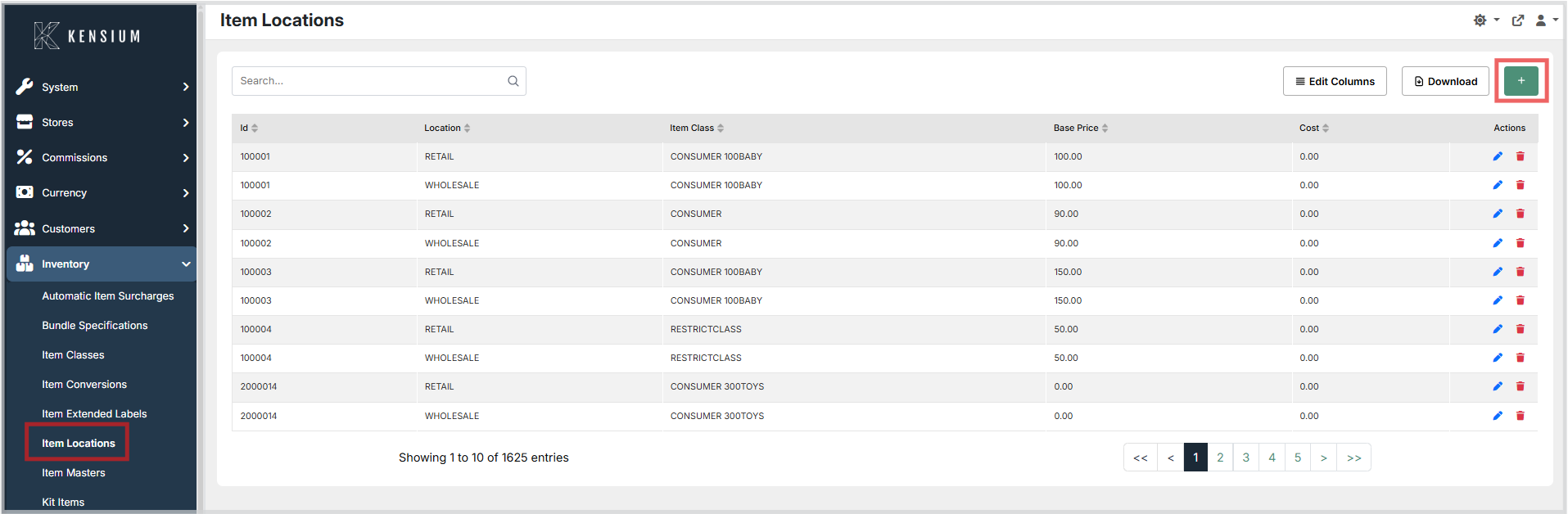
- Navigate to
Inventory → Item Locations. - Click the + button to create a new item location, or use the grid Actions to edit an existing entry.
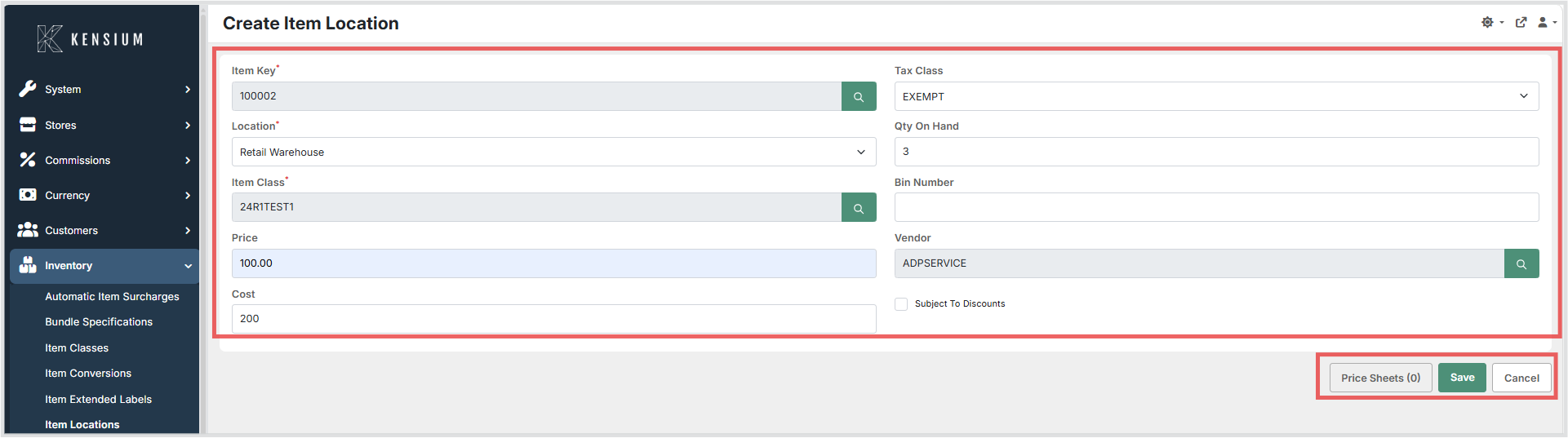
- Use the search picker to select the Item to associate with this location.
- Choose the Location from the dropdown and select an Item Class if needed.
- Enter Base Price, Cost, Qty Available, Bin Number, and Vendor as appropriate.
- Optionally assign a Tax Class and enable Subject To Discounts if the location should allow discounts on this item.
- To attach price sheet entries, click the Price Sheets button (see Price Sheets section below).
- Click Save to persist the configuration, or Cancel to discard changes.
Available Fields
| Field | Description | Field Behavior |
|---|---|---|
| Item | The inventory item this location record applies to. | Required. Use the search picker to select the item. Together with Location, uniquely identifies this record. |
| Location | The physical or logical inventory location (store, warehouse, truck). | Required. Select from the available locations. Together with Item, uniquely identifies this record. |
| Item Class | The item class used for pricing, surcharges, or tax rules at this location. | Required. Select from the configured item classes. |
| Base Price | The location-specific selling price for the item. | Optional. Decimal value. Overrides or supplements the master item price at this location. |
| Cost | The location-specific cost for the item. | Optional. Decimal value. Used for margin and reporting calculations at this location. |
| Qty Available | The quantity of the item currently available at this location. | Optional. Maintained by the POS system through inventory transactions. |
| Qty Available (ERP) | The quantity reported by the connected ERP system for this location. | Read-only. Updated automatically during ERP synchronization. |
| Tax Class | The tax classification applied to the item at this location. | Optional. If left blank, the default tax rules apply. |
| Bin Number | The bin or shelf location within the warehouse or store where the item is stored. | Optional. Used to assist staff with picking and receiving. |
| Vendor | The preferred vendor for purchasing this item at this location. | Optional. Select from the configured vendors. |
| Subject To Discounts | Indicates whether this item at this location can receive discounts during a sale. | Checkbox. Enabled by default. Uncheck to prevent discounts from being applied to this item at this location. |
Price Sheets
Item locations can be attached to Price Sheets, which allow you to define location-specific prices that become effective on a specified date. This is useful for time-limited promotions, seasonal pricing, or bulk pricing configurations at specific locations.
Attaching Price Sheets to an Item Location
To manage price sheets for an item location:
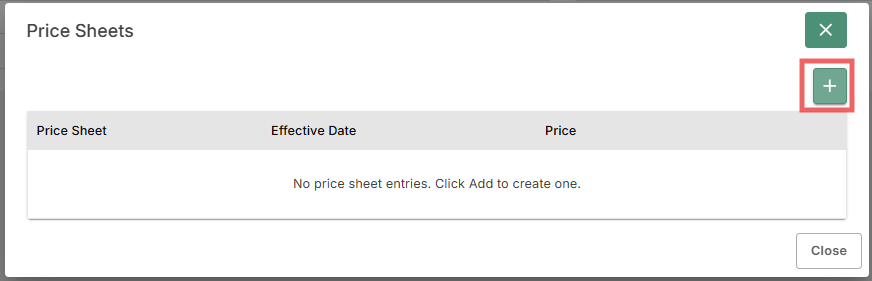
- From the create or edit form for an item location, click the Price Sheets button to open the price sheets dialog.
- The dialog displays all price sheet entries currently attached to the item and location combination.
-
To add a new price sheet entry:
-
Click the + button in the price sheets dialog.
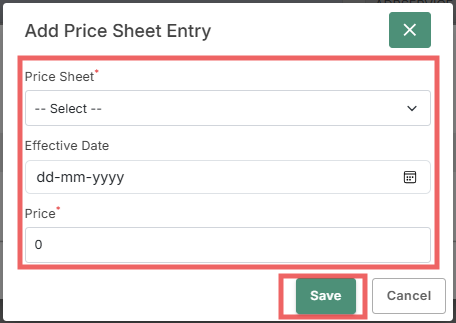
- A new form appears with fields for Price Sheet, Effective Date, and Price.
- Select a Price Sheet from the dropdown.
- Enter or select an Effective Date (the date when this price becomes active; optional).
- Enter the Price value for the item on this price sheet.
-
Click Save to add the entry, or Cancel to discard.
-
To remove a price sheet entry, use the Actions or Delete button on the entry row in the price sheets dialog.
- When you are finished managing price sheet entries, close the dialog and save the item location to persist all changes.
Price Sheet Entry Fields
| Field | Description |
|---|---|
| Price Sheet | Required. Select from the available price sheets. A price sheet is a named pricing configuration that can be applied across multiple items and locations. |
| Effective Date | Optional. The date on which this price becomes active. If left blank, the price may be used immediately or according to other system rules. Format: dd-mm-yyyy. |
| Price | Required. The price value for the item on the selected price sheet. This overrides or supplements pricing configured at the item location level when the price sheet applies. |
Price Sheet Behavior
- Multiple price sheet entries can be attached to a single item location, each referencing a different price sheet.
- When editing an item location, changes to price sheet entries replace the previous entries completely all new entries are added, and all previous entries are removed.
- Effective Date allows you to schedule price changes in advance. The POS system uses the effective date to determine which price applies at a given time.
- Price sheet entries are stored in association with the item-location combination, enabling location-level price variation within a price sheet.
Operational Considerations
- Changes to Base Price or Cost on an item location affect the pricing shown at that location and may impact accounting and reporting.
- Qty Available should be adjusted only through inventory transactions or controlled adjustments to maintain accurate stock counts.
- When using automatic surcharges or tax overrides, ensure the Item Class and Tax Class selected on the item location are compatible with the configured rules.
- Vendor and Bin Number are optional but recommended for efficient replenishment and picking processes.
- Modifying or removing item location records will affect all processes and reports that reference location-level data - validate changes during low-activity periods when possible.
Notes
- The item locations grid supports searching, column editing, and export / download actions.
- The create/edit form uses search pickers for Item, Item Class, and Vendor, and standard controls for numeric fields and checkboxes.
- The Price Sheets button is always available on the create/edit form and allows you to attach one or more price sheet entries to an item location.
- Price sheet entries are associated with an item-location combination, allowing different price sheets to apply different prices for the same item at different locations.