Field Definitions
| Summary Information | |
|---|---|
| Menu Path: | System — Field Definitions |
| Required Feature(s): | System |
Navigation:
System → Field Definitions
The Field Definitions module allows administrators to create and manage custom fields for customers and inventory items. This feature enables your business to capture additional, specific information during point-of-sale operations that isn't covered by the standard system fields.
For example, you might create a custom field to record a customer's birthday, or an item's specific warranty period.
Viewing Field Definitions
To view your existing field definitions:
- Navigate to
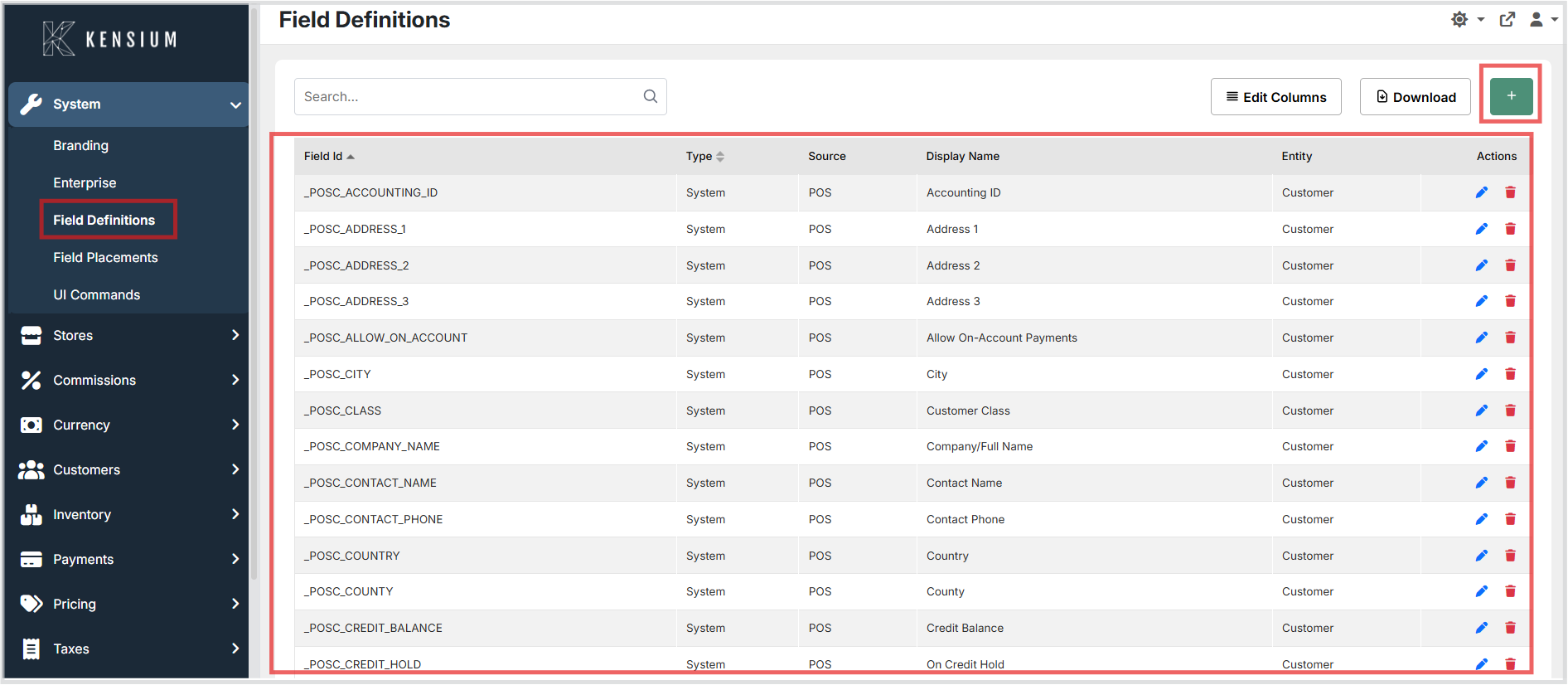
System → Field Definitions. - The screen displays a list of all fields currently configured in the system.
The list includes both System fields (built-in fields required by the POS) and custom fields created by your business or imported from an external system (like an ERP).
From this screen, you can:
- Click the + button in the top right to create a new custom field.
- Click on a Field ID to view or edit its details.
- Change the order in which fields are displayed on screens and in search results.
Creating a New Field Definition
You can create new custom fields directly within the POS Admin.
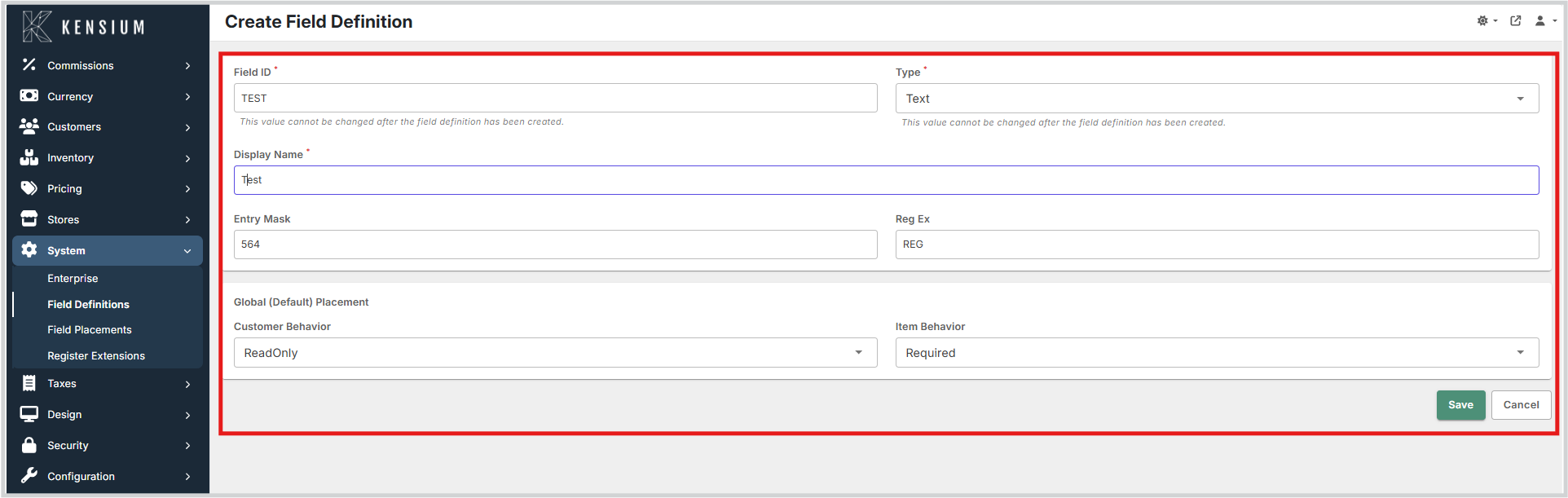
- Click the + button on the Field Definitions screen.
- Enter a unique Field ID.
- Select the Type of data this field will hold.
- Enter a Display Name. This is the label users will see when filling out the field.
- Depending on the selected Type, configure additional settings like Decimal Places for numbers, or Choices for dropdown menus.
- In the Global (Default) Placement section, set the default behavior for how this field should appear for Customers and Items (for example, Hidden, Optional, Required).
- Click Save.
Note
Field ID and Type cannot be changed after the field is created.
Configuring Choices
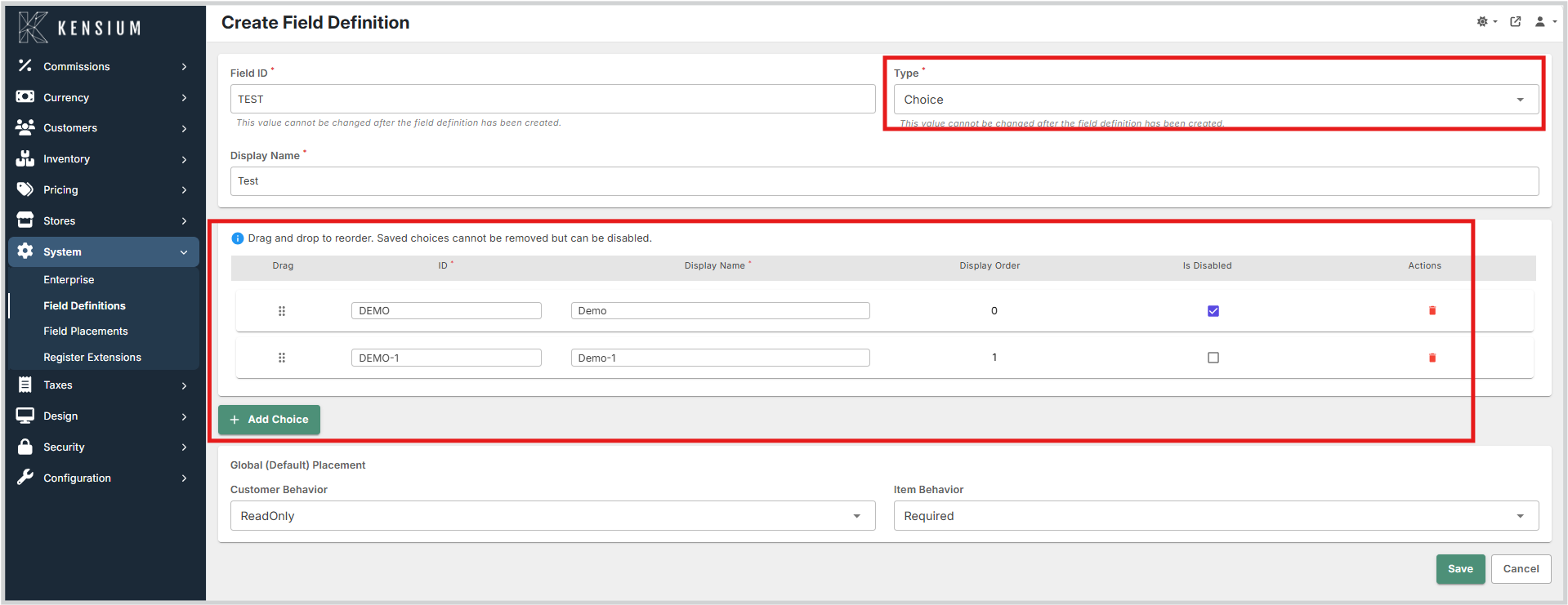
If you select Choice or Multi Choice as the field type, a new section will appear allowing you to define the available options.
To add a choice:
- Click the + Add Choice button.
- Enter a unique ID for the choice (this is required and cannot be changed later).
- Enter a Display Name (the label the user will see).
- You can drag and drop the choices using the grip icon on the left to change their Display Order.
- To prevent a choice from being selected in the future without deleting historical data, check the Is Disabled box.
- To remove a choice entirely (only possible if it hasn't been saved yet), click the red trash can icon in the Actions column.
Note
Saved choices cannot be removed, but they can be disabled.
Editing a Field Definition
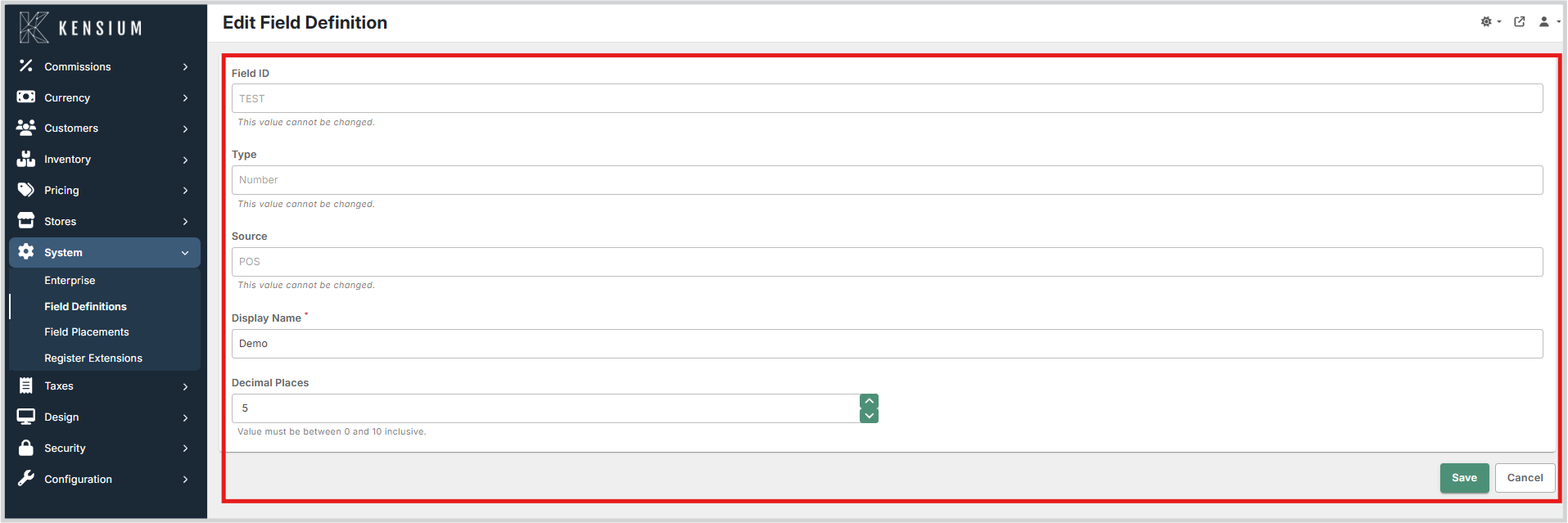
To modify an existing field, click its Field ID in the list.
- System Fields: Core properties like the Field ID, Type, and Source cannot be changed.
- External Fields: If a field was imported from an external system (Source is "External"), its behavior is controlled by that system, and some properties will be read-only.
- Custom POS Fields: You can update the Display Name, formatting rules (like Entry Masks), and available Choices.
Deleting a Field Definition
You can delete custom fields that were created directly in the POS. System fields and External fields cannot be deleted from this screen.
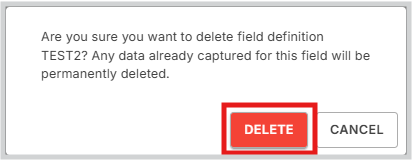
To delete a field, use the delete action on the field's row in the list.
Warning
Deleting a field definition will permanently erase any data that has already been captured for that field across all customer and item records. You will be asked to confirm this action.
Available Fields
When creating or editing a field, you will encounter the following properties:
| Field | Description | Field Behavior |
|---|---|---|
| Field ID | A unique identifier for the field. | Required. Cannot be changed once saved. |
| Type | The kind of data the field accepts. Available types:
|
Required. Cannot be changed once saved. |
| Source | Indicates where the field originated: POS (created in POS Admin), External (imported from an ERP), or System (built-in). |
Read-only. |
| Display Name | The label shown to users on the POS register and admin screens. | Required. |
| Decimal Places | For Number fields, specifies how many decimal places are allowed (0 to 10). |
Optional. |
| Entry Mask | For Text fields, an optional format mask to guide user input (for example, a phone number format). |
Optional. |
| Reg Ex | For Text fields, an optional regular expression used to strictly validate the input. |
Optional. |
| Choices | For Choice or Multi Choice fields, the list of options the user can select from. |
Required if Type is Choice or Multi Choice. |
| Customer Behavior | The default visibility and requirement level of this field on Customer records. Options: Hidden, ReadOnly, Optional, Required. | Optional. Defaults to Optional if not specified. |
| Item Behavior | The default visibility and requirement level of this field on Item records. Options: Hidden, ReadOnly, Optional, Required. | Optional. Defaults to Optional if not specified. |
Field Behavior Options
Both Customer Behavior and Item Behavior settings support the same four visibility and editability states:
Hidden
Field is completely hidden from the user interface. The field is not displayed on customer records, item records, or search results.
Use cases:
- Internal system fields that should not be visible to users
- Fields managed programmatically or by external systems
- Temporary fields being phased out
- Legacy fields no longer in use
- Sensitive data that should not be displayed
Example
A field tracking internal system migration status would be set to Hidden.
ReadOnly
Field is displayed but cannot be edited by users. The value is shown on the form, but the field does not accept user input. Defaults and values can still be populated by the system.
Use cases:
- Fields managed by external systems (like ERP data)
- System-calculated or derived values
- Historical reference information
- Audit fields showing who last modified a record
- Fields that should be visible but not changeable by users
Example
A customer's "Last Import Date" from an ERP system would be ReadOnly, showing when data was last synced but preventing manual edits.
Optional
Field is displayed and can be edited by users, but a value is not required. This is the default behavior if not specified.
Use cases:
- Supplementary information that enhances but is not essential
- Fields that some customers or items may not need to fill
- Information that can be added or updated later
- Nice-to-have details that improve data quality
Example
A "Customer Notes" or "Special Instructions" field would be Optional, allowing users to add comments when relevant but not requiring them for every record.
Required
Field is displayed and must have a value before the record can be saved. The system validates that the field has input before allowing the transaction to complete.
Use cases:
- Information that must always be captured
- Fields required for business logic or compliance
- Data necessary for proper system functioning
- Mandatory customer or item attributes
Example
A customer's "Phone Number" field might be Required for sending notifications, ensuring every customer record has contact information.
Behavior Inheritance and Scope
Field behaviors can be configured at multiple hierarchical levels:
- Global (Default) Placement: The behavior set when creating the field applies system-wide to all customers and items
- Register Class: Override behavior for specific register types (if different registers need different requirements)
- Customer/Item Class: Override behavior for specific customer classes or item classes
How Inheritance Works
When a behavior is not explicitly set at a specific level, it inherits from the parent level. For example:
- If a field's Customer Behavior is set to Required globally, but a specific customer class needs it to be Optional, you can override it at the Customer Class level
- If no override is set at the Customer Class level, it inherits the Register Class setting
- If no override is set there, it inherits the Global setting
- If no behavior is configured at any level, it defaults to Optional
This hierarchical approach allows you to have consistent behavior across your system while enabling exceptions for specific use cases or business requirements.
Operational Considerations
- Immutability of Core Properties: Once a field definition is created and saved, its Field ID and Type cannot be changed. This ensures data integrity across the system.
- External Field Limitations: Fields imported from an external system (where Source is "External") have their behavior controlled by that system. Consequently, some properties of these fields will be read-only within the POS Admin.
- Data Loss Warning: Deleting a custom field definition will permanently erase any data that has already been captured for that field across all customer and item records. Proceed with caution.
- Choice Management: When configuring Choice or Multi Choice fields, saved choices cannot be removed to preserve historical data integrity. However, they can be disabled to prevent future selection.
How Field Definitions Impact the Register
Critical: Admin Configuration Drives Register Behavior
Field Definitions configured in Admin directly control what fields are available and how they function in POS Registers. When you:
- Create a custom field - It becomes available for use in customer and item dialogs at the register
- Set a field type (Text, Number, Choice, etc.) - This controls what kind of data users can enter in the register
- Configure validation (Entry Mask, Regex) - This validates input when users enter data in the register
- Set Customer/Item Behavior (Hidden, ReadOnly, Optional, Required) - This controls how the field appears in customer/item operations in the register
- Define default values - These populate automatically when creating new records in the register
- Set display name - This is the label users see in the register dialogs
Combined with Field Placements:
The global behavior settings here provide the base configuration. Field Placements (in System → Field Placements) then allows you to override these settings per register type or customer/item class for more granular control.
Impact flow: Field Definition (base config) → Field Placements (scope overrides) → Register UI (what users see)
Example: You create a "Loyalty Points" custom field with type Number, set Optional for customers. When customers are added in the register, they'll see this field as an editable, optional number field. If you then use Field Placements to make it Hidden for VIP customers, they won't see it at all.