Field Placements
| Summary Information | |
|---|---|
| Menu Path: | System — Field Placements |
| Required Feature(s): | System |
Navigation:
System → Field Placements
Field placements specify where and how fields are used in various contexts and POS entities within the system. They allow you to configure the behavior, display, and default values of fields based on their placement scope.
Admin Configuration Drives Register Experience
Field Placements configured here in Admin directly control what appears in POS Registers. When you set a field to Hidden, ReadOnly, Optional, or Required at any scope level (Global, RegisterClass, or EntityClass), users in the register will see exactly those restrictions when they work with customer or item records. The configuration flows: Admin → Field Placements → Register UI.
Relationship with Field Definitions
Field Definitions and Field Placements work together to control fields:
- Field Definition Creates and defines the field itself
- Field type (Text, Number, Choice, etc.)
- Validation rules (Entry Mask, Regex patterns)
- Available choices (for Choice/MultiChoice fields)
- Default display name and base default value
-
Global default behavior (Hidden, ReadOnly, Optional, Required)
-
Field Placement Configures how the field behaves in specific contexts
- Override behavior per scope (Hidden, ReadOnly, Optional, Required)
- Override display name for specific registers or customer/item classes
- Override default values per scope
- Control visibility in search results
- Control sort order in detail views and search results
Example: You define a "Phone Number" field in Field Definitions as Required and Text type. Then in Field Placements, you can make it ReadOnly for VIP customers, change its display name to "Customer Phone" on kiosk registers, or make it Optional for a specific register class.
Field Placement Scopes
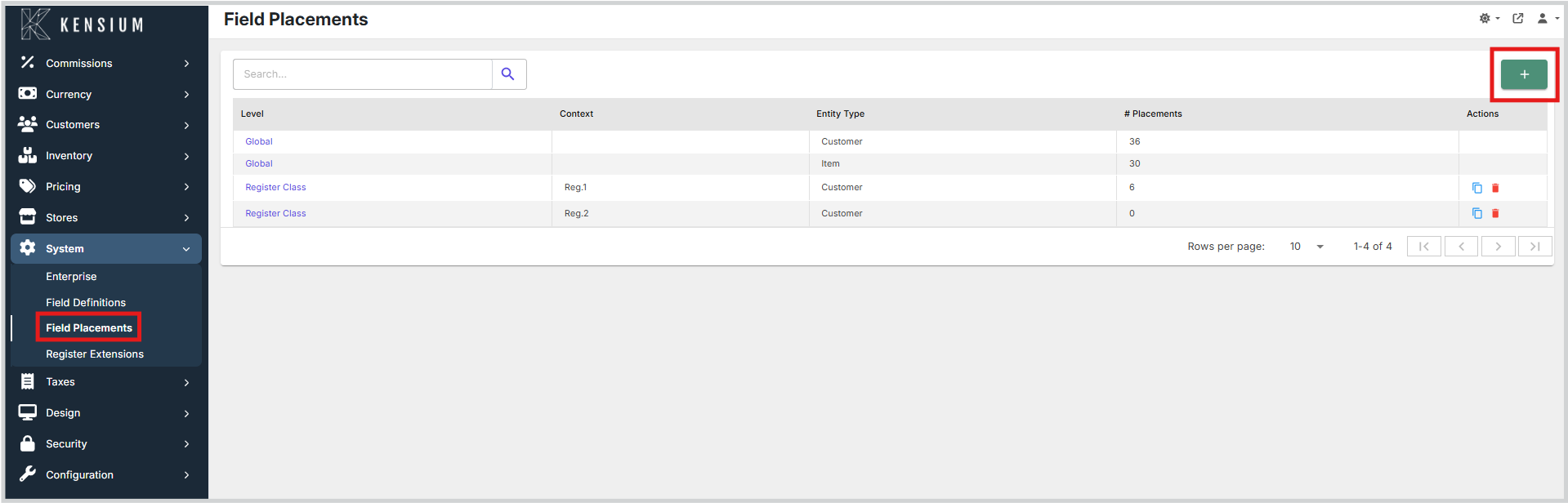
The main Field Placements screen displays a list of existing field placement scopes. A scope defines the context in which a set of field placements applies.
The grid displays the following information for each scope:
- Level: The level of the scope (for example, Global).
- Context: The specific context for the level.
- Entity Type: The type of entity the fields apply to (for example, Customer, Item).
- # Placements: The number of fields placed within this scope.
Scope Hierarchy and Inheritance
Field placements follow a three-level hierarchical structure with inheritance. Settings at lower levels override settings at higher levels:
Level 1: Global Scope
The top level that applies system-wide. Every field definition has a global placement configuration that serves as the default for all contexts.
- Applies to: All customers, items, and registers
- Inheritance: None (this is the base level)
- Configuration: Sets system-wide defaults for behavior, display name, default value, and sort order
Level 2: Register Class Scope
A middle level that applies to specific types of registers (for example, POS Register, Kiosk, Self-Service).
- Applies to: Customers/items accessed through specific register types
- Inheritance: Unset properties inherit from Global scope
- Configuration: Override behavior, display name, default value, and sorting for specific register types
Level 3: Entity Class Scope
The most specific level that applies to customer classes or item classes (for example, VIP Customer, Wholesale Item, Standard Customer).
- Applies to: Specific customer or item classifications
- Inheritance: Unset properties inherit from RegisterClass, then Global
- Configuration: Provide the most specific overrides for particular customer or item types
How Inheritance Works
When a field placement property is not set (blank or null) at a scope level, it inherits from the parent level:
- Check Entity Class scope → if property is set, use it
- If not set, check RegisterClass scope → if property is set, use it
- If not set, check Global scope → if property is set, use it
- If not set at any level, use system defaults
Example: A "Phone Number" field configured as:
- Global: Behavior = Required, DisplayName = "Phone"
- RegisterClass (Kiosk): Behavior = not set, DisplayName = "Customer Phone"
- EntityClass (VIP): Behavior = ReadOnly, DisplayName = not set
Result: A VIP customer on a kiosk register sees a ReadOnly "Customer Phone" field (most specific DisplayName from RegisterClass, most specific Behavior from EntityClass).
Creating a Field Placement Scope
To create a new field placement scope:
- Navigate to
System → Field Placements. - Click the + button in the top right corner of the Field Placements screen.
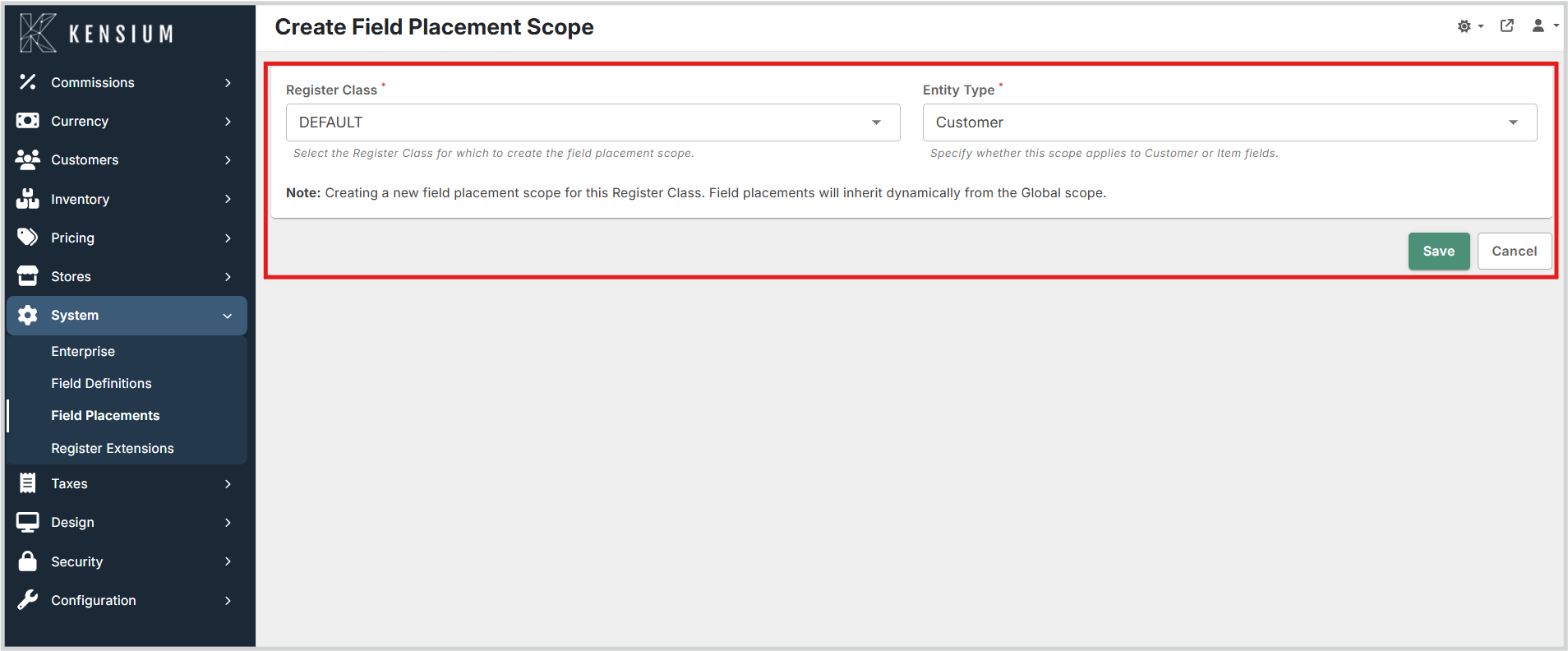
- Select the Register Class for which to create the field placement scope.
- Select the Entity Type to specify whether this scope applies to Customer or Item fields.
- Click Save.
Note
When creating a new field placement scope for a specific Register Class, the field placements will inherit dynamically from the Global scope.
Cloning a Field Placement Scope
You can clone an existing field placement scope to quickly apply the same configuration to a different Register Class.
To clone a scope:
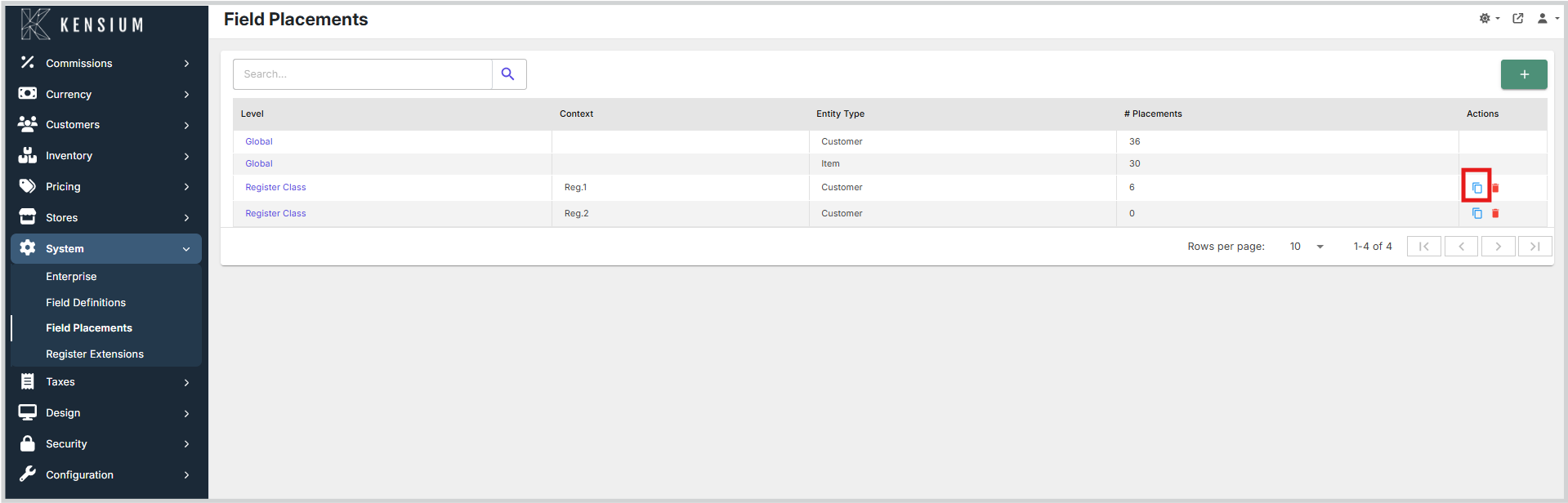
- On the main Field Placements screen, locate the scope you want to clone.
- Click the Clone icon (two overlapping squares) in the Actions column for that scope.
- A confirmation dialog will appear, explaining that this will create a new scope based on the selected one. Click Continue.
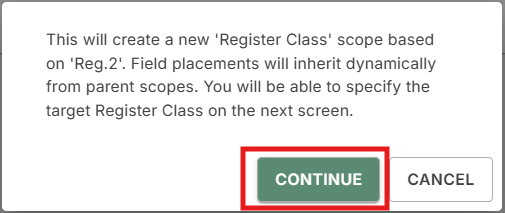
- On the Clone Field Placement Scope screen, select the Target Register Class to which the field placement scope will be cloned.
- Click Clone.
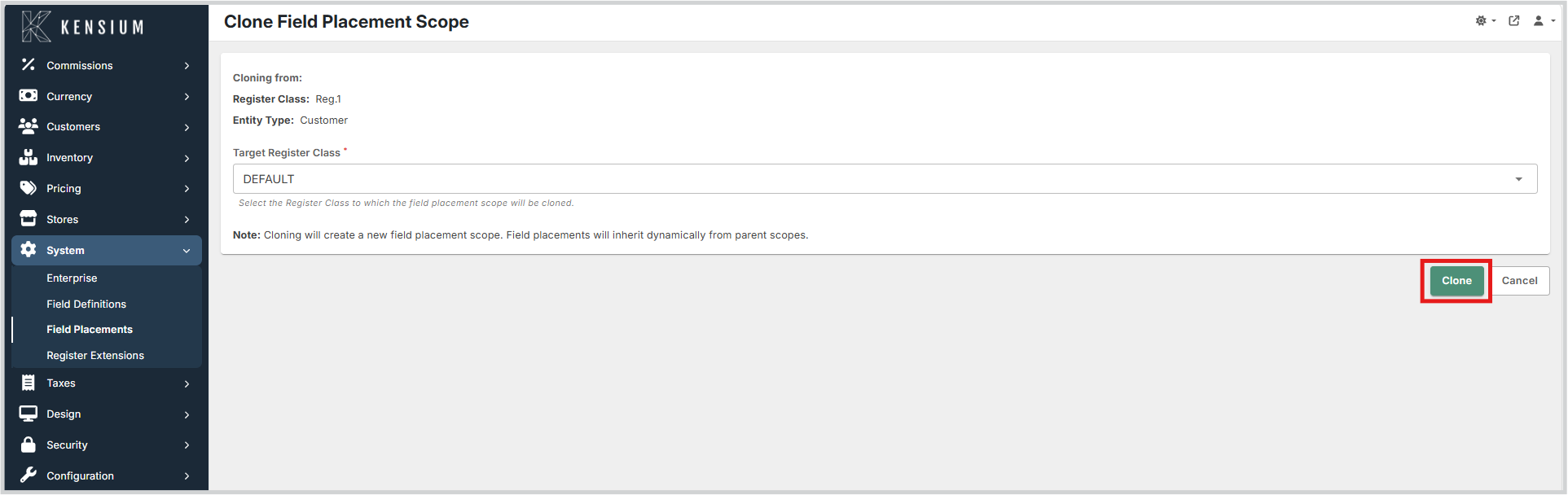
Note
Cloning will create a new field placement scope. Field placements will inherit dynamically from parent scopes.
Deleting a Field Placement Scope
To delete a field placement scope:
- On the main Field Placements screen, locate the scope you want to delete.
- Click the Delete icon (trash can) in the Actions column for that scope.
- Confirm the deletion when prompted.
Note
Global scopes typically cannot be deleted.
Editing Field Placements
Clicking on a scope in the list allows you to edit the field placements within that scope.
The Edit Field Placements screen is divided into two main areas:
- Field List (Left Pane): Displays all the fields currently placed in this scope.
- Field Details (Right Pane): Selecting a field from the list displays its details and allows you to edit its properties.
Adding a Field
To add a new field to the scope:
- Click the + (Add) button above the Field List.
- A "Select Field" dialog will appear. Choose the desired field from the dropdown list.
- Click Add Field (or the confirmation button).
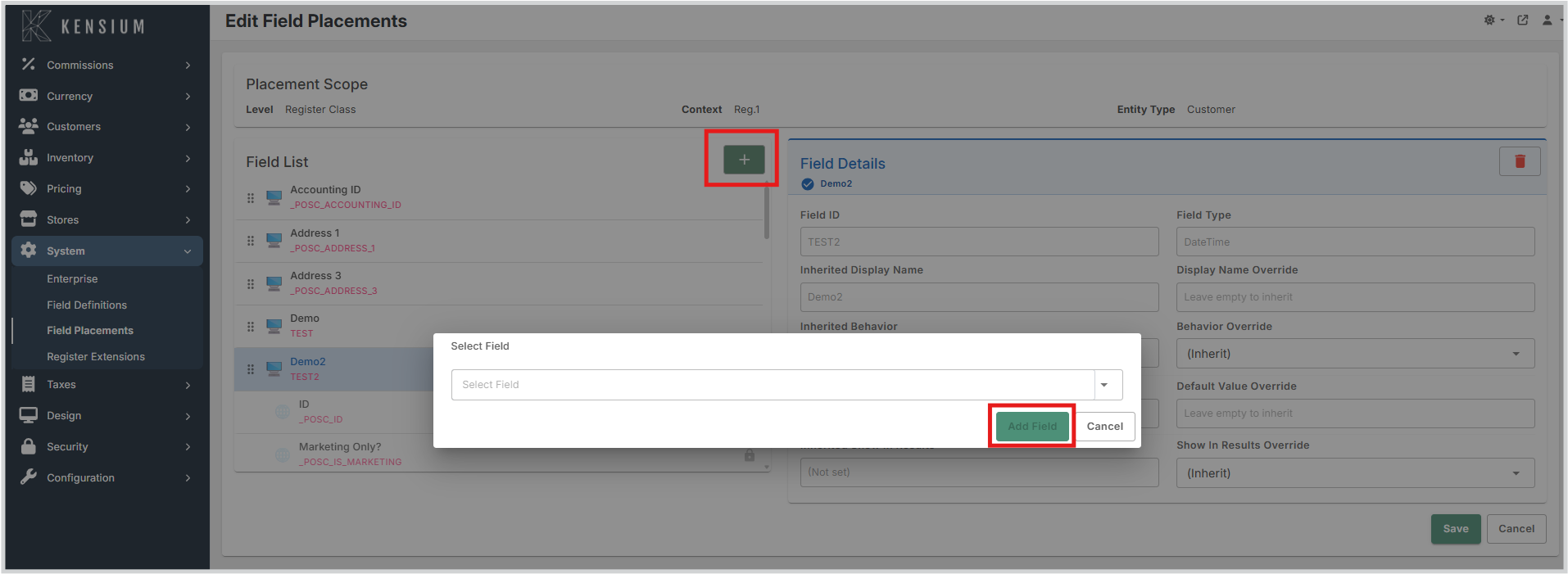
Note
If all eligible fields have already been placed in the current scope, you will see a message stating "No available fields to add. All eligible fields have already been placed."
Available Fields
When you select a field in the Field List, the Field Details panel displays the field configuration options. The panel shows both the inherited values from parent scopes and override fields where you can make changes for the current scope.
UI Layout: Inherited vs Override
Each configurable property displays in two columns:
- Left Column (Inherited X): Shows the value inherited from the parent scope level. This is read-only and helps you see what will apply if you don't override it.
- Right Column (X Override): The field where you set or clear the override value for this scope.
How it works:
- If you leave the Override field empty or select (Inherit), the value from the left column (inherited value) will be used
- If you enter a value or select an option in the Override field, that becomes the active setting for this scope
Field Placement Properties
| Field | Inherited Value | Override Options | Description |
|---|---|---|---|
| Display Name | Shows the display name from parent scope or Field Definition (read-only). | Leave empty to inherit, or enter a new name to override. | Customize the label shown to users at this scope. |
| Behavior | Shows the behavior from parent scope (read-only). | Dropdown options: • (Inherit) - Use the inherited value from parent scope • Hidden - Field is not shown to users • ReadOnly - Field is displayed but cannot be edited • Optional - Field can be edited but is not required • Required - Field must have a value before saving |
Controls visibility and editability of the field at this scope. Select (Inherit) to use the parent scope setting, or choose a specific option to override. Note: System fields may have restrictions regardless of configuration. |
| Default Value | Shows the default value from parent scope (read-only), or (None) if not set. | Leave empty to inherit, or enter a value matching the field type. | Provides an automatic value when creating new records. |
| Show In Results | Shows whether the field appears in search results from parent scope (read-only). | Dropdown options: • (Inherit) - Use the inherited setting from parent scope • Show - Include field in search result columns • Do not show - Exclude field from search result columns |
Controls whether this field appears as a column in search results. Note: This setting is ignored at Entity Class scope since results span multiple classes. |
| Detail Sort Key | Shows the sort order from parent scope (read-only). | Leave empty to inherit sorting, or enter a numeric value (like "001", "002", "100"). | Controls the order fields appear in detail/edit screens. |
| Results Sort Key | Shows the sort order from parent scope (read-only). | Leave empty to inherit sorting, or enter a numeric value. | Controls the order fields appear as columns in search results. |
Understanding Behavior Override Options
The Behavior Override dropdown lets you control how a field appears and functions at this scope level:
(Inherit) Option
Selecting (Inherit) means:
- The field placement does not override the inherited behavior
- The field will use the behavior setting from the parent scope (RegisterClass → Global → Field Definition)
- The "Inherited Behavior" field shows you what will be used
- Use this when the parent scope setting is correct for this scope
Hidden
The field is completely hidden from the user interface: - Field is not displayed on customer/item detail screens - Field does not appear in search results columns - Field is not visible in any POS screens or admin screens - Data may still exist for the field, but users cannot see or interact with it
Use cases: Internal system fields, fields being phased out, sensitive data
ReadOnly
The field is displayed but cannot be edited by users:
- Field appears on detail screens and can be viewed
- Field shows its value or default value
- User cannot click, type, or modify the field
- Useful for information managed by other systems (ERP, external systems)
Use cases: ERP-managed inventory fields, system-calculated values, audit information
Optional
The field can be edited by users and is not required:
- Field appears on detail screens and is fully editable
- Users can leave the field empty or fill it as needed
- Validation passes with or without a value
- Default value (if set) populates automatically but can be changed
Use cases: Supplementary information like customer notes, preferences, additional details
Required
The field must have a value before the record can be saved:
- Field appears on detail screens and is fully editable
- User must provide a value before completing the transaction
- System prevents saving if field is empty
- Validation ensures the value matches the field type requirements
Use cases: Critical information like customer phone number, inventory SKU, account number
Understanding Show In Results Options
The Show In Results Override dropdown controls whether a field appears in search result columns:
(Inherit)
- Uses the Show In Results setting from the parent scope
- The "Inherited Show In Results" field shows you what will be used
Show
- Field appears as a column in search results when customers/items are searched
- Helps users quickly see important information in result lists
- Column order determined by Results Sort Key values
Do not show
- Field is hidden from search result columns
- Field is not displayed as a column, but data still exists
- Reduces clutter in search results, focusing on essential columns
- Note: This setting is ignored at Entity Class scope
Practical Example
Scenario: An "Accounting ID" system field configured across scopes:
| Scope | Inherited Behavior | Behavior Override | Inherited Show In Results | Show In Results Override | Result |
|---|---|---|---|---|---|
| Global | - | Optional | - | Show | All customers see Optional Accounting ID in search results |
| RegisterClass (Kiosk) | Optional | (Inherit) | Show | (Inherit) | Kiosk registers inherit Optional behavior and Show setting from Global |
| EntityClass (VIP) | Optional (via inheritance) | Hidden | Show (via inheritance) | (Inherit) | VIP customers do not see Accounting ID field at all (Hidden overrides) |
Operational Considerations
- System Field Restrictions: System fields may have restrictions on their behavior depending on the current context, regardless of the configured behavior. For example, inventory system fields are always read-only as they are managed within the ERP. The behavior of custom fields is much more flexible.
- Sorting Limitations: A scope cannot change the sorting for fields placed by a parent level. It can only place fields it adds at a specific position relative to the fields defined at parent levels.
- Search Results Visibility: The Show In Results value is ignored for scopes at the Entity Class level, as search results will span multiple entity classes and thus cannot have a single value for this property.
How Field Placements Reflect in the Register
Important: Live Configuration Impact
Field placement configurations directly control what users see and interact with in POS registers. The settings you configure in Field Placements are immediately applied to the customer and item dialogs when:
- Items are searched or selected: Display Names, Sort Order, and Show In Results settings control which fields appear and in what order
- Different register types are used: RegisterClass-specific placements apply based on the register being used (POS Register, Kiosk, Self-Service, etc.)
- Different customer/item classes are accessed: EntityClass-specific overrides take effect based on customer or item classification
Real-world example: If you configure the "Accounting ID" field as Hidden in the VIP Customer class placement, VIP customers will not see this field anywhere when their details are opened in any register, regardless of the Global or RegisterClass settings.
Best practices:
- Test field placements in a staging environment before applying to production registers
- Review all three scope levels (Global, RegisterClass, EntityClass) to understand the final result for each scenario
- Document your field placement strategy so other administrators understand why specific overrides exist
- Monitor user feedback after changes, as behavior changes affect daily register operations