Sale Details (all)
View every item line sold or refunded across all sales. Use filters to find specific items, classes, locations, or clerks, and export the results.
Navigation:
Discovery → Sale Details (all)
Filtering Sale Details
Combine filters to find exactly what you're looking for. All filters work together to narrow results.
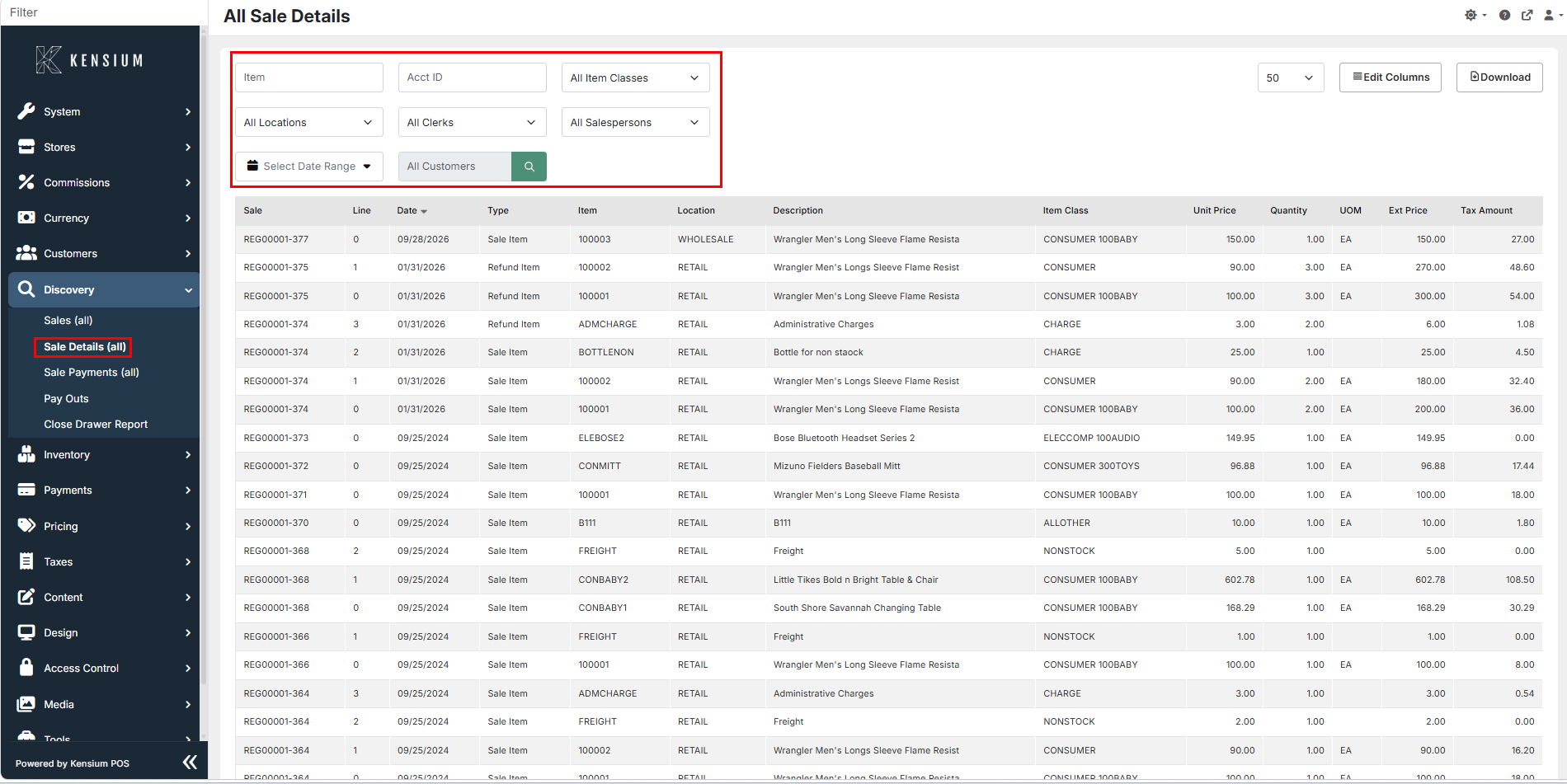
Available Filters
- Item - Enter an item number or name
- Acct ID - Enter the customer account ID
- Item Classes - Choose an item class or "All Item Classes"
- Locations - Choose a location or "All Locations"
- Clerks - Choose a clerk or "All Clerks"
- Salespersons - Choose a salesperson or "All Salespersons"
- Date Range - Choose Today, Last 30 Days, This Month, or Custom Range
- Customers - Search by customer name
How to Search
- Set your filters (combine multiple as needed).
- Click the search icon next to "All Customers" to apply the filters.
- Results appear in the table below.
Understanding Results
Each row is one item line from a sale. The results table shows:
| Column | What It Shows |
|---|---|
| Sale | Register and transaction number (for example, REG00001-377) |
| Line | Line number of the item within the sale |
| Date | Sale date (MM/DD/YYYY) |
| Type | Sale Item or Refund Item |
| Item | Item number |
| Location | Location the item was sold from |
| Description | Item description |
| Item Class | Class the item belongs to |
| Unit Price | Price per unit |
| Quantity | Quantity sold or refunded |
| UOM | Unit of measure (for example, EA) |
| Ext Price | Unit price multiplied by quantity |
| Tax Amount | Tax charged on the line |
Related Documentation
Remember
Each row is a single item line, so one sale can appear on several rows. Combine filters for precise results, and use Download to export data for external reporting.