Discount on Line Items
Reduce the price of a single item in a customer transaction.
Item discounts enable price reduction for individual products in customer transactions. This function supports promotional pricing, damaged item adjustments, and clearance pricing modifications.
Item discounts apply when:
- A single item is on sale or promotion.
- An item is damaged or defective.
- Price adjustment for one specific item is required.
- Clearance pricing must be applied.
- Customer qualifies for item-specific pricing.
Item discounts apply to the selected item only and do not affect other items in the transaction.
Navigation:
Process Sales → Discount Item (F4)
Applying Item Discounts
Item discounts reduce the price of a single product within a transaction. These are applied to individual items only and do not affect other items in the sale. Common reasons to apply item discounts include promotions, sale pricing, damage to products, clearance, or customer-specific pricing adjustments.
Item discount application:
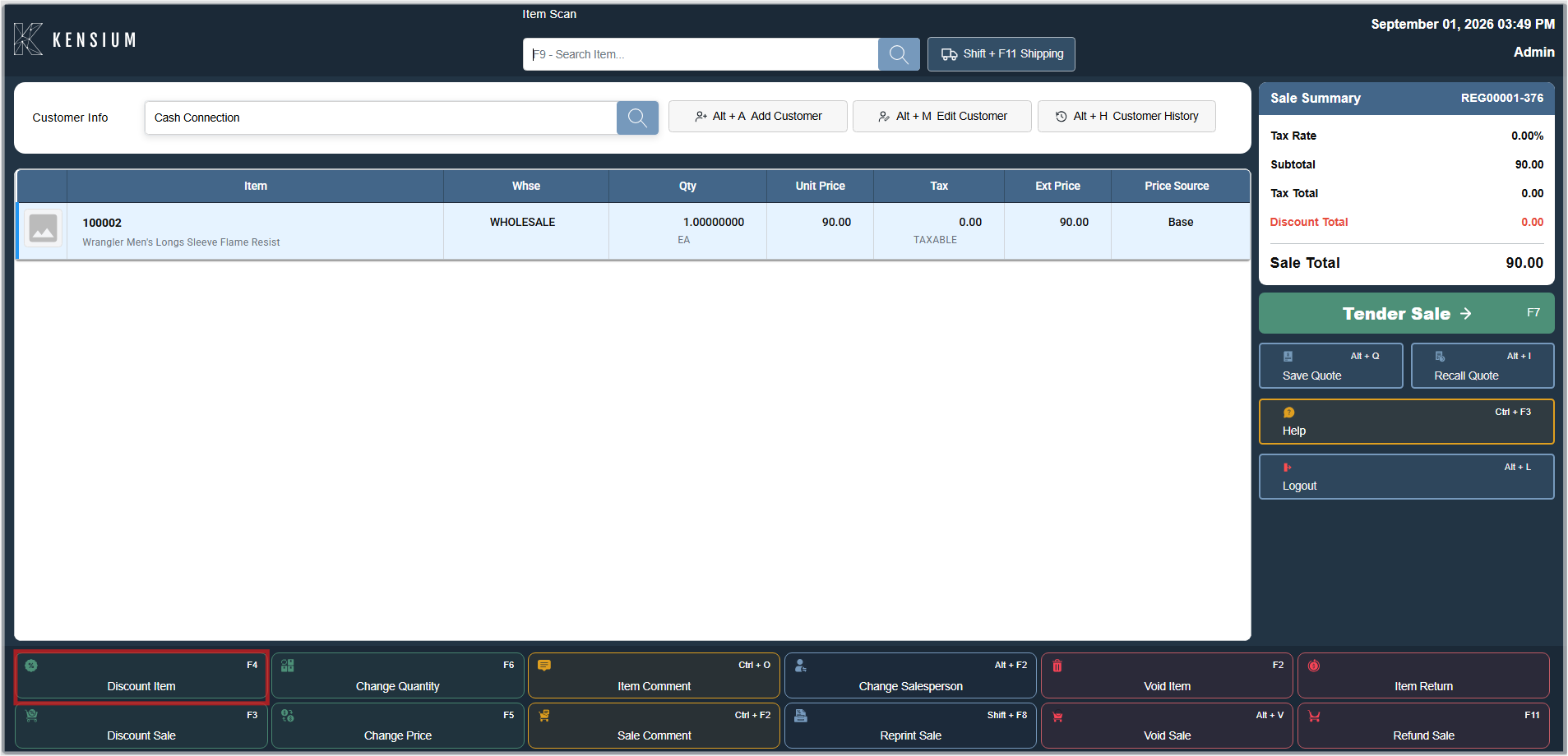
- In the sales list (the item grid), click on the item you want to discount to select it
- F4 should be pressed or the Discount Item button (located at the bottom of screen in the Action Grid) should be clicked
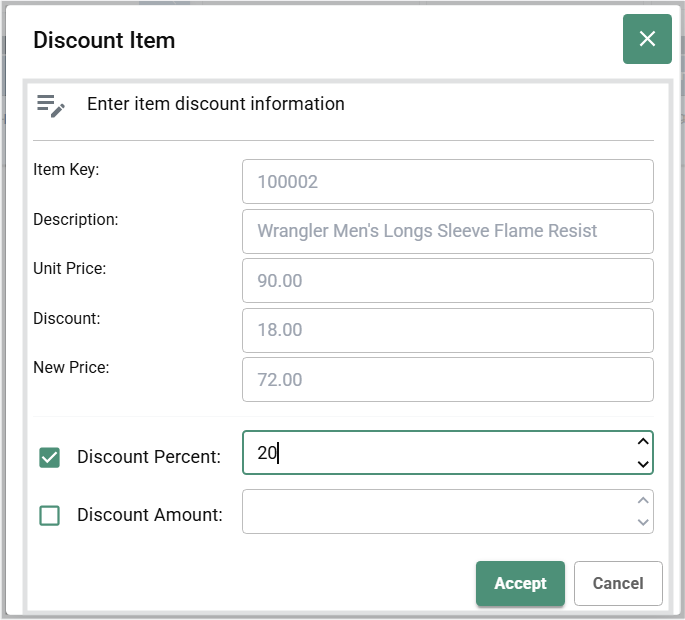
- The Discount Item dialog opens, showing the current price and discount options
- Select your discount method (percentage-based OR dollar-amount-based -see Available Fields below)
- Enter the discount value (the percentage or dollar amount to deduct)
- Review the New Price calculation to ensure it's reasonable
- Click Accept to apply and lock in the discount, or Cancel to discard without applying
Important
The discount is only applied when you click Accept. Closing the dialog without clicking Accept will not save the discount.
Modifying an existing discount:
- The item should be selected and Discount Item should be clicked again.
- The discount value should be changed.
- Accept should be clicked.
Removing a discount:
- The item should be selected and Discount Item should be clicked.
0(zero) should be entered.- Accept should be clicked.
Keyboard Shortcuts
| Shortcut | Action |
|---|---|
| F4 | Open Discount Item dialog. |
| Ctrl+O | Add item comment. |
Available Screen Fields
The Discount Item dialog displays:
| Field | Description |
|---|---|
| Item Key | Unique identifier for the item |
| Description | Name and details of the selected item |
| Unit Price | The current price before discount |
| Discount | Amount or percentage to deduct from the unit price |
| New Price | Calculated final price after discount is applied |
| Discount Percent | Checkbox option for percentage-based reduction (for example, 20 for 20% off) |
| Discount Amount | Checkbox option for fixed dollar amount reduction (for example, 5.00 for $5 off) |
| Accept | Applies the discount. |
| Cancel | Closes the dialog without applying. |
Related Documentation
Remember
The correct item must be selected before opening the discount dialog. The new price should be verified before clicking Accept. A manager should be called if the discount limit is exceeded.