UI Commands
| Summary Information | |
|---|---|
| Menu Path: | System — UI Commands |
| Required Feature(s): | System |
Navigation:
System → UI Commands
The UI Commands module allows administrators to configure keyboard shortcuts and command mappings for the POS register interface. This enables customization of command execution and keyboard navigation to match your organization's workflow preferences.
Note
UI Commands configuration is for advanced administrators only. Incorrect command syntax or key mappings may cause unexpected register behavior. Ensure you are familiar with command definitions before making changes.
Purpose of UI Commands
UI Commands are used to:
- Define custom keyboard shortcuts for frequently used operations
- Map command names to specific keystroke combinations
- Create workflow shortcuts tailored to your store's operational procedures
- Enable consistent command execution across multiple registers
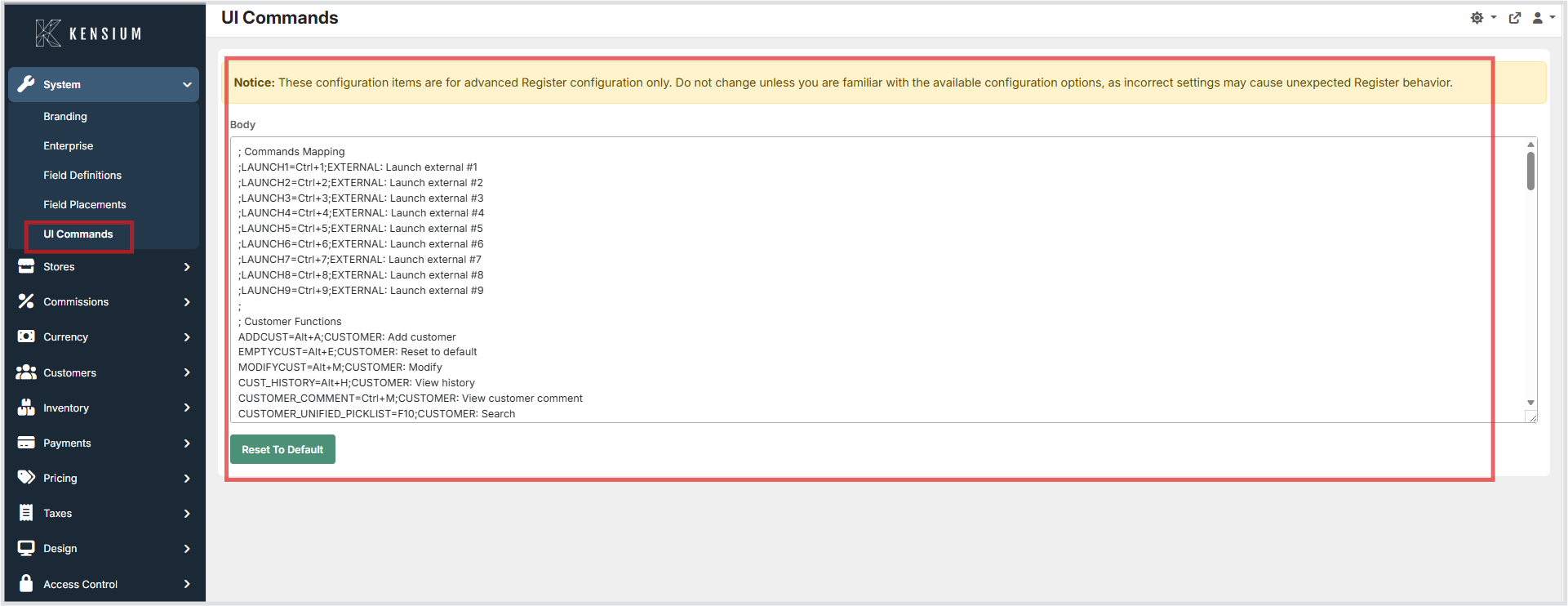
Editing UI Commands Configuration
To view or modify UI command settings:
- Navigate to
System → UI Commands. - Edit the command definitions in the text editor.
- Click Save to apply your modifications, or click Reset to Default to restore the initial configuration.
Configuration Format
The UI Commands configuration file (Commands.txt) contains command definitions and keyboard shortcut mappings. Each entry specifies:
- Command Name: The internal identifier for the command
- Keyboard Shortcut: The keystroke combination (if applicable)
- Description: Optional description of the command's purpose
Example
1 2 | |
Common Commands
Common commands that can be configured include:
- Navigation commands (menu navigation, page forward/back)
- Transaction commands (save, void, refund)
- Drawer commands (open drawer, close drawer)
- Report commands (print report, email receipt)
- System commands (login, logout, exit)
Best Practices
- Test Changes: After modifying commands, test the keyboard shortcuts on a register to ensure they work as expected
- Document Custom Commands: Keep a record of any custom commands you define for future reference and training
- Consistent Naming: Use clear, descriptive command names that indicate the command's function
- Avoid Conflicts: Ensure keyboard shortcuts don't conflict with standard system shortcuts (Ctrl+C, Ctrl+V, etc.)