Tax Classes
| Summary Information | |
|---|---|
| Menu Path: | Taxes — Tax Classes |
| Required Feature(s): | Taxes |
Navigation:
Taxes → Tax Classes
The Tax Classes module allows administrators to define and manage classification codes used to categorize inventory items for tax calculation. Tax classes work in conjunction with Tax Schedules to determine the correct tax rate applied to each item during a transaction, based on the item's classification and the applicable tax schedule at the point of sale.
Purpose of Tax Classes
Tax classes are used to:
- Classify inventory items into groups that share the same tax treatment (for example,
GENERALorGROCERIES). - Map each item classification to one or more Tax Schedule Codes with a corresponding rate, type, and tax group.
- Ensure that different item types are taxed at the correct rate when a sale is processed, regardless of the customer or store.
Creating or Editing a Tax Class
To create a new tax class or modify an existing one:
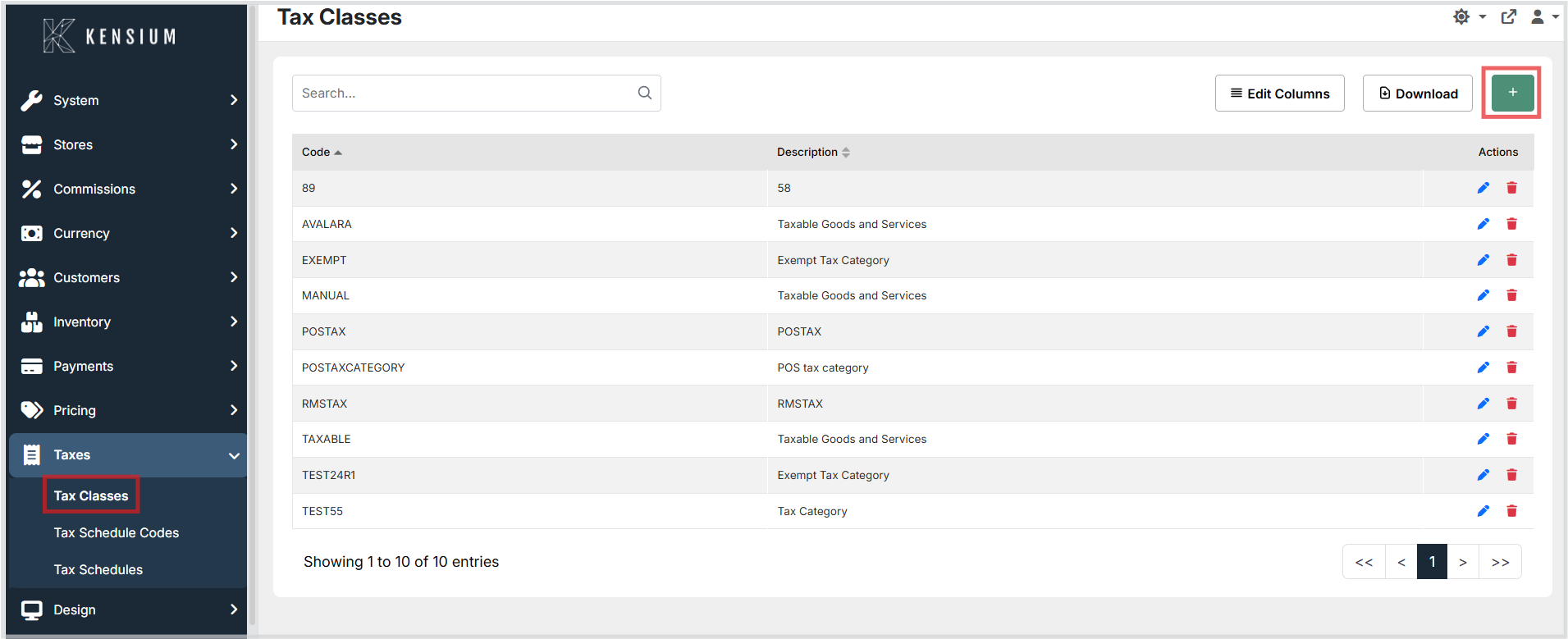
- Navigate to Taxes → Tax Classes.
- Click the green + button to open the create form.
- Enter a unique Code and an optional Description.
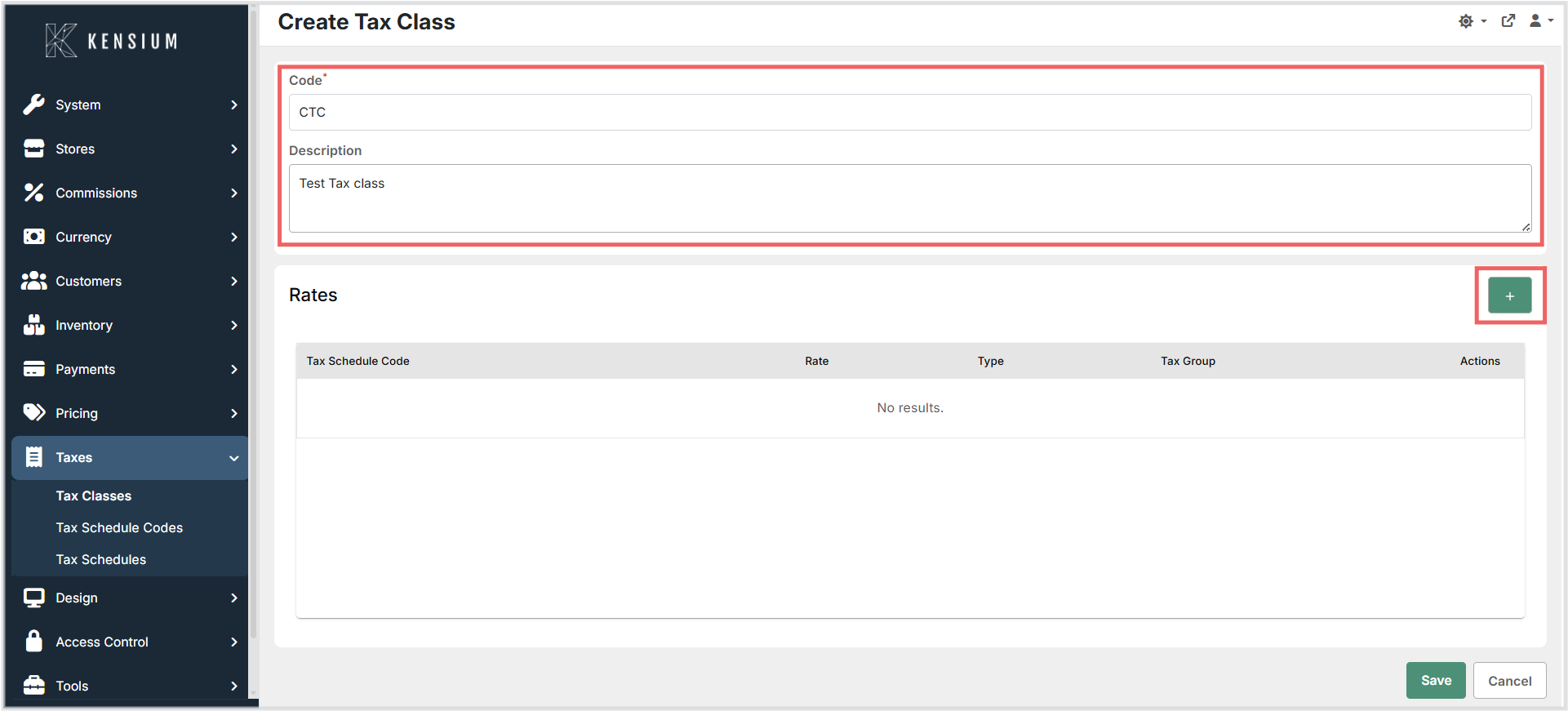
- In the Rates section, click + to add a rate row. Select a Tax Schedule Code, then set the Rate, Type, and optionally the Tax Group.
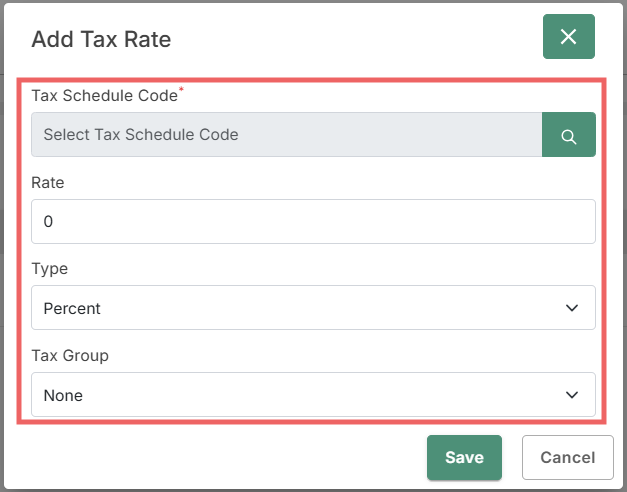
- Repeat step 4 to add additional rate rows as needed.
- Click Save to apply the configuration.
To edit an existing tax class, open it from the list, update the fields or rate rows, and click Save. To remove an individual rate row, use the delete action on that row before saving the tax class.
Available Fields
| Field | Description | Field Behavior |
|---|---|---|
| Code | A unique identifier for the tax class. | Required. Used to reference the tax class across item records, tax schedules, and reports. Must be unique across all tax classes. |
| Description | A plain-language explanation of the tax class. | Optional. Use a concise description to clarify the intended use (for example, "Standard taxable goods" or "Tax-exempt grocery items"). |
Tax Rates
Each tax class can have zero or more rate rows that map it to a specific Tax Schedule Code. When a sale is processed, the system matches the applicable Tax Schedule Code to the item's tax class and applies the rate defined in the matching row.
| Field | Description | Field Behavior |
|---|---|---|
| Tax Schedule Code | The tax schedule to which this rate applies. | Required. Select from the available Tax Schedule Codes defined in the system. |
| Rate | The numeric tax rate value. | Required. Enter the rate as a percentage value (for example, enter 5 for 5%). Supports up to five decimal places. |
| Type | Whether the rate is applied as a percentage or a fixed amount. | Required. Choose Percent for a percentage-based rate or Amount for a fixed monetary amount. |
| Tax Group | An optional grouping used for tax posting and reporting. | Optional. Use when tax amounts need to be posted to separate accounting buckets. |
How Tax Classes Are Applied
When the POS processes a sale, the system identifies the applicable Tax Schedule Code based on the customer, store, and location configuration. It then looks up the rate row that matches both the Tax Schedule Code and the item's assigned tax class. The resulting rate and type are used to calculate the tax amount for that item.
A single Tax Schedule Code can specify different rates for different tax classes. For example, a schedule may apply a standard rate to items in the GENERAL class while applying a reduced rate - or no rate at all - to items in the GROCERIES class.
If no rate row exists for a given Tax Schedule Code and tax class combination, the effective rate defaults to zero.
Operational Considerations
- Unique codes: Tax class codes must be unique across all tax classes. Attempting to save a duplicate code will result in a validation error.
- Stable codes: Treat tax class codes as stable identifiers. Avoid renaming or deleting a code that is already assigned to item records, as this may cause items to be taxed incorrectly.
- Rate entry: Confirm with your tax configuration whether rates should be entered as whole percentages (for example,
5for 5%) or as fractional values. The system stores rates with up to five decimal places of precision. - Missing rate rows: If a tax class has no rate row for the applicable Tax Schedule Code, the transaction will treat the effective rate as zero. Verify that all active tax classes have rate rows configured for every relevant schedule.
- Tax groups: The Tax Group field is used for accounting and posting purposes. Coordinate with your finance or ERP team before assigning or changing tax group values.
- Testing changes: After creating or updating a tax class, process a test transaction to verify that the correct tax amount is calculated and displayed.