Register Log In
Authenticate your credentials to access the Fusion Register and begin your shift.
Screen Layout
The login screen contains:
- Kensium Logo: Company branding at the top
- Username field: Text input for your username
- Password field: Secure input with visibility toggle (eye icon)
- Log In button: Green button to submit credentials
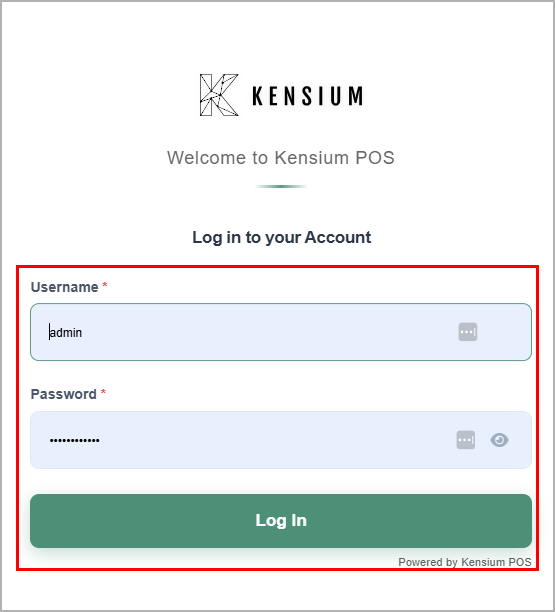
How to Log In
1
Enter Username
Type your assigned username (case-sensitive)
2
Enter Password
Type your password (characters masked)
3
Click Log In
Or press Enter to submit
4
Home Page Opens
Ready to start your shift
Tips Before Logging In
- Username: Check with your manager if you don't know it
- Caps Lock: Ensure it's OFF if your password has lowercase letters
- Password visibility: Click the eye icon to verify you typed it correctly
- Security: Never share your login credentials with others
Common Issues & Solutions
❌ Invalid Username or Password
Problem: Login failed with incorrect credentials error
Solutions:
- Verify Caps Lock is OFF
- Check username spelling (usernames are case-sensitive)
- Confirm password is correct
- Contact your manager if you forgot your credentials
🌐 Connection Error
Problem: Network or server connection issues
Solutions:
- Verify register is connected to network
- Check network cable or WiFi connection
- Wait a few moments and try again
- Restart the browser
Security Best Practices
DO:
- ✓ Keep your password confidential
- ✓ Always log out when leaving the register
- ✓ Use your own assigned credentials
- ✓ Report suspicious activity to your manager
DON'T:
- ✗ Share your credentials with anyone
- ✗ Write passwords on sticky notes
- ✗ Leave the register logged in unattended
- ✗ Use someone else's login
Logging Out
When you finish your shift or need to step away:
- Press F10 or click Log Out from the home screen
- Confirm logout when prompted
- Register returns to login screen
Important: Always log out to prevent unauthorized access.