Locations
| Summary Information | |
|---|---|
| Menu Path: | Inventory — Locations |
| Required Feature(s): | Inventory |
Navigation:
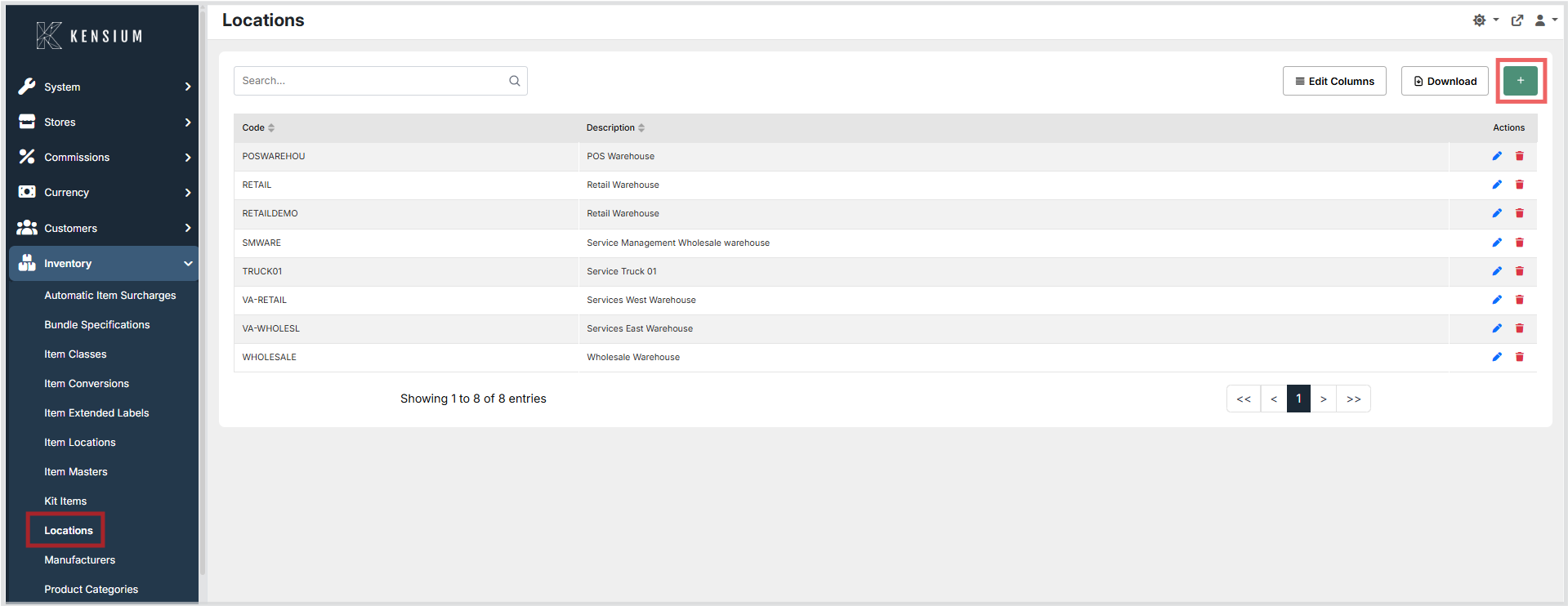
Inventory → Locations
The Locations module allows administrators to define and manage the physical or logical places where inventory is held or sold - such as warehouses, retail stores, and service trucks. Location records are referenced throughout the system to scope inventory quantities, pricing, and reporting to a specific site.
Purpose of Locations
Locations are used to:
- Define the physical or logical sites where inventory is stocked or sold.
- Scope inventory quantities, pricing, and reporting to a specific store, warehouse, or truck.
- Support stock transfers and receiving operations by identifying the source and destination of inventory movements.
- Identify franchisee-operated sites for franchise-specific reporting or business rules.
Creating or Editing a Location
To create a new location or modify an existing one:
- Navigate to
Inventory → Locations. - Click the + button to create a new location, or click the edit action on an existing row.
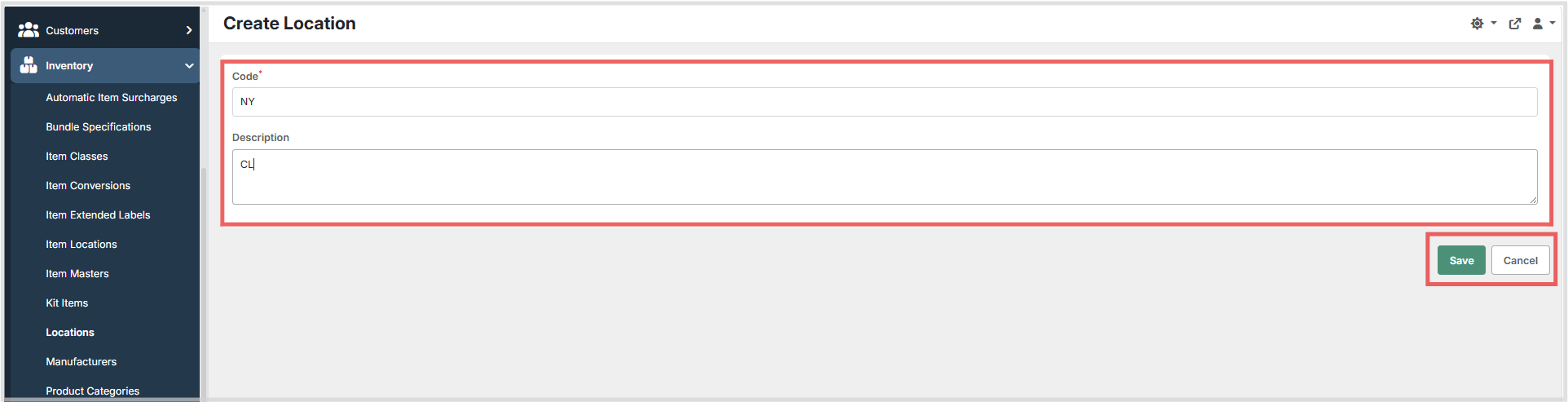
- Enter a unique Code and Description for the location.
- Click Save to persist the location, or Cancel to discard changes.
Available Fields
| Field | Description | Field Behavior |
|---|---|---|
| Code | A unique short code used to identify the location throughout the system. | Required. Must be unique across all locations. Used in pickers, reports, and inventory operations. |
| Description | The full name or description of the location, displayed in lists and pickers. | Optional. If left blank, no description is shown. |
Operational Considerations
- The Code field is used across pickers, reports, and stock operations - keep it short, unique, and stable. Once created, the code cannot be changed.
- Deleting a location that is actively referenced by item locations, stock transfers, or transactions may cause data integrity issues - verify the location is no longer in use before removing it.
Notes
- The locations grid supports searching, sorting, filtering, and edit / delete actions.
- The create/edit form uses a text input for Code and a text area for Description.