User Login Settings
The User Login Settings page allows administrators to configure how users authenticate and manage their login credentials and account information.
Navigation:
Settings → Security → User Login
Overview
User Login Settings control the authentication behavior and user self-service capabilities for system users. These settings determine what actions users are permitted to perform related to their accounts and login methods.
Accessing User Login Settings
- Navigate to
Settingsin the admin menu - Select
Securityfrom the submenu - Click on
User Loginto view and configure login settings
Login Settings Configuration
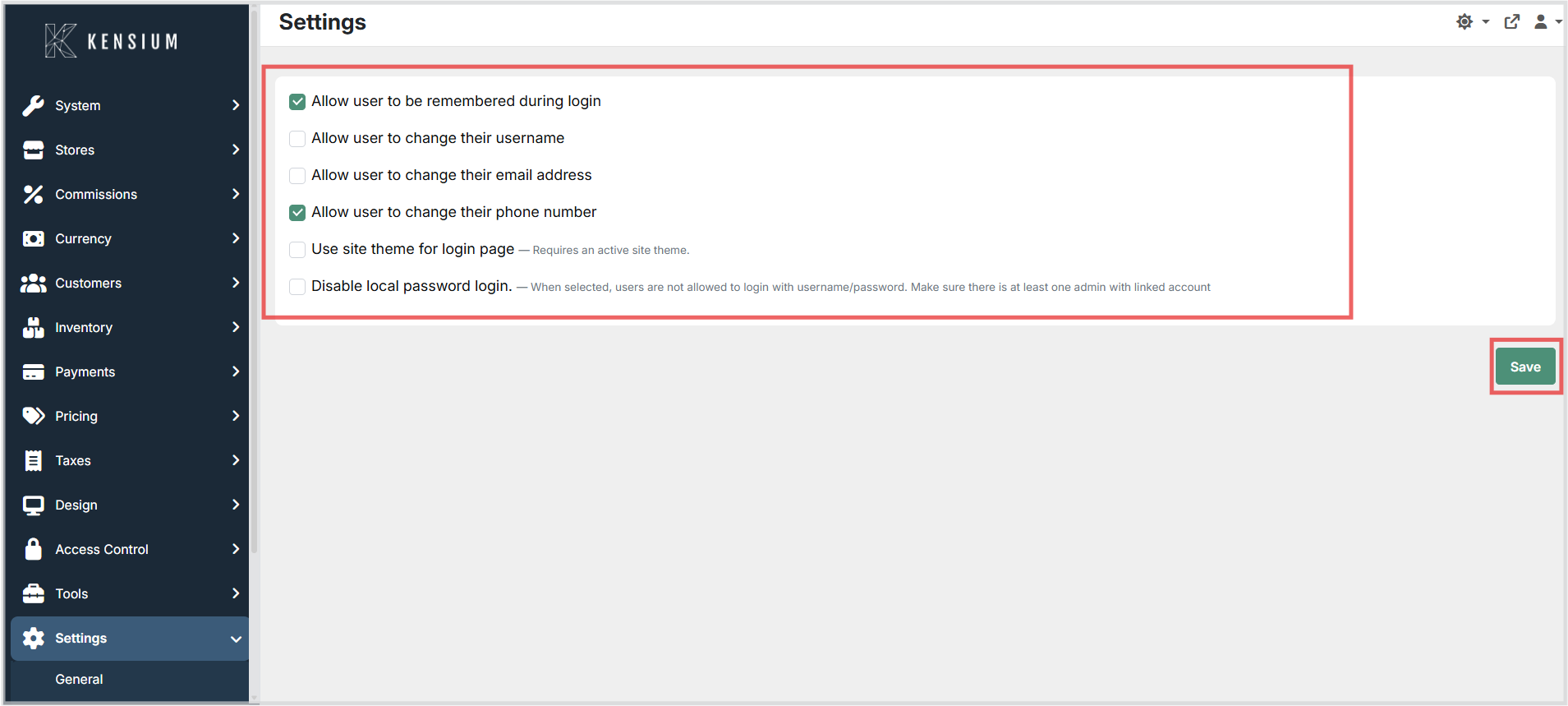
Allow User to Be Remembered During Login
Setting: Allow user to be remembered during login
Description: When enabled, users see a "Remember me" checkbox on the login page. If selected, the system retains the user's identity, allowing faster login on subsequent visits to the same device.
Status in Image: ✓ Enabled (checked)
Impact: - When Enabled: Users can opt to be remembered, improving convenience for frequent users on secure devices - When Disabled: Users must log in each time they access the system
Use Case: - Enable for employee workstations where the device is in a secure location - Disable for shared or public devices for security compliance
Allow User to Change Their Username
Setting: Allow user to change their username
Description: When enabled, users can modify their own username through their account settings. When disabled, only administrators can change usernames.
Status in Image: ☐ Disabled (unchecked)
Impact: - When Enabled: Users can update their own login username without administrative intervention - When Disabled: Username changes require administrator action, providing stricter control
Use Case: - Disable (recommended) to maintain username consistency and prevent user confusion - Enable only if your organization requires users to manage their own usernames
Security Consideration: Disabling this setting prevents users from changing their login credentials independently, maintaining better audit trails and administrative control.
Allow User to Change Their Email Address
Setting: Allow user to change their email address
Description: When enabled, users can update their email address in their account settings. When disabled, email addresses can only be changed by administrators.
Status in Image: ☐ Disabled (unchecked)
Impact: - When Enabled: Users can self-manage their email address updates - When Disabled: Email address changes require administrator approval and action
Use Case: - Disable (recommended) for systems where email addresses are tied to official employment records - Enable for organizations that want users to manage their contact information
Security Consideration: Email addresses are often used for account recovery and notifications. Restricting changes provides better security control.
Allow User to Change Their Phone Number
Setting: Allow user to change their phone number
Description: When enabled, users can update their phone number in their account settings for contact and two-factor authentication purposes. When disabled, phone numbers can only be changed by administrators.
Status in Image: ✓ Enabled (checked)
Impact: - When Enabled: Users can update their own phone number for personal contact or security verification - When Disabled: Phone number changes require administrative action
Use Case: - Enable to allow users to maintain accurate contact information - Disable if phone numbers are centrally managed through your organization
Security Consideration: Allowing phone number updates is generally safe as it pertains to the user's personal contact information rather than authentication credentials.
Use Site Theme for Login Page
Setting: Use site theme for login page
Description: When enabled, the login page uses the active site theme's branding and styling. When disabled, the login page uses the default system theme.
Status in Image: ☐ Disabled (unchecked)
Requirement: Requires an active site theme to be configured
Impact: - When Enabled: Login page displays with custom branding and styling - When Disabled: Login page uses default system appearance
Use Case: - Enable for branded environments to maintain consistent visual identity - Keep disabled if no custom theme is configured
Note: This setting requires that an active site theme is configured in your system. If no active theme exists, this setting has no effect.
Disable Local Password Login
Setting: Disable local password login
Description: When enabled, users cannot log in using username and password. Instead, users must use external authentication providers (such as Single Sign-On, SAML, or OAuth). Local password authentication is completely disabled.
Status in Image: ☐ Disabled (unchecked)
Requirement: At least one administrator must have a linked external account before enabling this setting
Impact: - When Enabled: Username/password login is disabled system-wide; users must authenticate through external providers - When Disabled: Users can authenticate using local username and password (default method)
Use Case: - Enable for enterprise environments using centralized authentication (Active Directory, Azure AD, etc.) - Keep disabled for standard username/password authentication - Useful for compliance-driven organizations requiring corporate SSO
⚠️ Warning: - This is an advanced security setting. Ensure at least one administrator has an external account configured before enabling - Enabling without proper external authentication setup may lock out all users - Only enable this setting if your organization has an external authentication provider configured and tested
Best Practice: - Test external authentication with administrator accounts first - Ensure backup administrator access is available - Document the external authentication method for user reference
Configuration Workflow
To configure User Login Settings:
- Navigate to
Settings → Security → User Login - Review each setting and understand its impact on your organization
- Check or uncheck settings based on your security policies and user needs
- Click Save to apply changes
All changes take effect immediately for new login sessions.
Security Considerations
Password Security
- Local password authentication relies on strong password policies
- Consider implementing password complexity requirements
- Enforce regular password changes for compliance
External Authentication
- If using external authentication, ensure it's properly configured before disabling local passwords
- Test external authentication thoroughly with non-production accounts first
- Maintain backup administrator access
User Self-Service
- Limiting user self-service (changing username, email) reduces account modification errors
- However, it increases administrative overhead
- Balance security control with user convenience
Login Method
- Remember me functionality should be reviewed for security-sensitive environments
- Consider disabling for shared devices or public terminals