Printers
Configure receipt and report printers for your register.
Select and assign printers for different purposes: Receipt Printer for customer receipts and Report Printers for internal documents like shift reports and X-Tape. Test each printer to verify connectivity.
Configure Printers
- Press F7 (Configure) from Home Page
- Go to PRINTERS tab
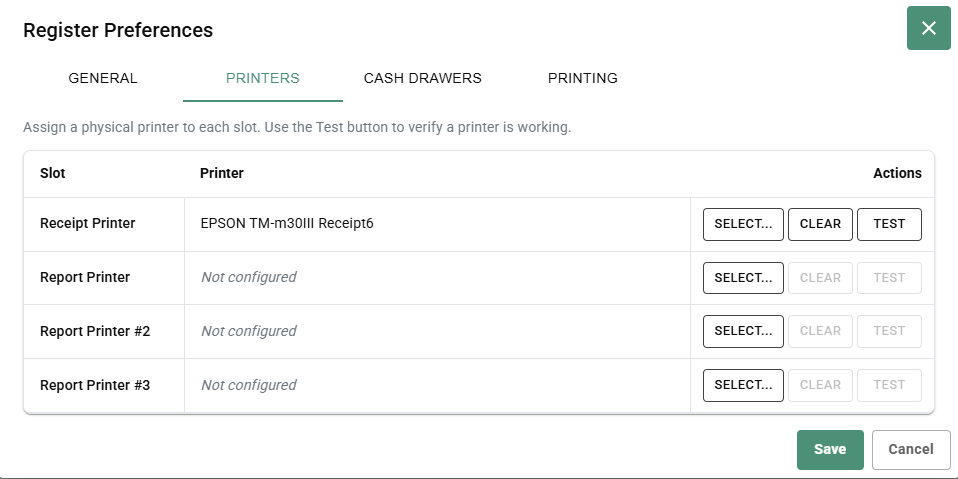
- For each printer slot:
- Click SELECT to choose printer
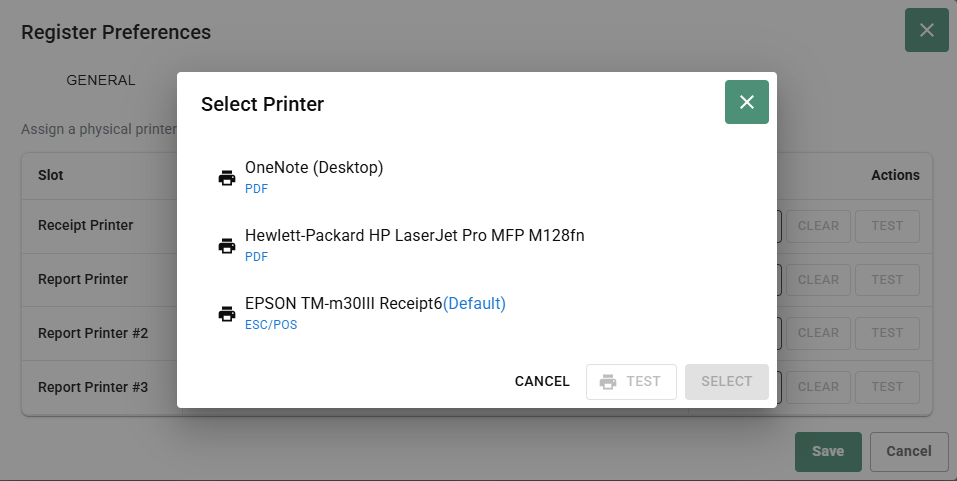
- Select printer from list
- Click SELECT to confirm
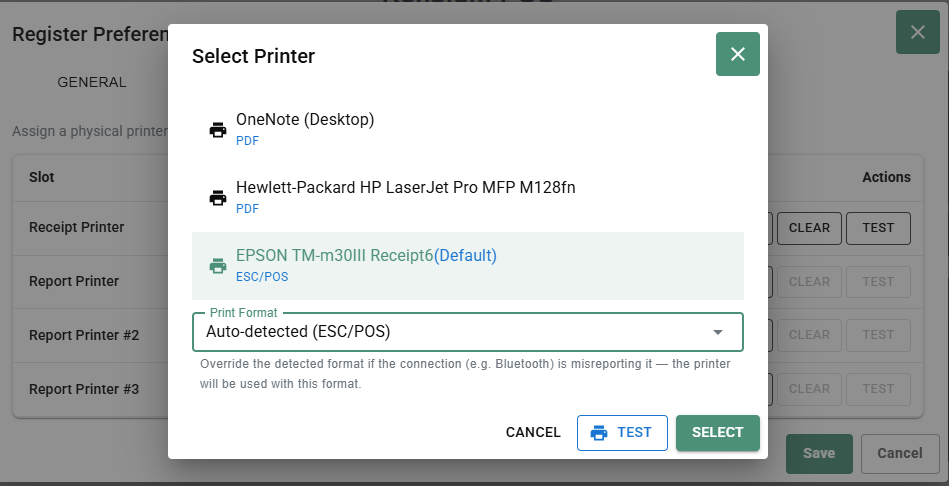
- Test each printer with TEST button
- Click Save to apply
Printer Slots
- Receipt Printer - Prints customer receipts (required)
- Report Printer - Prints shift reports and X-Tape (optional)
- Report Printer #2 - Additional report printer (optional)
- Report Printer #3 - Additional report printer (optional)
Printer Types
Common printers:
- EPSON TM-m30III Receipt6 - Thermal receipt printer (ESC/POS)
- Hewlett-Packard LaserJet - Laser report printer (PDF)
- OneNote (Desktop) - Print to PDF for testing
Printer Connection Errors
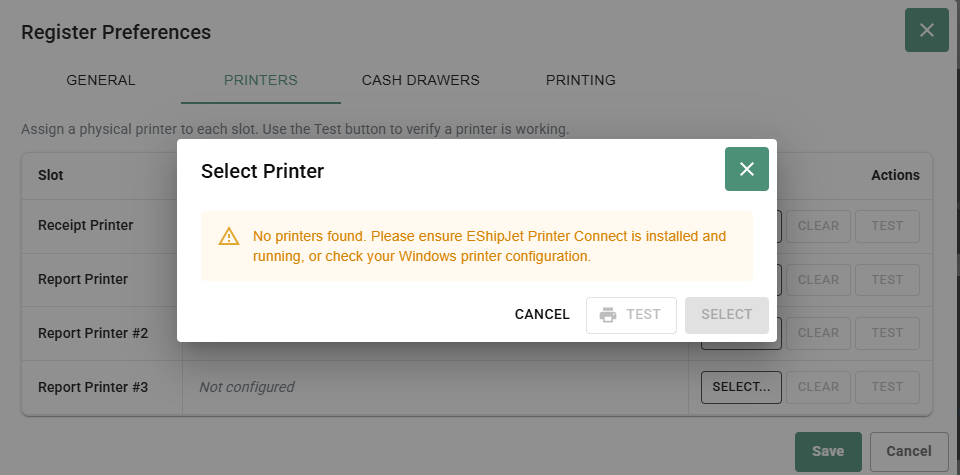
"No printers found"
This error means EShipJet Printer Connect is not running or printers are not configured in Windows.
Fix:
- Ensure EShipJet Printer Connect is installed on your computer
- Start the EShipJet Printer Connect service
- Verify Windows printer configuration
- Try again
"EShipJet Printer Connect does not appear to be running"
This error appears when the printer service is stopped or not responding.
Fix:
- Check that EShipJet Printer Connect is running
- Restart the service if needed
- Wait a few seconds for connection to restore
- Try selecting printer again