Register Classes
| Summary Information | |
|---|---|
| Menu Path: | Stores — Register Classes |
| Required Feature(s): | Stores |
Navigation:
Stores → Register Classes
Register Classes give you a single place to define how your registers behave across every part of the sales process from how taxes are calculated to what appears on a printed receipt. Once you set up a class, you can apply it to as many registers as you like so every till follows the same rules without configuring each one individually.
Creating a New Register Class
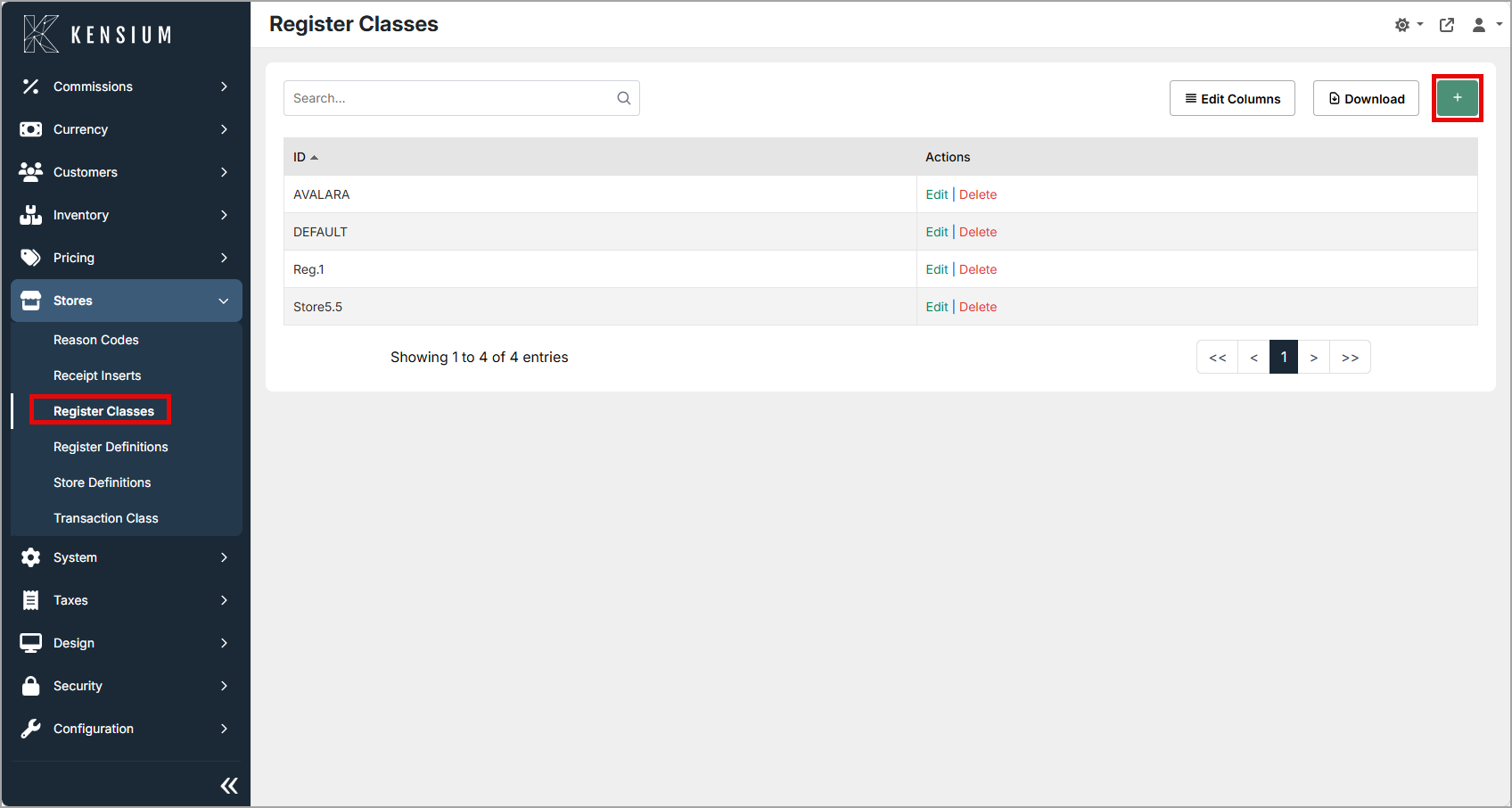
- Go to Stores → Register Classes from the main menu.
- Click the '+' button to open the creation form.
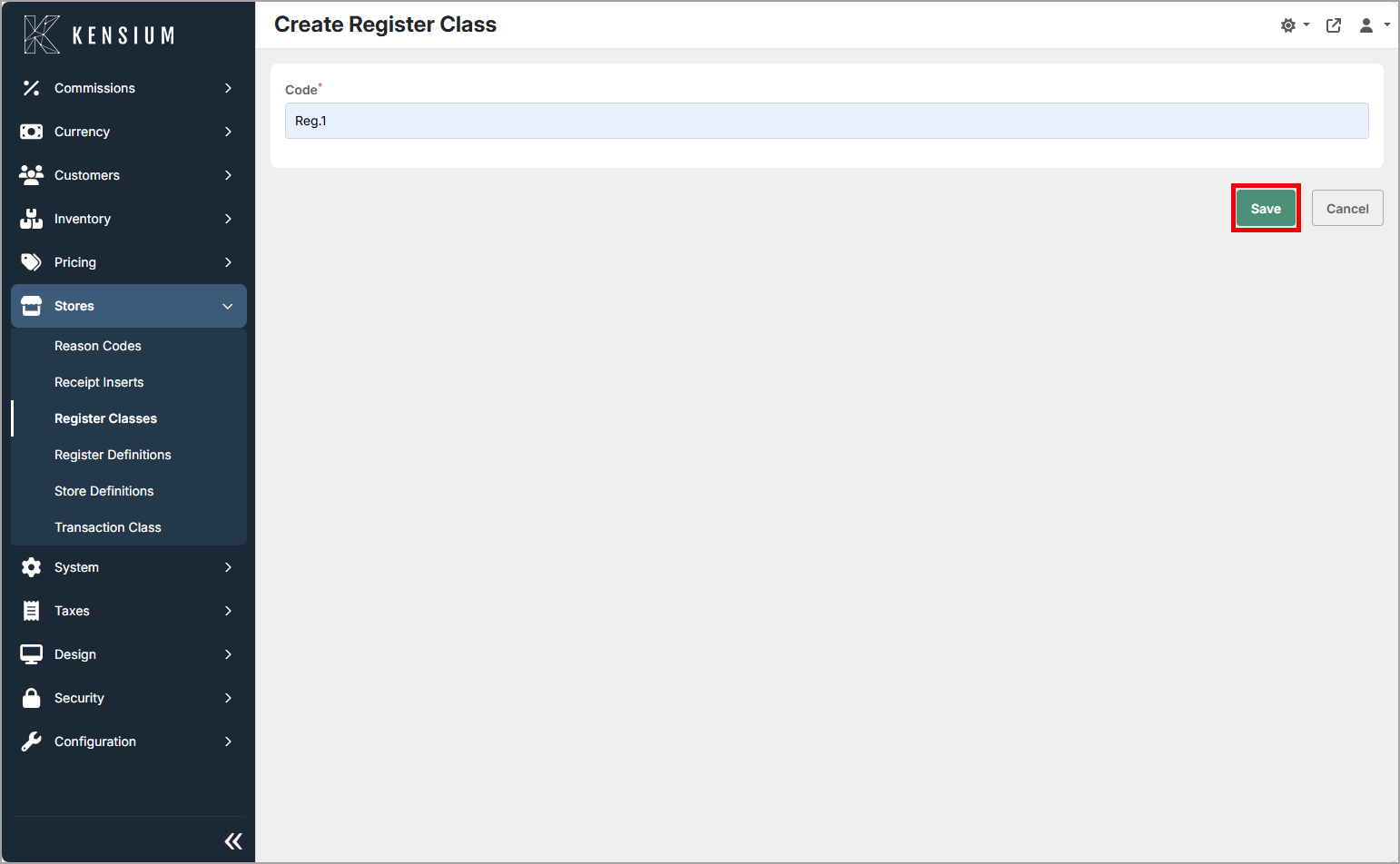
- Enter a unique Code that makes it easy to identify the class (for example, REG-STD).
- Optional: Select an existing register class to clone from the Clone From dropdown. This copies all configuration settings from the selected class, allowing you to use it as a template. Leave blank to start with default settings.
- Click Save. The portal will take you to the full configuration section where you can fill each section.
Tip
Use cloning to quickly create new register classes with similar configurations. For example, clone a "Standard POS" class to create "Standard POS - Food" with the same base settings, then customize only the differences.
Editing an Existing Register Class
- Go to Stores → Register Classes.
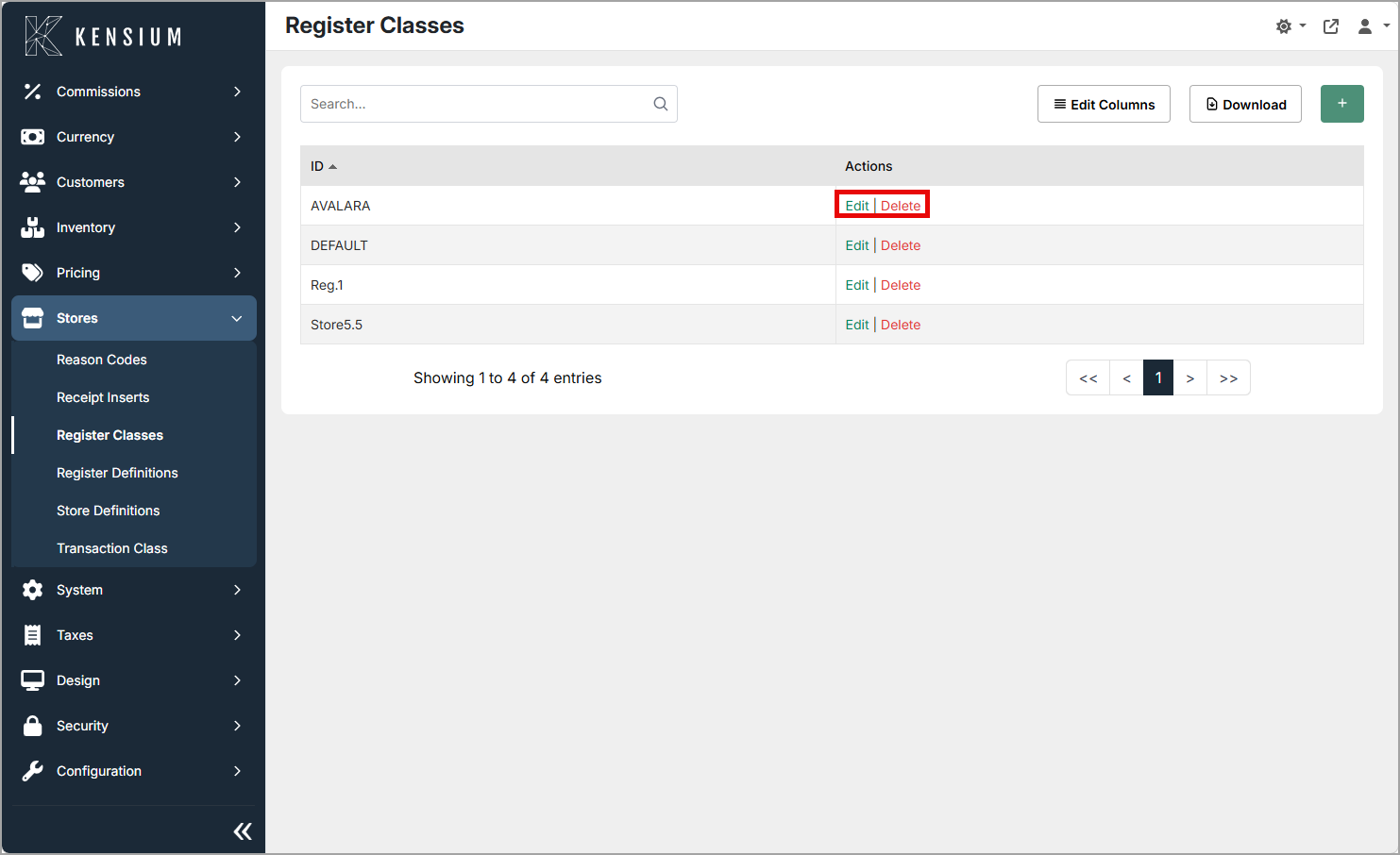
- Find the class you want to change and click Edit.
- Click Edit inside any section to change settings.
- Click Save within the section to apply your change.
Note
Changes to a register class affect every register assigned to it. Make updates during quiet trading periods where possible.
Deleting a Register Class
- Go to Stores → Register Classes.
- Click Delete next to the register class you want to remove.
- Confirm the deletion. A confirmation message appears once it is removed.
Note
Ensure no active registers are assigned to a class before deleting it; removing a class in use can cause configuration issues.
Configuration Section
The Register Class page is split into independent sections so you can update them separately.
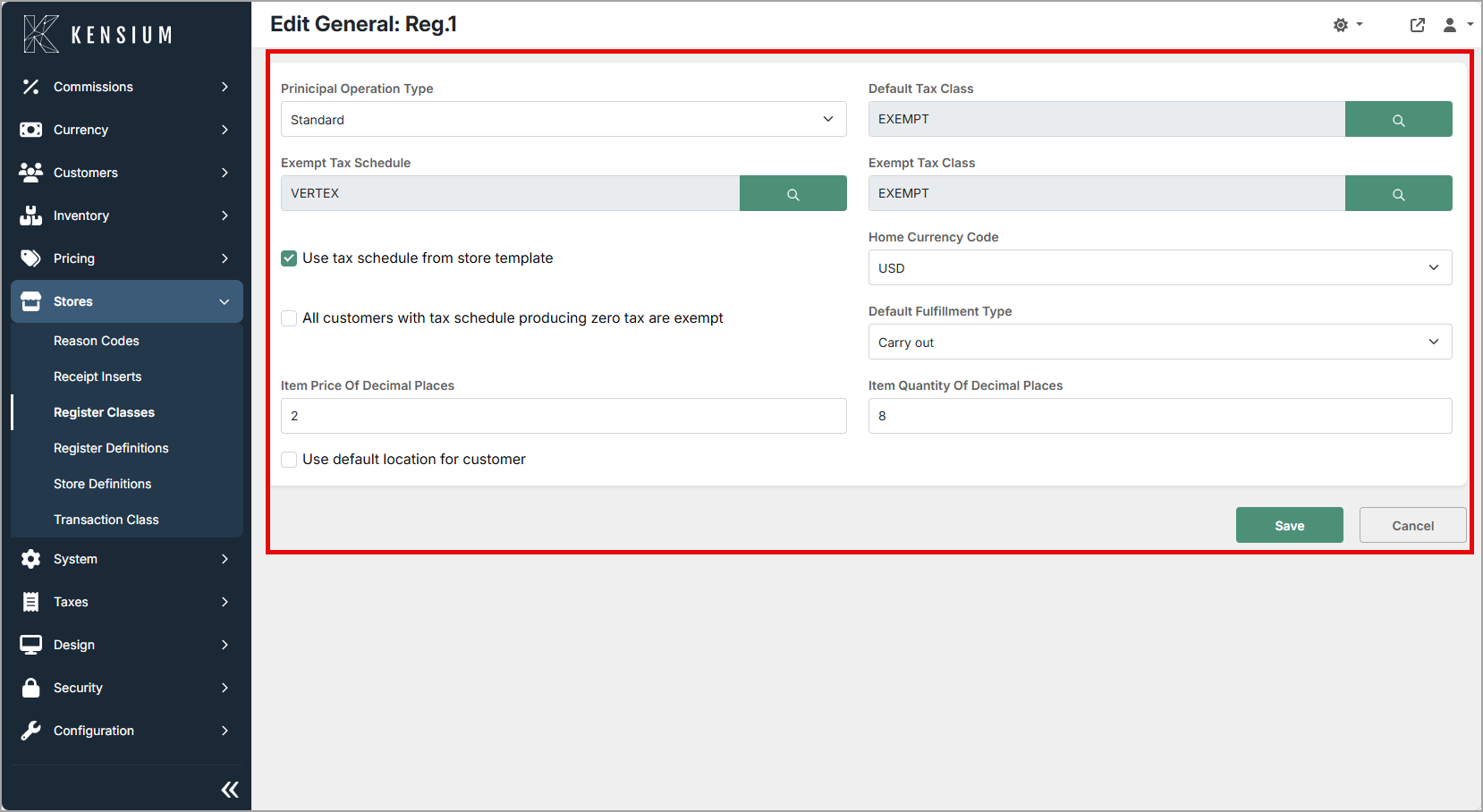
1. General
| Field | What It Does | When Enabled/Disabled |
|---|---|---|
| Principal Operation Type | Sets the primary mode of operation for the register (for example, Standard). Standard is the only mode supported for POS version 7.0. | Value selects the operation mode. |
| Default Tax Class | Tax class used when no customer or item tax class is set. | Used as a fallback when no other tax class applies. |
| Exempt Tax Schedule/Class | Tax schedule and class applied for tax-exempt customers/items. | Applied automatically when exemption conditions are met. |
| Home Currency Code | Currency used for display and rounding on this register. | Determines which currency the register works in. |
| All Customers with Zero Tax Are Exempt | Treat customers with zero-tax schedules as exempt. | Enabled: auto-exempt. Disabled: no automatic exemption. |
| Default Fulfillment Type | Default fulfillment method for new transactions (for example, Carry out). | Pre-selects the fulfillment type at sale start. |
| Item Price/Quantity Decimal Places | How many decimal places are shown for prices and quantities. | Controls numeric precision on the register. |
| Use Default Location for Customer | Assign this register's default location to new customers. | Enabled: auto-assigned. Disabled: staff must select. |
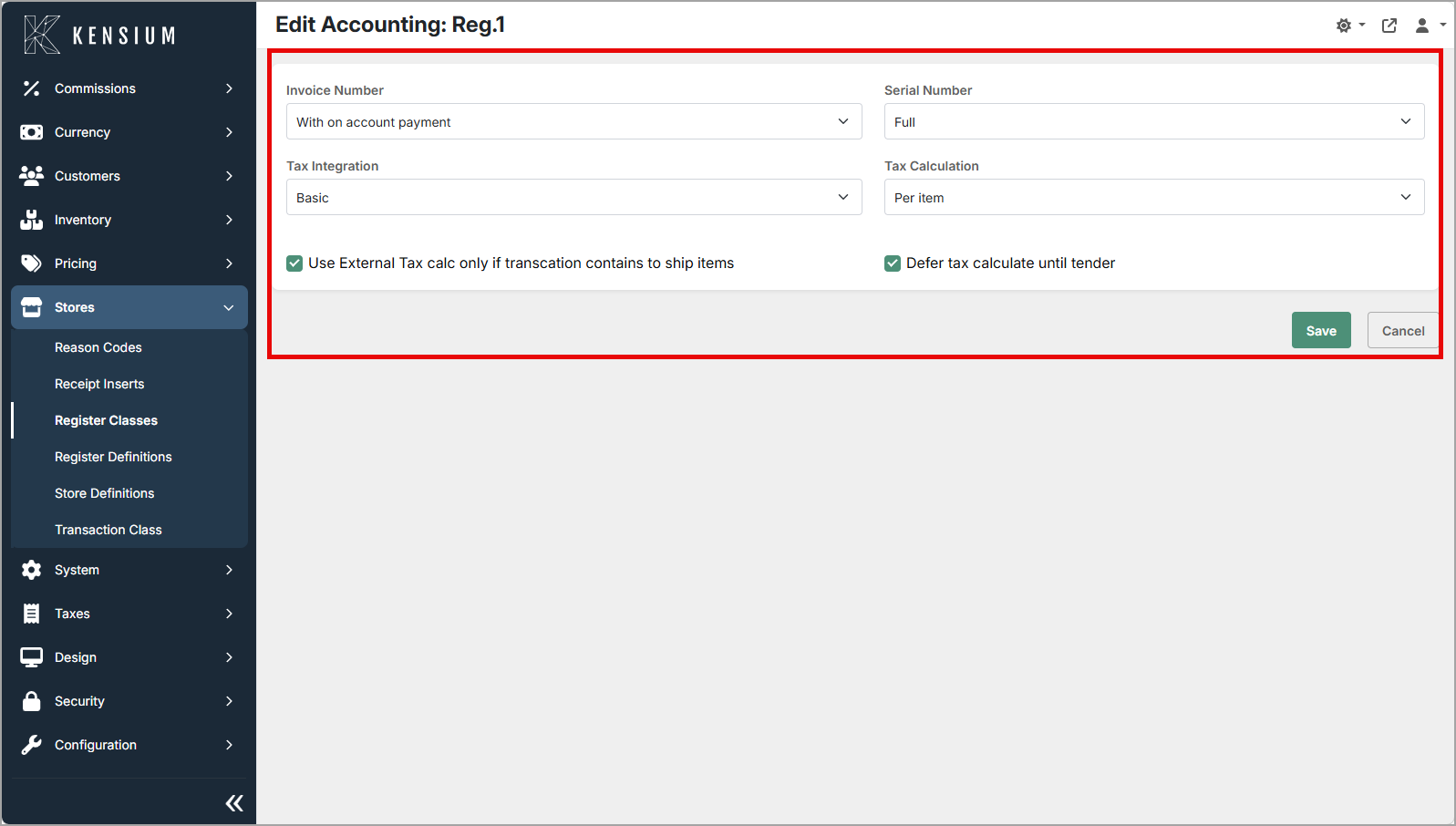
2. Accounting
| Field | What It Does | When Enabled/Disabled |
|---|---|---|
| Invoice Number | Defines invoice numbering format or source. | Determines numbering (for example, sequential or none). |
| Serial Number | Controls serial number capture during transactions. | Sets serial number recording behaviour. |
| Tax Integration | Choose built-in tax rules or an external tax service. | Selects tax provider or integration mode. |
| Tax Calculation | Calculate tax per line or for the whole transaction. | Per-item or per-transaction granularity. |
| Use External Tax Calc Only for Ship Items | Call external tax services only for transactions with shippable items. | Enabled: external tax for ship items only. Disabled: may apply to other transactions. |
| Defer Tax Until Tender | Delay tax calculation until the payment step. | Enabled: tax calculated at tender. Disabled: re-calculated each time an item is added to a sale, a quantity changed, or the sale customer is changed. |
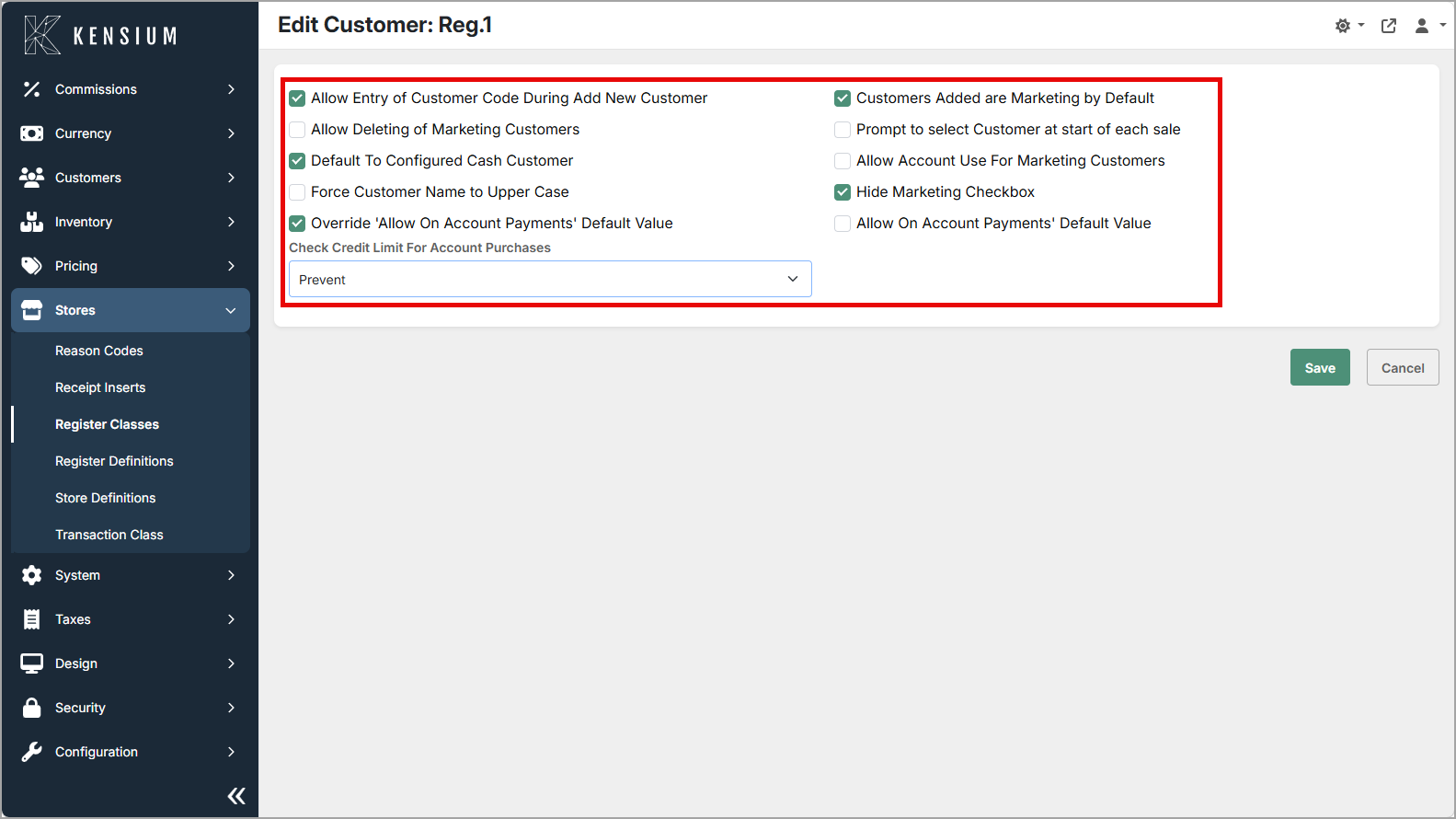
3. Customer
| Field | What It Does | When Enabled/Disabled |
|---|---|---|
| Allow Entry of Customer Code | Let staff enter a custom customer code when creating customers. | Enabled: manual entry allowed. Disabled: system assigns the code. |
| Customers Added Are Marketing by Default | Auto-flag new customers for marketing. | Enabled: auto-flagged. Disabled: not flagged. |
| Allow Deleting of Marketing Customers | Allow deletion of marketing-flagged customers. | Enabled: deletion allowed. Disabled: deletion blocked. |
| Prompt to Select Customer at Sale Start | Ask staff to pick a customer at the start of a sale. | Enabled: prompt shown. Disabled: no prompt. |
| Default to Configured Cash Customer | Use the configured cash customer when no customer selected. | Enabled: auto-assigned. Disabled: no default. |
| Allow Account Use for Marketing Customers | Permit account payments for marketing customers. | Enabled: account payments allowed. Disabled: not permitted. |
| Force Customer Name to Upper Case | Save and display customer names in uppercase. | Enabled: uppercase enforced. Disabled: names unchanged. |
| Override Allow On Account Payments | Let this register override the global on-account setting. | Enabled: override active. Disabled: system default applies. |
| Check Credit Limit for Account Purchases | Enforce credit limits when charging to account. | Enabled: credit limit checked. Disabled: not checked. |
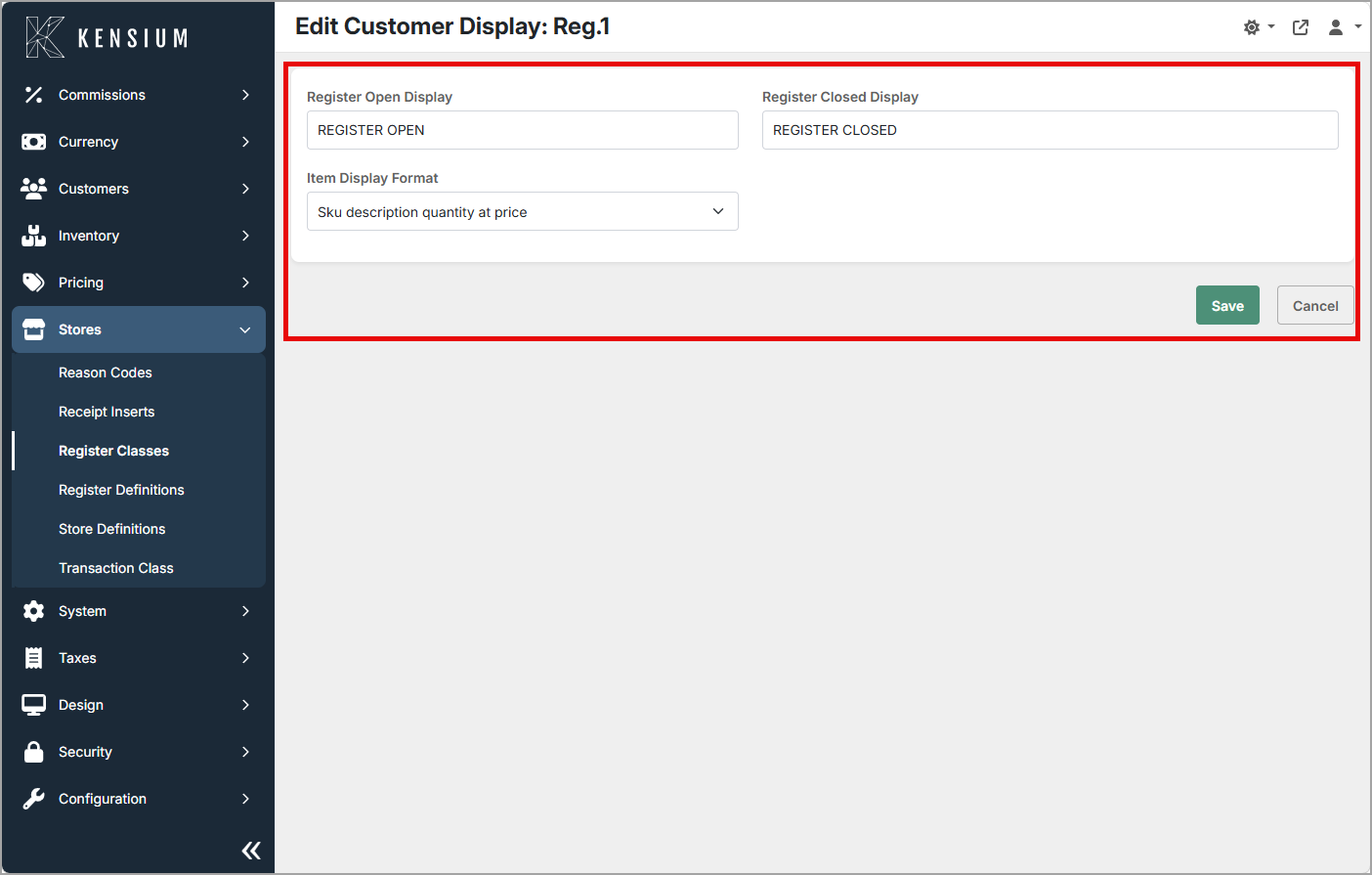
4. Customer Display
| Field | What It Does | When Enabled/Disabled |
|---|---|---|
| Register Open Display | Message shown on the customer-facing screen when open. | Leave blank to show nothing. |
| Register Closed Display | Message shown on the customer-facing screen when closed. | Leave blank to show nothing. |
| Item Display Format | Format used for item details on the customer screen. | Choose the format (for example, SKU, description, qty, price). |
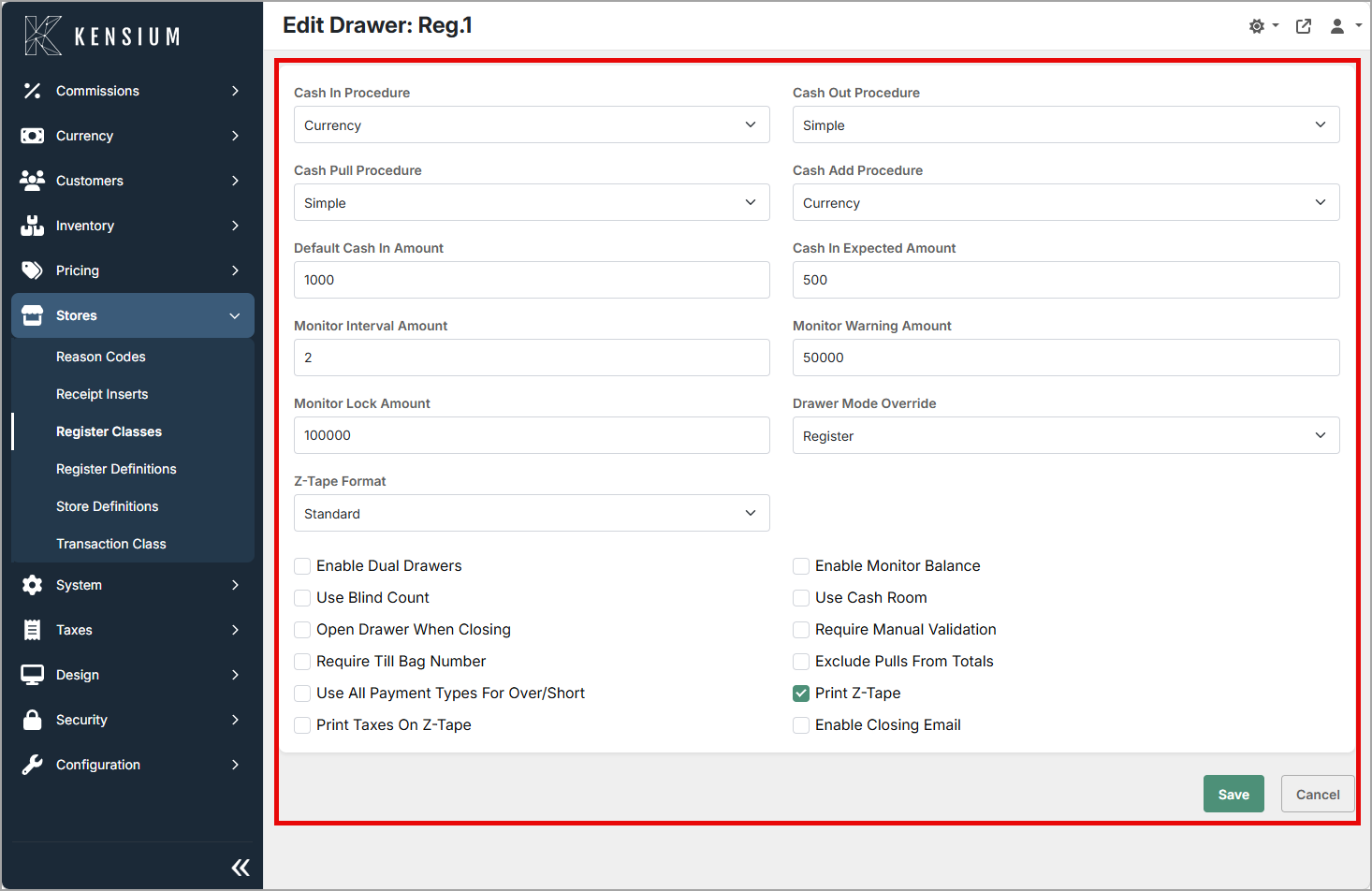
5. Drawer
| Field | What It Does | When Enabled/Disabled |
|---|---|---|
| Cash In/Out/Pull/Add Procedure | Workflow used for drawer cash movements. | Set to None to disable a procedure. |
| Default Cash In Amount | Suggested starting amount during cash-in. | Shown as a starting value. |
| Cash In Expected Amount | Expected cash amount for reconciliation. | Used to check variances at close. |
| Monitor Interval Amount | How often (by transactions) the drawer is checked. | Set zero to disable monitoring. |
| Monitor Warning Amount | Drawer balance threshold that triggers a warning. | Set a value to enable warnings; zero disables. |
| Monitor Lock Amount | Balance that automatically locks the drawer. | Set a value to enable auto-lock; zero disables. |
| Drawer Mode Override | Use a different drawer mode than enterprise default. | Enabled: register uses overridden mode. Disabled: enterprise mode applies. |
| Z-Tape Format | Format used for Z-Tape closing reports. | Choose the report format for your hardware. |
| Enable Dual Drawers | Support two physical drawers on one register. | Enabled: two drawers supported. Disabled: single drawer only. |
| Enable Monitor Balance | Turn on live drawer balance monitoring. | Enabled: live monitoring. Disabled: disabled. |
| Use Blind Count | Hide expected totals during count procedures. | Enabled: blind counts required. Disabled: expected totals shown. |
| Use Cash Room | Use a centralized cash room workflow. | Enabled: cash room process enabled. Disabled: standard drawer workflow. |
| Open Drawer When Closing | Open the drawer automatically at close. | Enabled: drawer opens. Disabled: drawer remains closed. |
| Require Manual Validation | Add a manual validation step during reconciliation. | Enabled: manual confirmation required. Disabled: automated flow used. |
| Require Till Bag Number | Prompt for a bag number when closing. | Enabled: prompt shown. Disabled: no prompt. |
| Exclude Pulls from Totals | Do not include cash pulls in drawer totals. | Enabled: pulls excluded. Disabled: pulls included. |
| Use All Payment Types for Over/Short | Include all payment types in over/short calcs. | Enabled: all types counted. Disabled: may be limited. |
| Print Z-Tape | Automatically print the Z-Tape at close. | Enabled: printed automatically. Disabled: not printed. |
| Print Taxes on Z-Tape | Include tax details on the Z-Tape. | Enabled: taxes printed. Disabled: taxes omitted. |
| Enable Closing Email | Send an email summary when the drawer closes. | Enabled: email sent to configured recipients. Disabled: no email. |
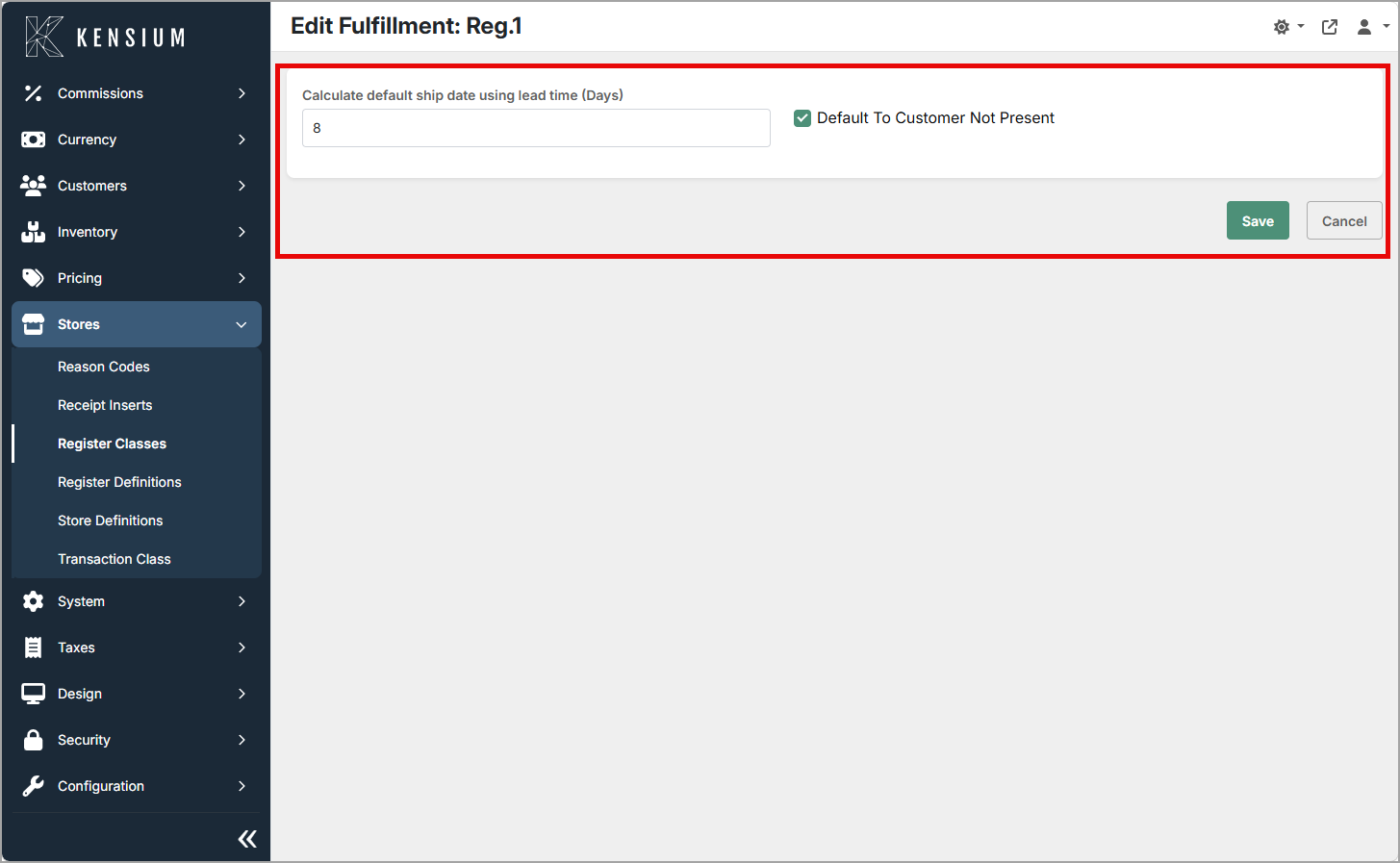
6. Fulfillment
| Field | What It Does | When Enabled/Disabled |
|---|---|---|
| Calculate Default Ship Date Using Lead Time | Auto-calc default ship date from lead time (days). | Enabled: auto-calculated. Disabled: manual entry required. |
| Default to Customer Not Present | Default transactions to customer-not-present where appropriate. | Enabled: customer-not-present default. Disabled: customer-present default. |
7. Item
| Field | What It Does | When Enabled/Disabled |
|---|---|---|
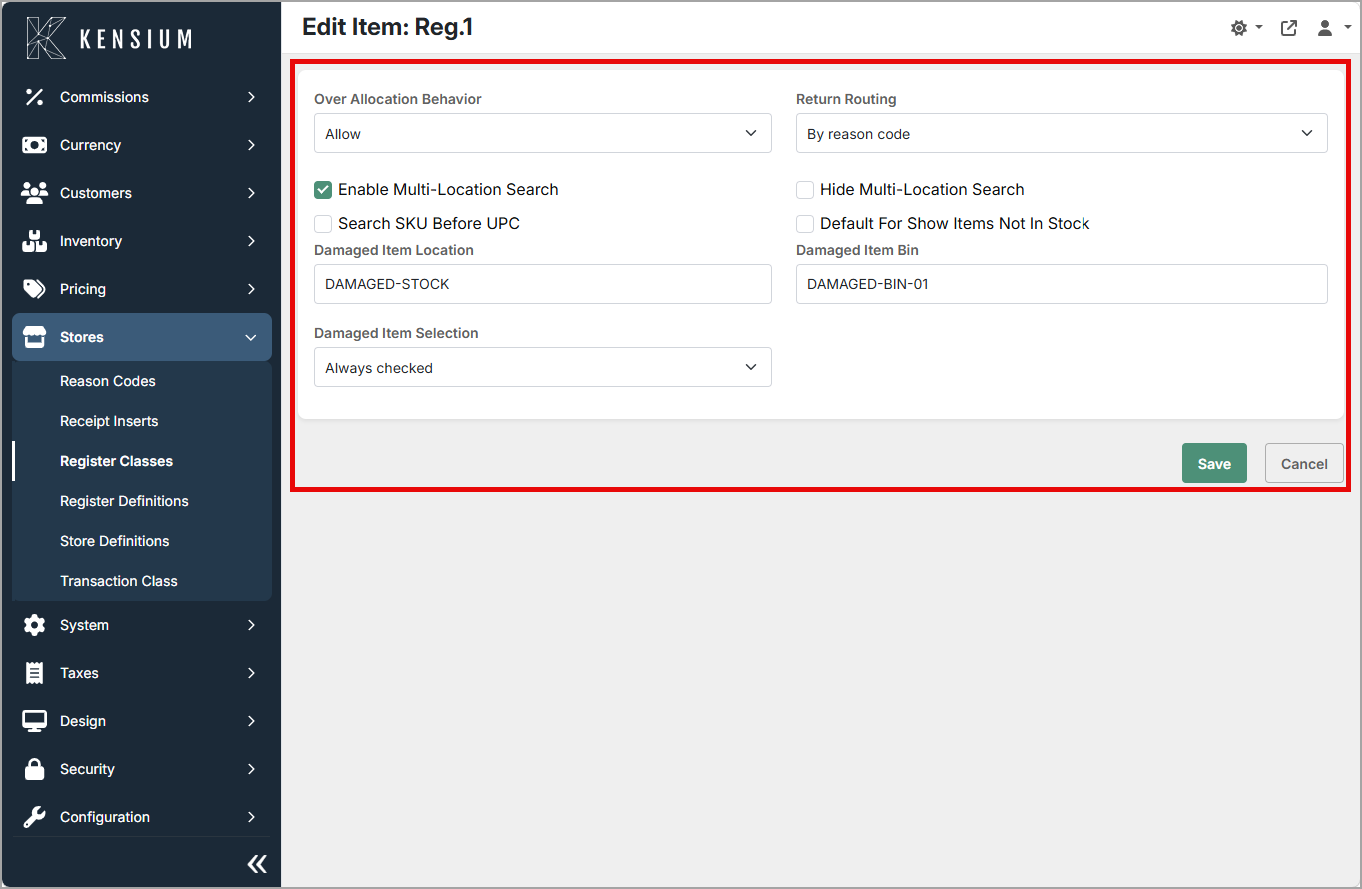
| Over Allocation Behavior | Behaviour when requested quantity exceeds stock. | Choose Allow or Prevent. |
| Return Routing | Where returned items are routed (for example, return bin). | Select return routing policy. |
| Enable Multi-Location Search | Search items across multiple inventory locations. | Enabled: searches all locations. Disabled: current location only. |
| Hide Multi-Location Search | Hide the multi-location search option from staff. | Enabled: option hidden. Disabled: option shown. |
| Search SKU Before UPC | Prefer SKU over UPC when searching or scanning. | Enabled: SKU first. Disabled: UPC first. |
| Default for Show Items Not in Stock | Default visibility for out-of-stock items. | Choose show or hide by default. |
| Damaged Item Location/Bin/Selection | Where damaged items are recorded and default selection. | Set location/bin and whether damaged is preselected. |
8. Login
| Field | What It Does | When Enabled/Disabled |
|---|---|---|
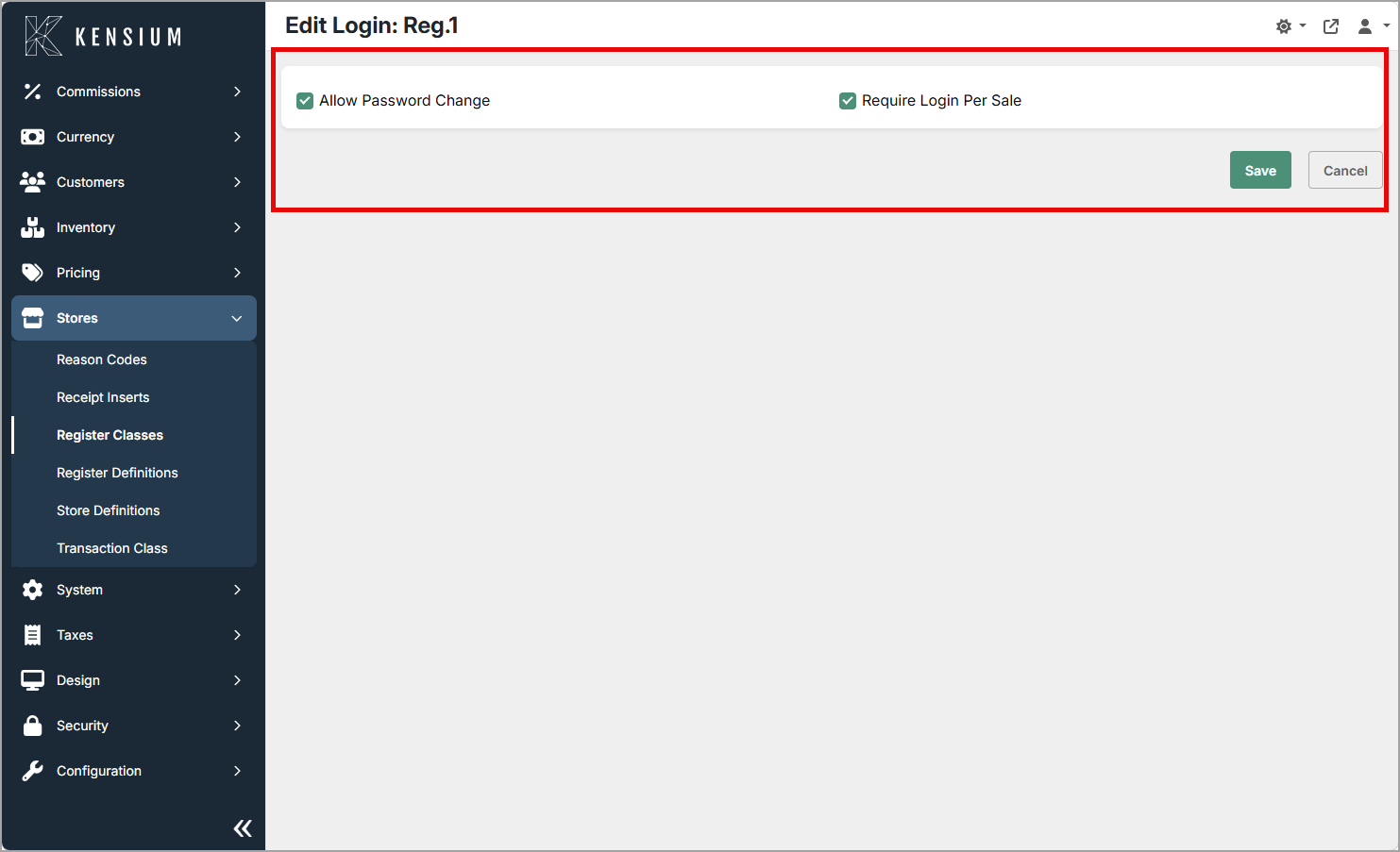
| Allow Password Change | Allow users to change their password at the register. | Enabled: allowed. Disabled: restricted. |
| Require Login Per Sale | Force staff to log in for every sale. | Enabled: login per sale required. Disabled: one login covers multiple sales. |
9. Manager Authorization
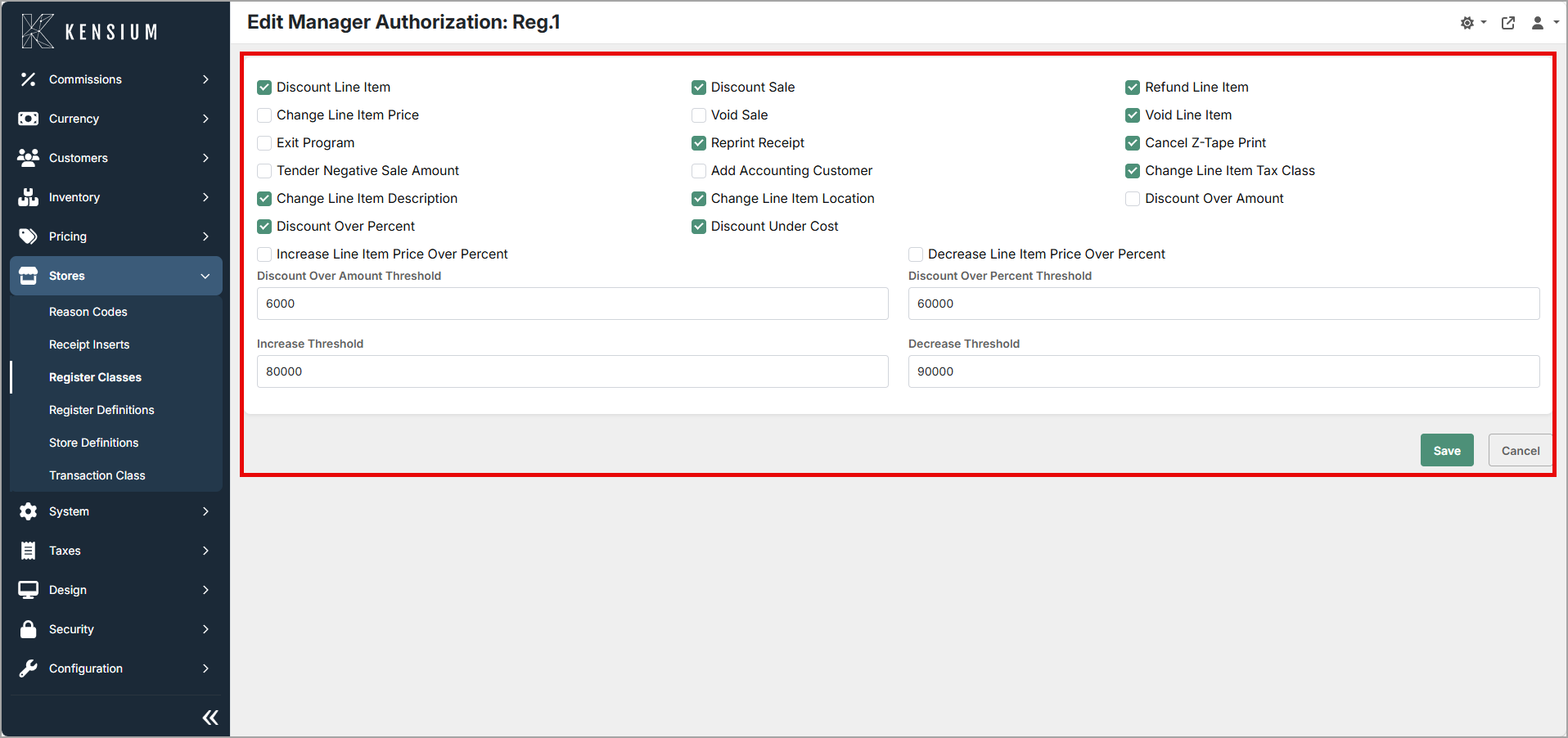
Each action below can be set to Yes/No to require manager approval.
| Field | What It Does | When Enabled/Disabled |
|---|---|---|
| Discount Line Item | Require approval for item discounts. | Enabled: approval required. Disabled: not required. |
| Discount Sale | Require approval for sale-wide discounts. | Enabled: approval required. Disabled: not required. |
| Change Line Item Price | Require approval to change item prices. | Enabled: approval required. Disabled: allowed. |
| Void Sale | Require approval to void a sale. | Enabled: approval required. Disabled: allowed. |
| Exit Program | Require approval to close the register app. | Enabled: approval required. Disabled: allowed. |
| Reprint Receipt | Require approval to reprint receipts. | Enabled: approval required. Disabled: allowed. |
| Tender Negative Sale Amount | Require approval for negative tenders (refund-like). | Enabled: approval required. Disabled: allowed. |
| Add Accounting Customer | Require approval to add an accounting customer mid-sale. | Enabled: approval required. Disabled: allowed. |
| Change Line Item Description | Require approval to edit item descriptions. | Enabled: approval required. Disabled: allowed. |
| Change Line Item Location | Require approval to change item location. | Enabled: approval required. Disabled: allowed. |
| Discount Over Percent/Amount/Under Cost | Threshold-based approvals for discounts or under-cost sales. | Configure percent/amount thresholds and enable the associated checks. |
| Increase/Decrease Thresholds | Percent thresholds that trigger price-change approvals. | Set the percent values that require approval. |
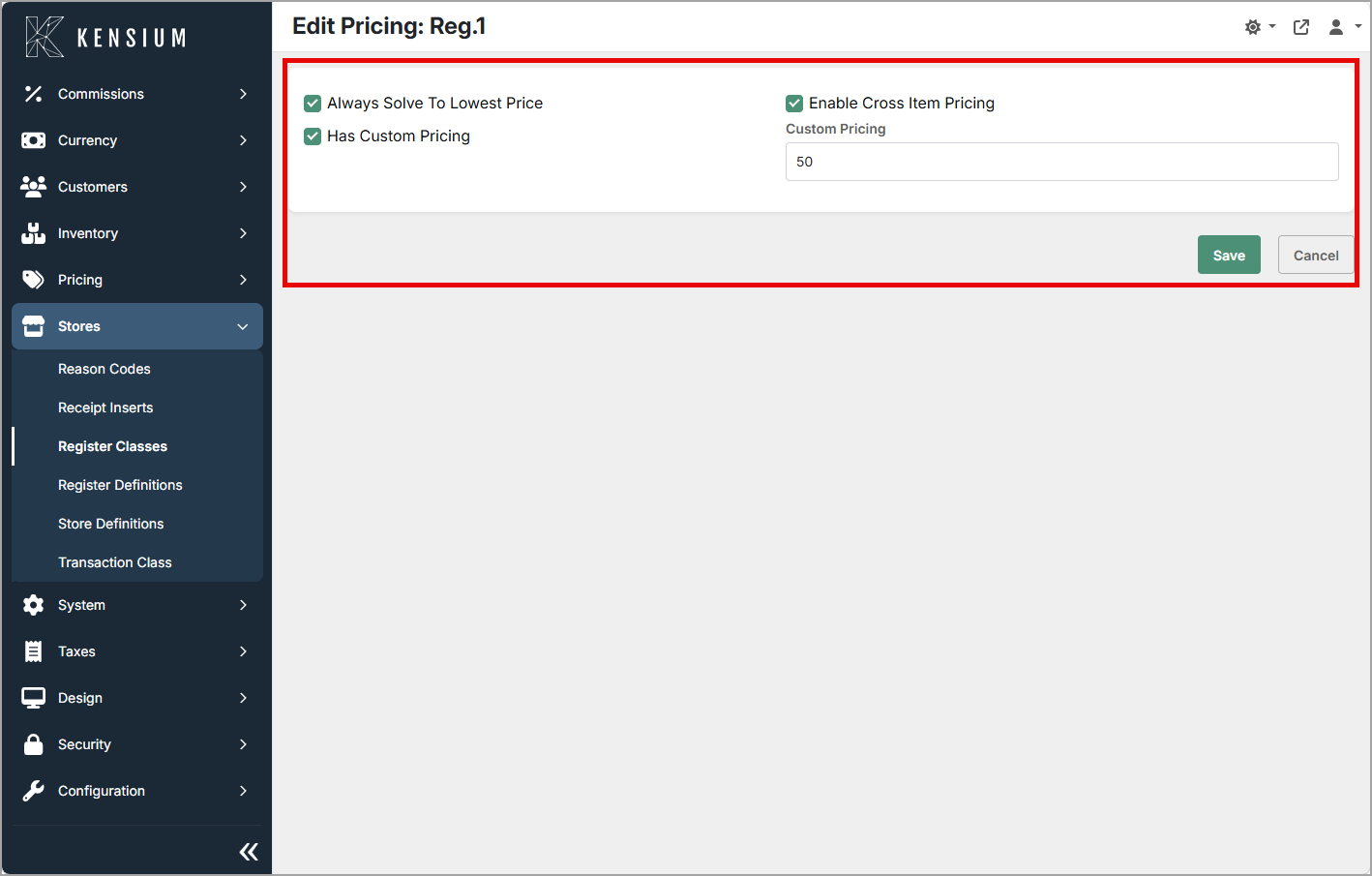
10. Pricing
| Field | What It Does | When Enabled/Disabled |
|---|---|---|
| Always Solve to Lowest Price | Always apply the lowest available price. | Enabled: lowest price chosen. Disabled: standard pricing rules apply. |
| Enable Cross Item Pricing | Allow pricing rules that span multiple items. | Enabled: cross-item pricing evaluated. Disabled: ignored. |
| Has Custom Pricing | Marks this class as using custom pricing. | Enabled: custom pricing active. Disabled: default pricing used. |
11. Printing
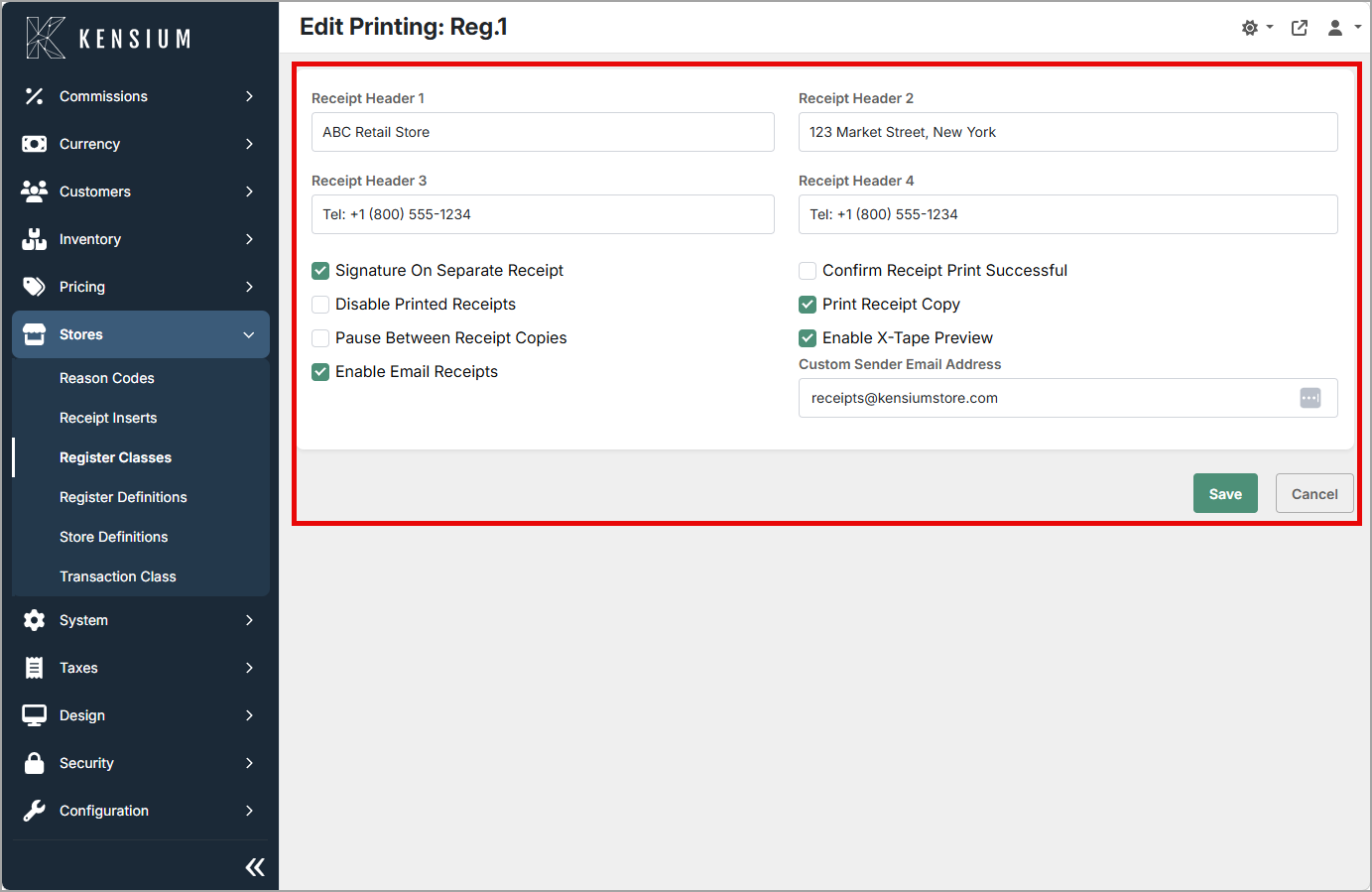
| Field | What It Does | When Enabled/Disabled |
|---|---|---|
| Receipt Header 1–4 | Up to four custom header lines printed on receipts. | Leave a line blank to omit it. |
| Signature on Separate Receipt | Print signature on a separate slip. | Enabled: separate slip. Disabled: signature on main receipt. |
| Confirm Receipt Print Successful | Ask staff to confirm print success. | Enabled: confirmation required. Disabled: no prompt. |
| Disable Printed Receipts | Turn off physical printing for this class. | Enabled: printing disabled. Disabled: printing allowed. |
| Print Receipt Copy | Automatically print an extra copy. | Enabled: copy printed. Disabled: no automatic copy. |
| Pause Between Receipt Copies | Insert a delay between multiple copies. | Set a pause value; zero disables. |
| Enable X-Tape Preview | Show a preview of X-Tape before printing. | Enabled: preview shown. Disabled: direct print. |
| Enable Email Receipts | Allow emailing receipts to customers. | Enabled: email option available. Disabled: not available. |
| Custom Sender Email Address | Sender address used for emailed receipts. | Only used when email receipts are enabled. |
12. Reason Code
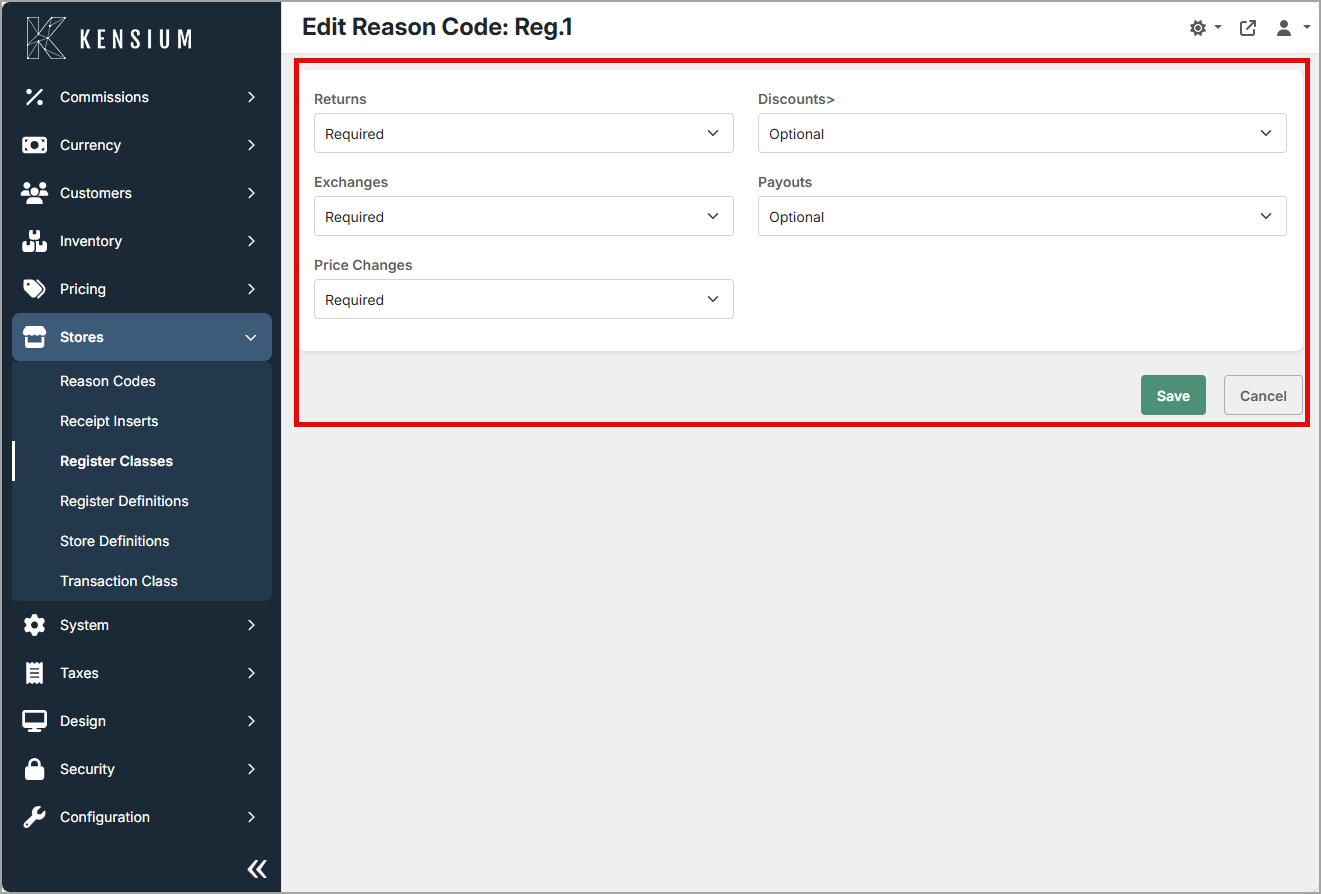
| Field | What It Does | When Enabled/Disabled |
|---|---|---|
| Returns/Discounts/Exchanges/Payouts/Price Changes | Prompt staff for a reason code when these events occur. | Enabled: prompt shown. Disabled: no prompt. |
13. Receipt Content
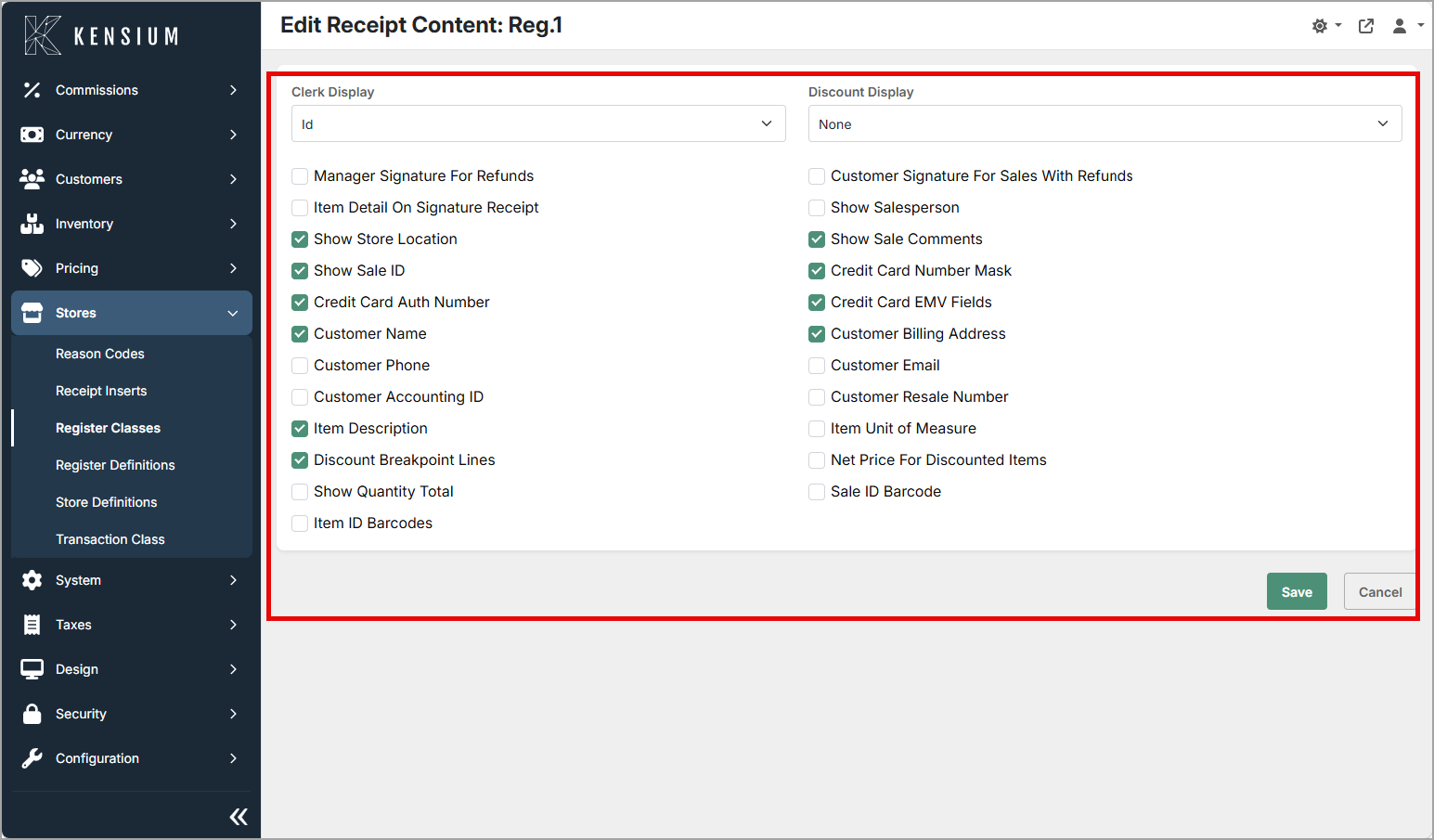
| Field | What It Does | When Enabled/Disabled |
|---|---|---|
| Clerk Display | How the clerk is identified on the receipt (for example, ID). | Choose format or leave blank for default. |
| Discount Display | How discounts appear on the receipt (Amount, Percent, None). | Select display mode. |
| Manager/Customer Signature Options | Include manager/customer signature lines where needed. | Enabled: printed. Disabled: omitted. |
| Item Detail | Include item lines and unit of measure on receipts. | Enabled: printed. Disabled: omitted. |
| Show Salesperson/Store Location/Sale Comments/Sale ID | Control which sale metadata appears on receipts. | Enable each field to print it; disable to hide it. |
| Credit Card Masking/Auth/EMV Fields | Control how card data is printed for security and compliance. | Configure masking and which fields print. |
14. Sale Building
| Field | What It Does | When Enabled/Disabled |
|---|---|---|
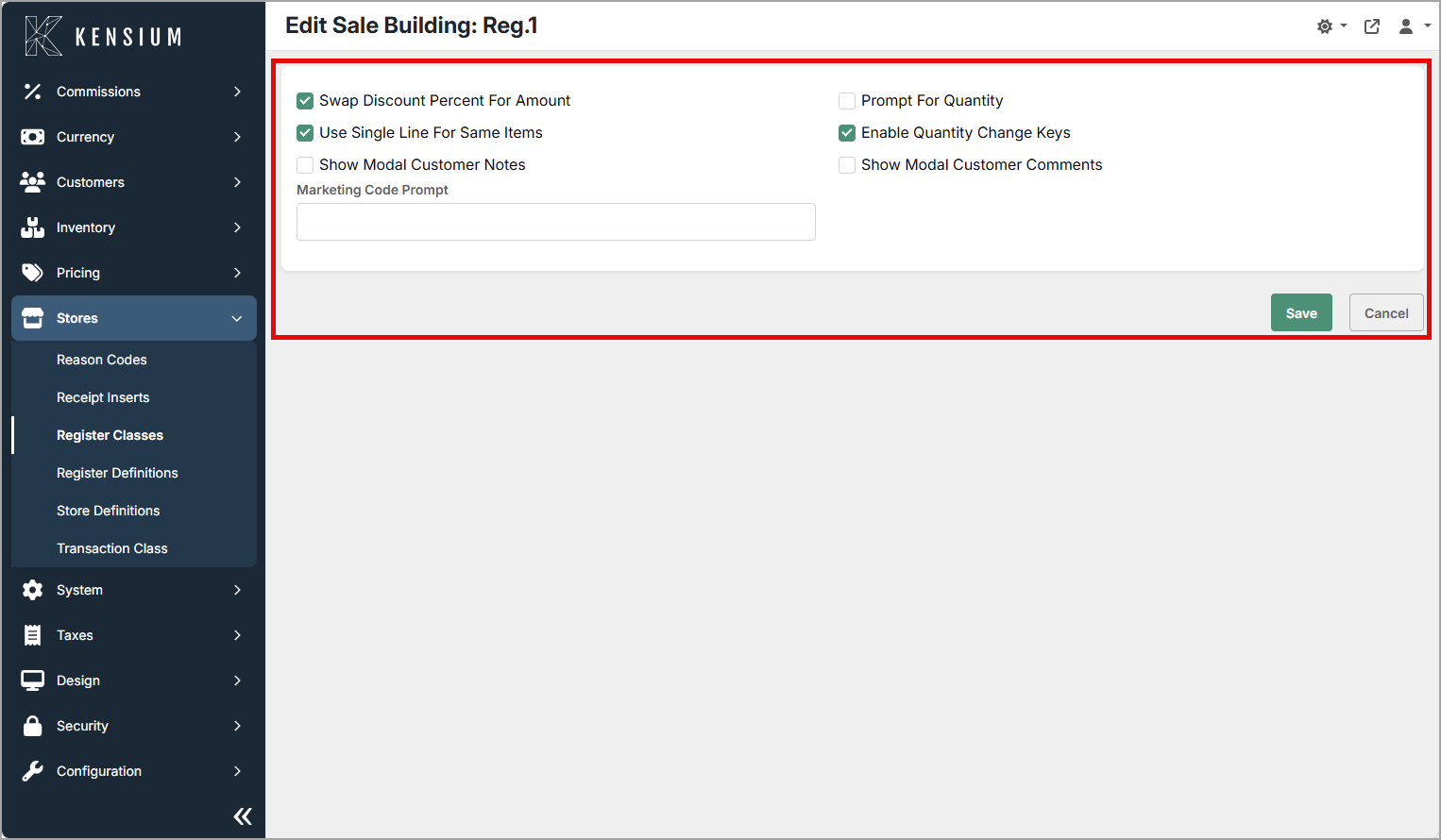
| Swap Discount Percent for Amount | Show discount as a money amount instead of percent during entry. | Enabled: shows amount. Disabled: shows percent. |
| Prompt for Quantity | Ask staff to enter quantity when adding items. | Enabled: prompt shown. Disabled: no prompt. |
| Use Single Line for Same Items | Combine identical items into one line. | Enabled: duplicates merged. Disabled: each scan adds a line. |
| Enable Quantity Change Keys | Enable keyboard shortcuts for quantity edits. | Enabled: keys active. Disabled: inactive. |
| Show Modal Customer Notes/Comments | Show customer notes/comments in a pop-up during the sale. | Enabled: modal shown. Disabled: not shown. |
15. Special Item
| Field | What It Does | When Enabled/Disabled |
|---|---|---|
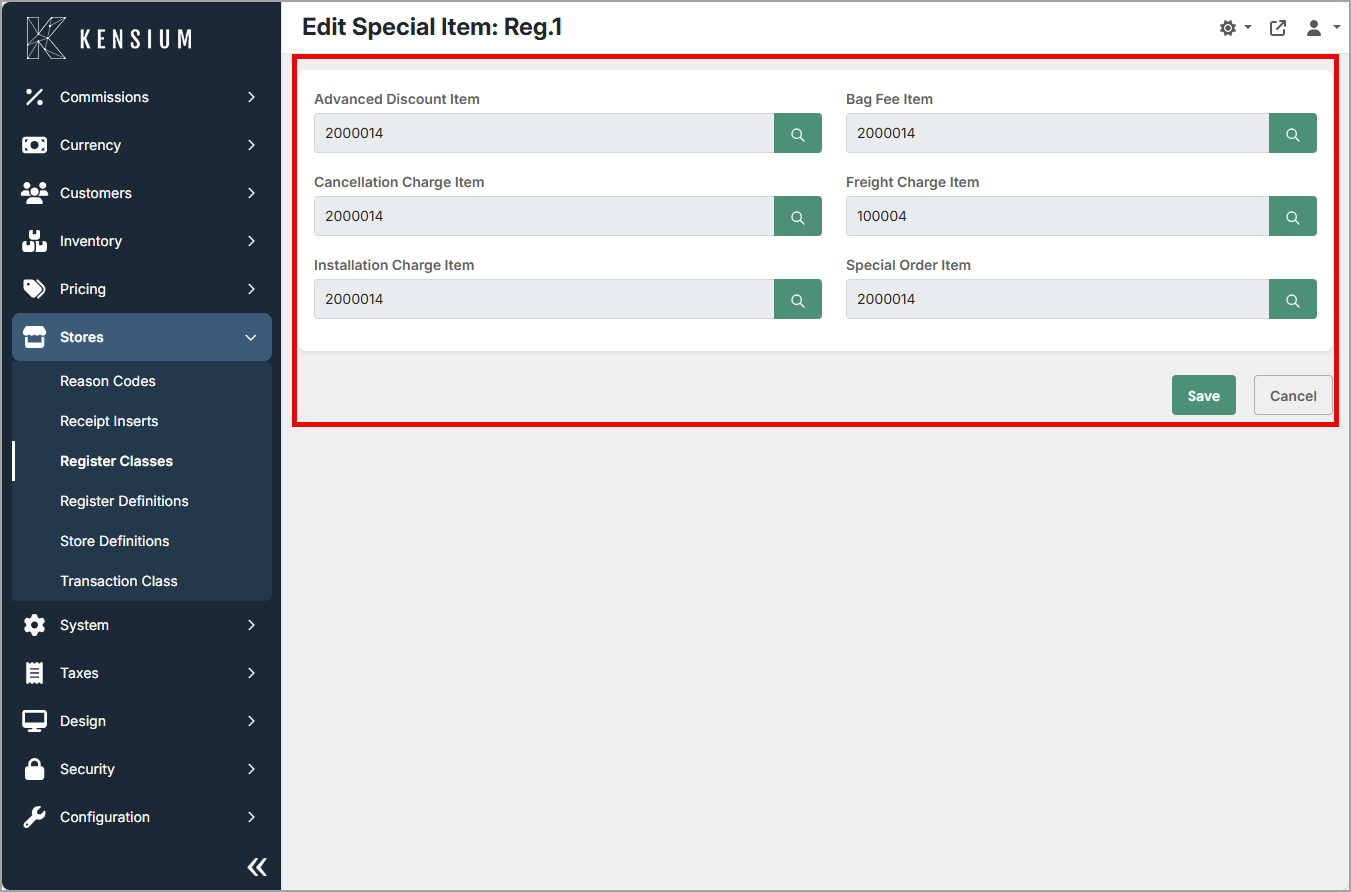
| Advanced Discount/Bag Fee/Cancellation/Freight/Installation/Special Order Item | Link specific items to special charge types used during transactions. | Leave blank to disable that special item type. |
16. Tender
| Field | What It Does | When Enabled/Disabled |
|---|---|---|
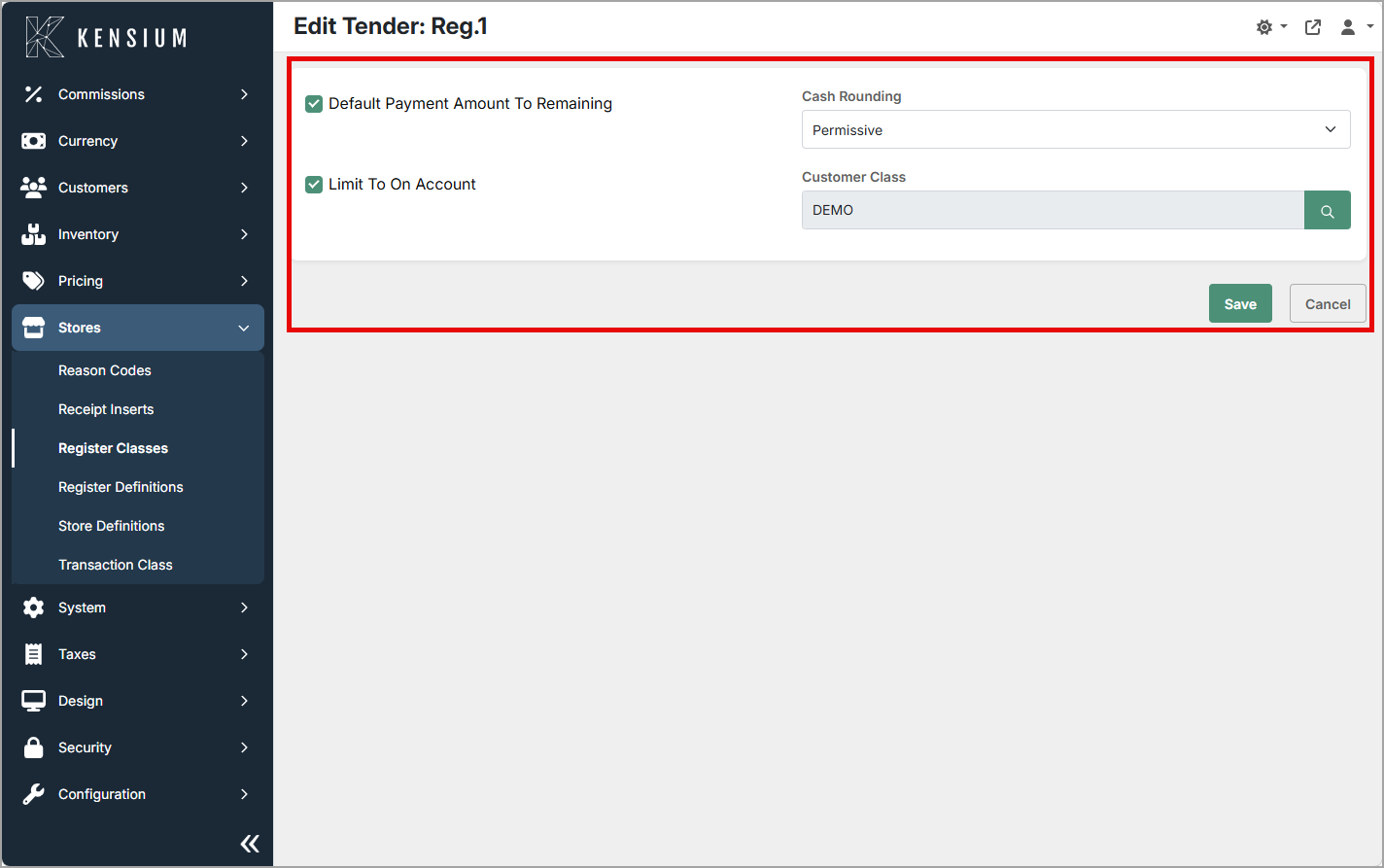
| Default Payment Amount to Remaining | Auto-fill the remaining balance as the tender amount at payment. | Enabled: pre-filled. Disabled: staff enters amount. |
| Cash Rounding | Rounding rule applied to cash totals during tender. | Configured: rounding applied. Unset: no rounding. |
| Limit to On Account | Restrict payments to on-account only for this class. | Enabled: only on-account allowed. Disabled: all tenders allowed. |
| Customer Class | Associate a customer class with tender behaviour and defaults. | Select the customer class that influences tender options. |
Tips
- Use descriptive codes like REG-STD or REG-FOOD to make classes easy to manage.
- Work through each configuration section before saving, especially when rolling a class out to multiple registers.
- Plan changes in advance and apply them during quieter trading periods.
- Use Manager Authorization to add guardrails for discounts, voids, and price changes.
- Turn on Reason Code prompts to capture why returns, discounts, and adjustments occur.
- After changing drawer or printing settings, run a quick test at the register to confirm expected behavior.
Example
| Code | Default Fulfillment Type | Status |
|---|---|---|
| REG-STD | Carry out | Enabled |