Take Payment
Collect customer payment and complete the transaction. The system validates all required transaction information (return reasons, serial numbers, etc.) before opening the payment dialog. Supported payment methods include cash, checks, and card processing through Fortis, Ebiz, or Stripe.
Payment processing enables:
- Collection of customer payment using cash, check, or card payment methods.
- Secure card processing through configured payment terminals.
- Acceptance of payments on account (customer account balance).
- Completion and settlement of transactions.
- Processing of refunds and returns.
Navigation:
Process Sales → Tender Sale (F7)
Tender Sale Flow
Before Payment
The register automatically validates: - All required transaction information has been entered (return reasons, serial numbers, etc.). - Totals are correctly calculated. - All mandatory fields are completed.
Any missing required information should be completed before proceeding.
Step 1: Open Tender Dialog
- Press F7 or click the Tender Sale button.
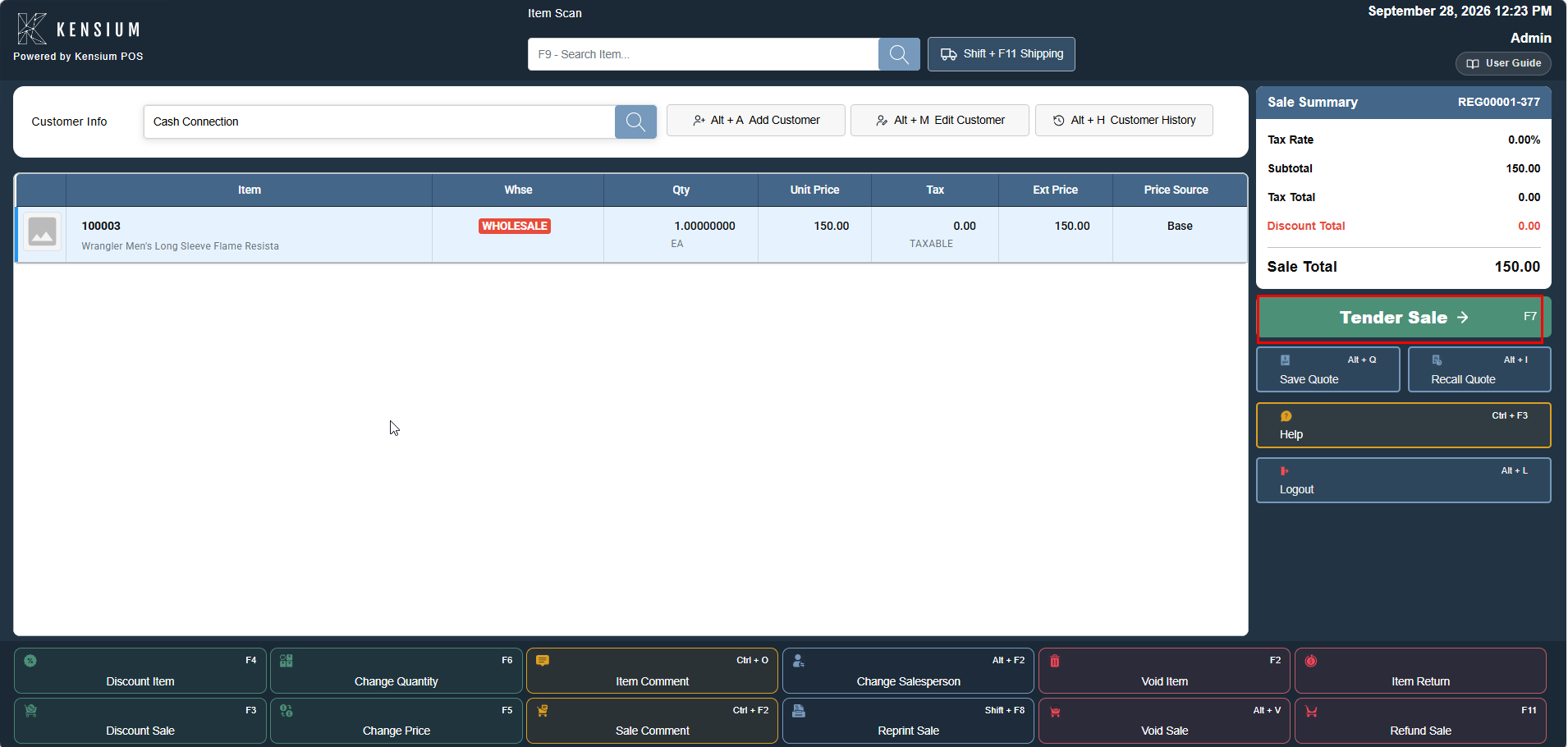
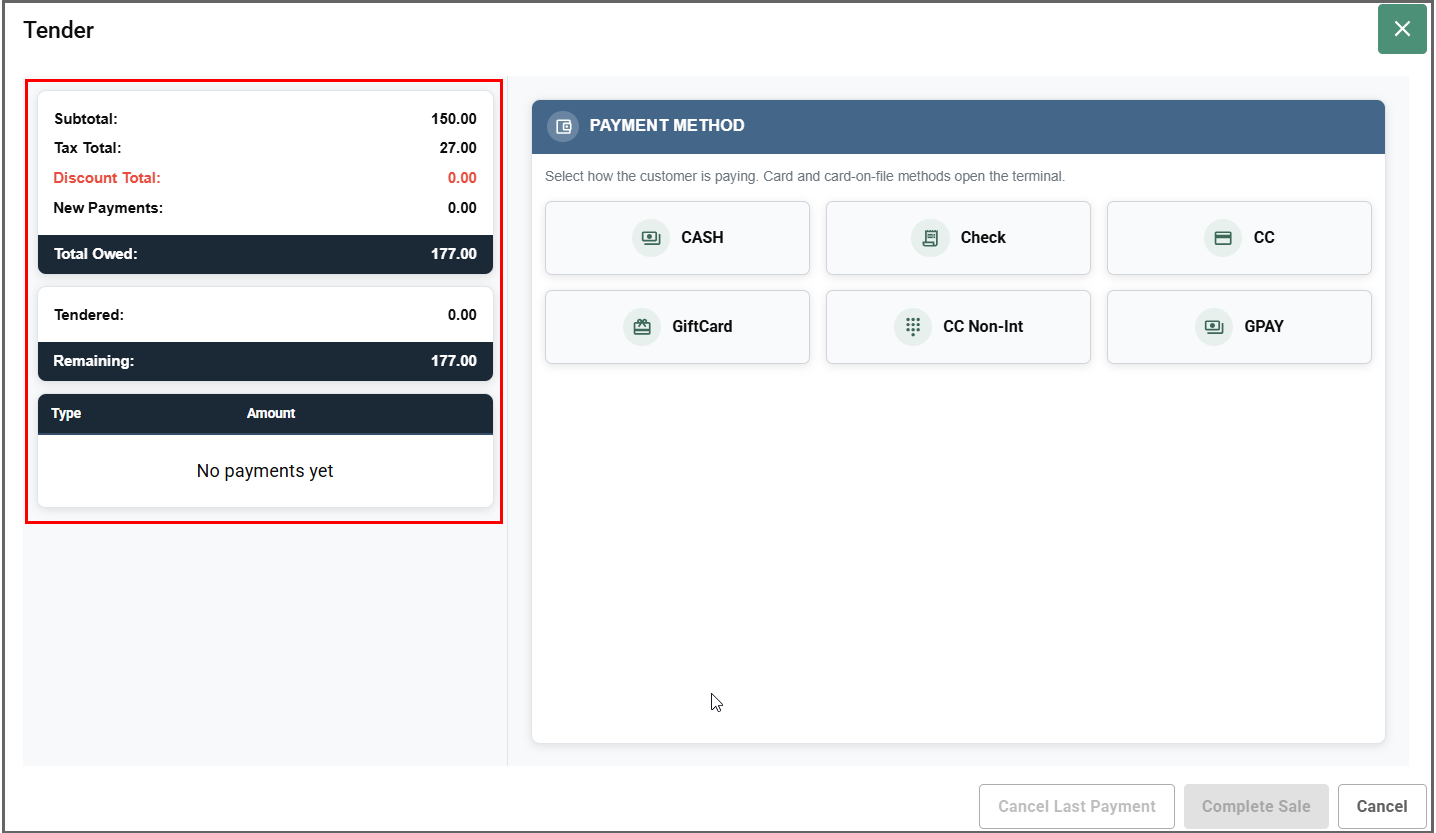
- The Tender dialog opens showing:
- Sale summary (Subtotal, Tax Total, Discount Total, Total Owed)
- Available payment methods: Cash, Check, Fortis, Ebiz, Stripe
- Payment status (Remaining balance)
Step 2: Select Payment Method
Click on the payment method button from the right panel. The Enter Amount dialog opens.
Cash Payment
- Click Cash button.
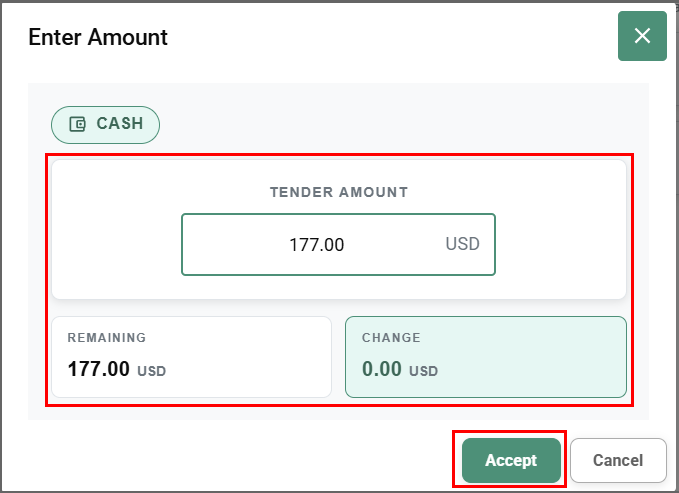
- Enter Amount dialog opens showing:
- Tender Amount field (enter cash amount received)
- Remaining (balance due)
- Change (change to return)
- Enter the cash amount received.
- Review calculated change amount.
- Click Accept to record payment.
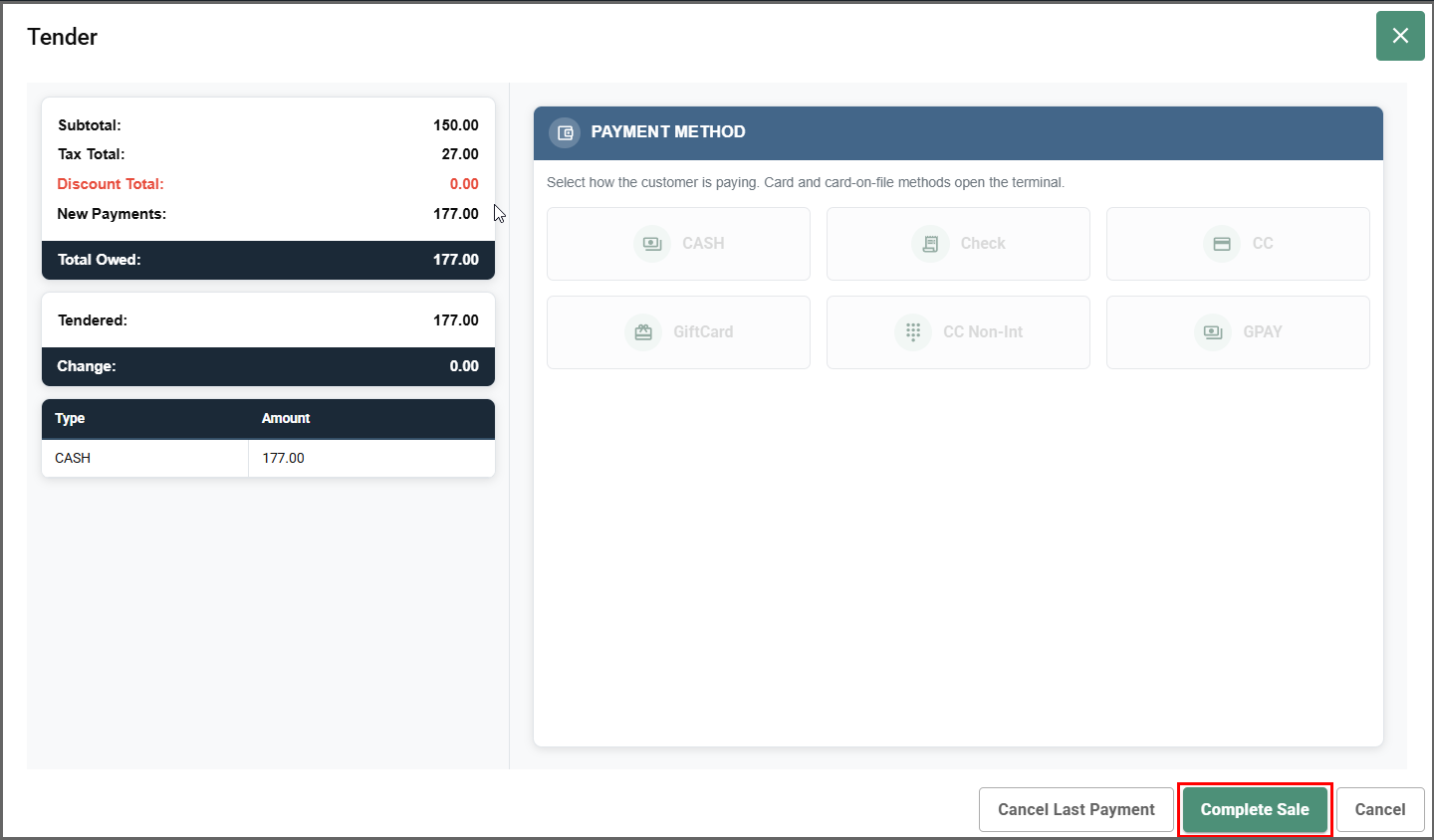
- Payment appears in the summary table with type and amount.
Check Payment
- Click Check button.
- Enter Amount dialog opens.
- Enter the check amount.
- Complete required fields (check number if prompted).
- Click Accept to record payment.
Fortis Payment
Terminal Models Supported: [Specify terminal models]
- Click Fortis button.
- Enter Amount dialog opens.
- Enter the card payment amount.
- Click Accept.
- System displays authorization prompt for Fortis terminal processing (see Card Payment Processing section below).
- Payment is recorded upon authorization.
Ebiz Payment
Terminal Models Supported: [Specify terminal models]
- Click Ebiz button.
- Enter Amount dialog opens.
- Enter the card payment amount.
- Click Accept.
- System displays authorization prompt for Ebiz terminal processing (see Card Payment Processing section below).
- Payment is recorded upon authorization.
Stripe Payment
- Click Stripe button.
- Enter Amount dialog opens.
- Enter the payment amount.
- Click Accept.
- System initiates Stripe payment processing.
- Payment is recorded upon authorization.
Step 3: Complete Sale
After recording the payment:
- System validates the full amount has been tendered.
- The Complete Sale button enables.
- Click Complete Sale to finalize the transaction and proceed to receipt printing.
Note
Cancel Last Payment removes the payment entry if you need to correct the amount or method before completing the sale.
Transaction Completion (Tender Results)
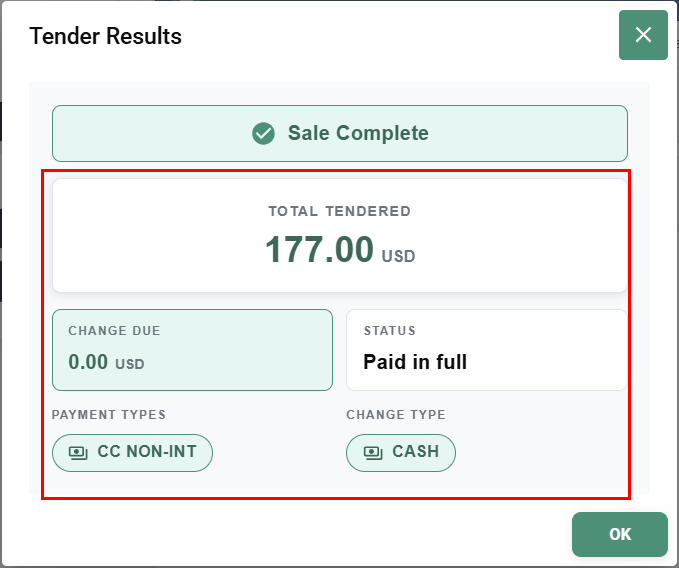
After payment is processed, Tender Results dialog appears:
Confirmation Details:
- Sale Status: "Sale Complete" or "Refund Complete"
- Total Tendered: Total amount of payment received
- Change Due: Amount of change returned to customer (if applicable)
- Payment Status: "Change due" or "Paid in full"
- Payment Types Used: List of all payment methods used
- Change Types: Method used to return change (if applicable)
Select OK to proceed to receipt printing.
Related Documentation
Remember
Complete Sale only enables when the full amount is tendered. Quick Cash should be used for common amounts like $20, $50, $100. Split payments must add up to the exact sale total. Authorization codes and check numbers should be captured when prompted.