Refunds & Returns
Process customer refunds and returns by switching a sale to refund mode, recording return information, and issuing refund payment.
A refund is a transaction switched into refund mode to handle returned merchandise. Once activated, refund mode cannot be switched off for that transaction. The refund process includes selecting returned items, recording return reasons and damage flags for proper stock routing, and issuing refund payment to the customer.
Refund and returns processing enables:
- Issuance of customer refunds for returned merchandise.
- Recording of return reasons and damage flags.
- Routing of returned stock to the correct warehouse location.
- Acceptance of refund payments (cash, card, on-account).
- Maintenance of audit trail for all returned items.
- Tracking of stock movements and inventory adjustments.
Navigation:
Process Sales → Refund Sale
How to Ring a Refund
Step-by-Step Process
-
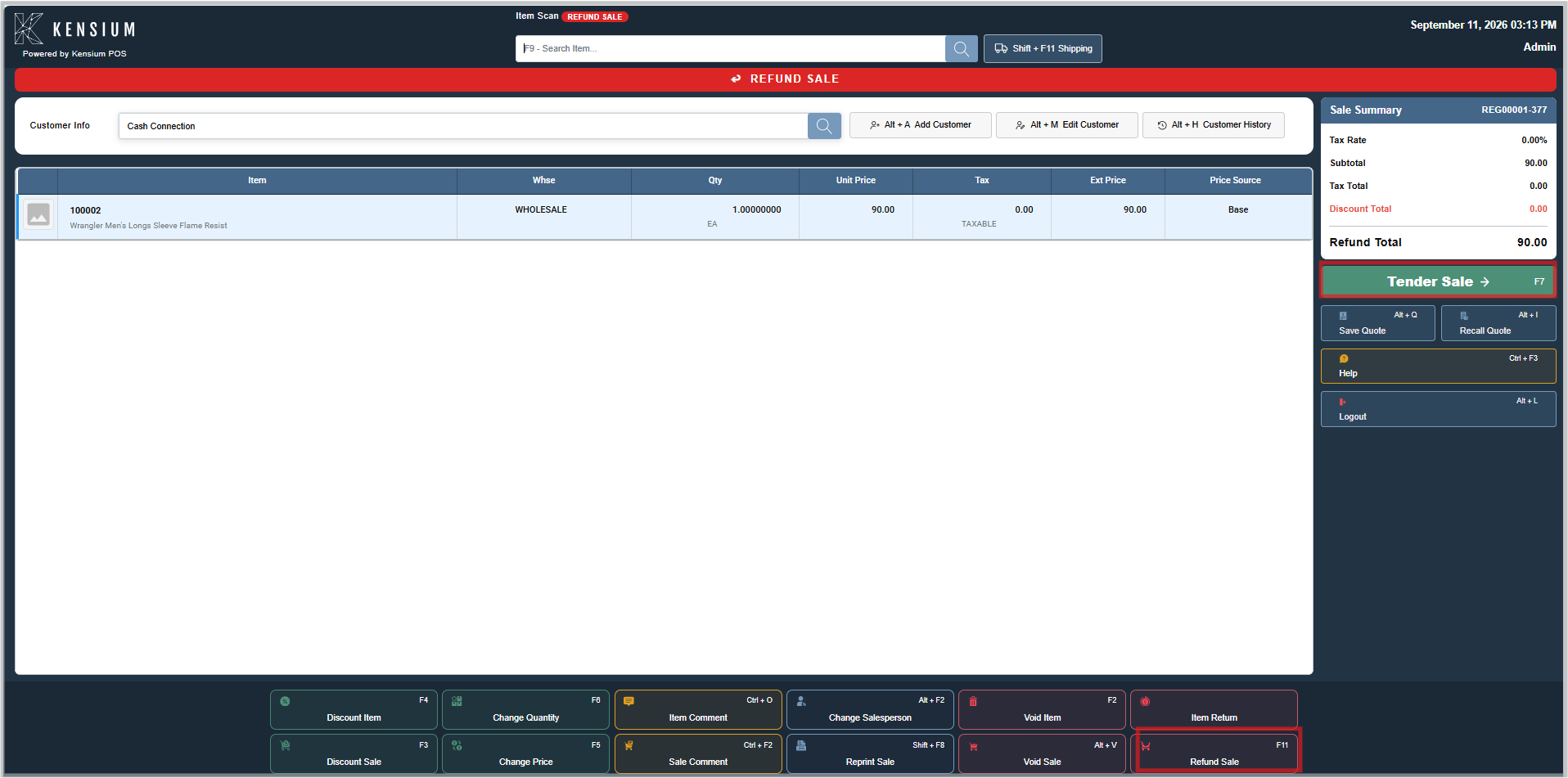
select Refund Sale (or press F11). A manager authorization prompt appears. The sale does not need to be empty -any items already on it are converted to refund lines in place.
-
Manager Authorization: A manager must authorize the refund. Once approved, a red ↩ REFUND SALE banner appears across the screen, a red Refund Sale badge displays next to the item scan box, and the summary label changes to Refund Total.
-
Add Returned Items: The returned items should be added exactly as on a normal sale by scanning or searching. Everything scanned from here on is treated as a return.
-
Supply Return Information (if required): Each line should have return information supplied. Depending on configuration, this occurs automatically, on demand, or is forced at tender.
-
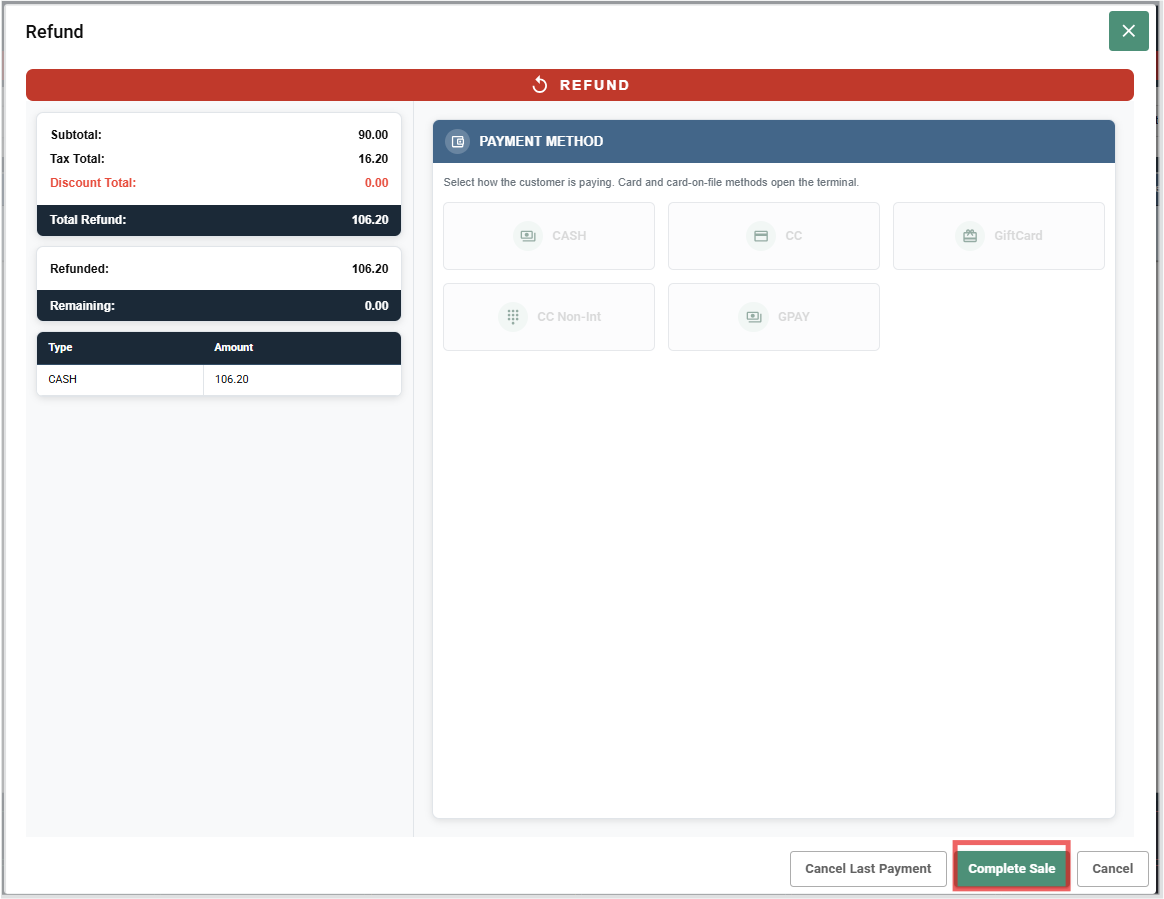
Click Tender Sale (or press F7): The refund tender screen appears showing:
- Total Refund Amount to be returned to the customer
- Refund Summary with subtotal, tax, discounts, and total refund
-
Select Payment Method: Choose how to refund the customer:
- CASH - Refund in cash
- CC (Credit Card) - Process card refund (blind refund)
- Gift Card - Refund to gift card
- CC Non-Int - Alternative card processing
- GPAY - Google Pay refund
-
Complete the Refund: Click Complete Sale to finalize the refund. The money is returned to the customer, and the refund receipt is generated.
Important Notes
- Amounts remain positive throughout a refund is identified by the line type, not by a negative sign
- There is no negative-quantity method; refund mode is the only way to return goods
- Refund mode cannot be switched off once activated
- The refund is permanent and recorded in the audit trail
Related Documentation
Remember
Refund mode is permanent once activated there is no undo except voiding the entire sale. The decision to process a refund should be verified before selecting the button. Manager authorization and customer signatures should be obtained as required. Stock returns are processed automatically when the refund completes.