Register Connections
| Summary Information | |
|---|---|
| Menu Path: | Stores — Register Connections |
| Required Feature(s): | Stores |
Navigation:
Stores → Register Connections
Register Connections establish secure communication between individual registers in store locations and the Corporate (POS Admin) system. Each register must complete a connection handshake to authenticate and receive operational configuration updates.
A register must have an active connection to receive transactions, configuration changes, and system updates.
Connection Statuses
Registers have three connection states:
| Status | Description |
|---|---|
| Disconnected | No active connection; register cannot operate. |
| Pending | Connection initiated from Corporate; awaiting handshake completion. |
| Connected | Handshake complete; register is fully operational. |
Accessing Register Connections
- Go to Stores from the main menu.
- Click Register Connections.
- The Register Connections list displays all registers in your system with their current connection status.
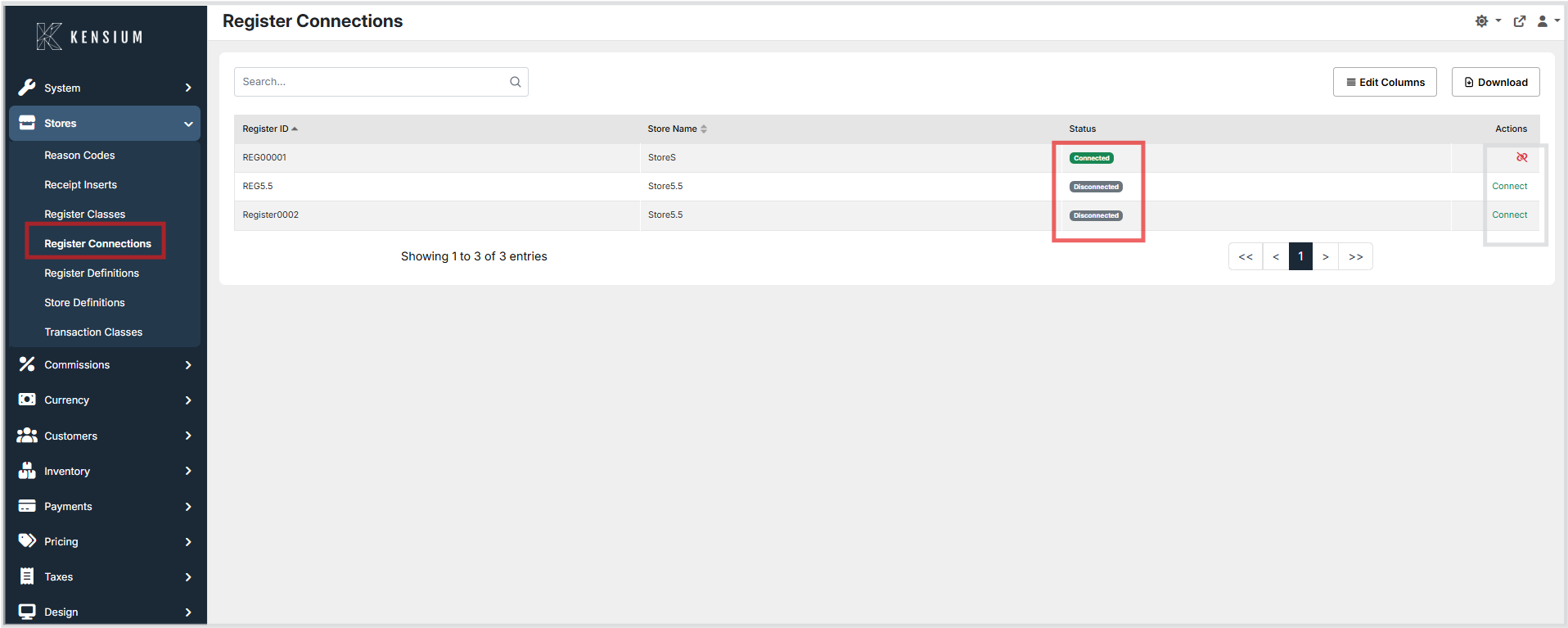
Register Connections List View
The Register Connections list displays the following columns:
Register ID
The unique identifier for each register (for example, REG00001, REGSS.5).
- Sortable and filterable
- Click to sort registers alphabetically by ID
- Use the Search field to quickly find a specific register by ID
Store Name
The name of the store/location to which the register belongs (for example, Store5, Store5.5).
- Derived from the associated store's name
- Sortable
- Helps administrators identify which store a register belongs to
Status
The current connection status of the register, displayed as a colored badge:
- Green = Connected (operational)
- Yellow/Orange = Pending (awaiting handshake completion)
- Gray = Disconnected (offline)
Actions
- Connect – For Disconnected registers; initiates the connection process
- Disconnect – For Connected or Pending registers; terminates the connection
Permissions
Only users with Edit Register Definitions permission can perform these actions.
Connecting a Register
- In the Register Connections list, locate a Disconnected register and click Connect.
- The Connect page displays a secure, one-time Register Key. Copy the key -it can only be used once.
- Securely share the Register Key with store staff (in-person, encrypted message, or secure file transfer -never email).
- At the register, enter the Register Key in the configuration screen. The register validates the token with Corporate.
- On success: Status changes to Connected and the register can operate.
- On failure: Re-enter the key carefully or generate a new one by clicking Connect again.
Disconnecting a Register
Disconnect a register to reassign it to a different store, retire it, reset configuration, address security concerns, or correct connection mistakes.
How to Disconnect
- In the Register Connections list, locate the register.
- Verify its status is Connected or Pending.
- Click Disconnect, then confirm in the dialog.
Result: Register status changes to Disconnected (gray badge), token is cleared, and the register can no longer communicate with Corporate.
Disconnection Effects
Disconnecting immediately stops the register's ability to receive updates, process transactions, and access operational data. Coordinate disconnections during off-hours when the register is not in use.
Troubleshooting Connection Issues
Connection Fails with "Invalid Token"
Cause: The Register Key was entered incorrectly or mistyped.
Solution: Verify the key was entered correctly. If the issue persists, generate a new key by clicking Connect again.
Connection Stuck in Pending Status
Cause: Register has not completed the handshake (initialization, network issues, or key not entered).
Solution: Wait 2–5 minutes. Check network connectivity and verify the Register Key was entered. Restart the register application if needed. If it persists, disconnect and reconnect with a new key.
Register Shows as Connected But Is Not Operational
Cause: The register is authenticated but may be missing configuration or updates.
Solution: 1. Verify the register has network connectivity to Corporate 2. Check that the register's configuration (Register Class, location settings) is properly defined 3. Try disconnecting and reconnecting to force a fresh configuration sync 4. Contact support if the issue persists
Best Practices
Tips
- Schedule connections during off-hours to minimize disruption.
- Treat Register Keys as sensitive credentials; never share via email.
- Monitor new registers for 15–30 minutes after connecting to ensure stability.
- Document connectivity for audit purposes.
- Test transactions after reconnecting a register.
- Disconnect a register before reassigning it to a different store.
Example
Register REG00001 is disconnected. Admin clicks Connect, shares the generated Register Key with store staff, who enter it at the register. The register validates and connects within 2–5 minutes.