Pricing Rules
| Summary Information | |
|---|---|
| Menu Path: | Pricing — Pricing Rules |
| Required Feature(s): | Pricing |
Navigation:
Pricing → Pricing Rules
The Pricing Rules module allows administrators to define rules that control how items are priced at the register. Each rule can target a specific set of customers, locations, or items, and can include one or more pricing levels (breakpoints) that take effect at defined quantities. Rules are organized by type (Special Price or Price Matrix) and can apply price overrides, discounts, markups, or custom display options.
Purpose of Pricing Rules
Pricing rules are used to:
- Define price overrides, discounts, markups, or custom pricing behaviors for specific items, customers, or locations.
- Apply quantity-based pricing tiers using breakpoints (for example, bulk discounts at 10+ units).
- Control how prices are displayed to staff and customers (as new price, discount line, or custom text).
- Support promotional pricing within specific date ranges.
- Organize pricing strategies by type: Special Prices (managed in Admin) or Price Matrix (managed in ERP).
Creating or Editing a Pricing Rule
To create a new pricing rule or modify an existing one:
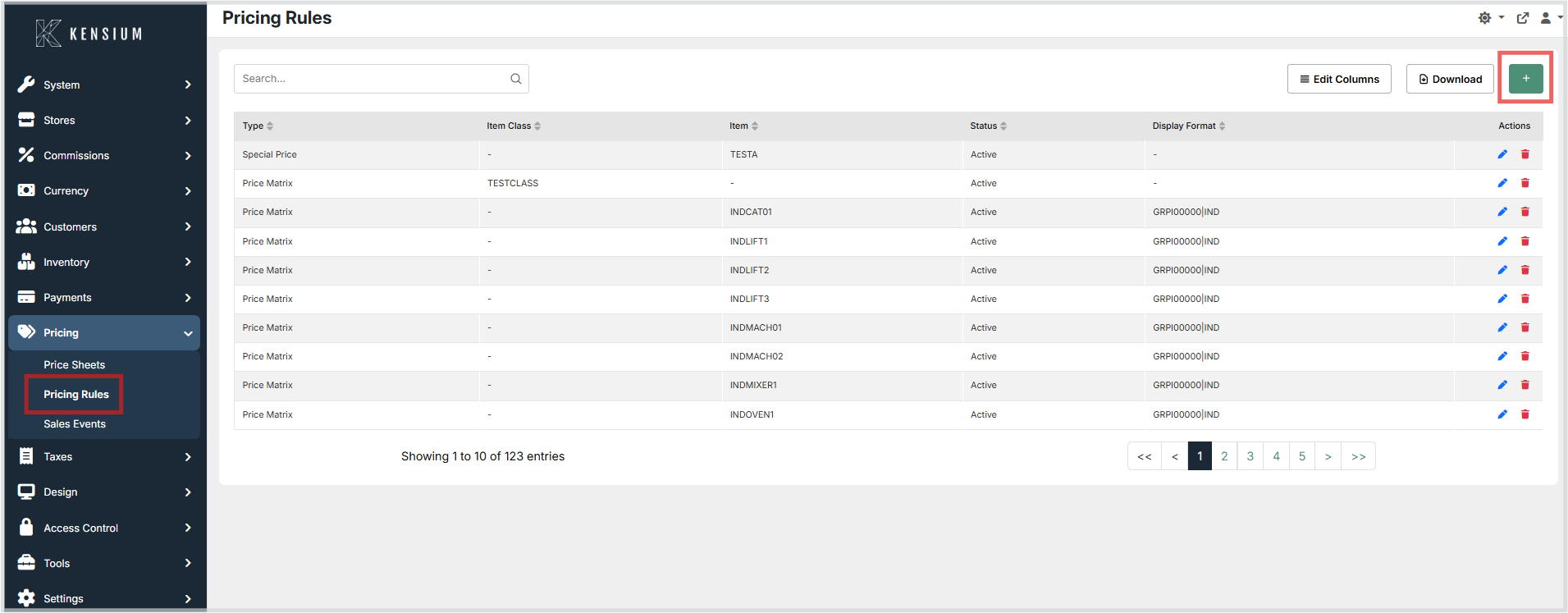
- Navigate to Pricing → Pricing Rules.
- Click the green + button to open the create form.
-
In the Pricing Criteria section, use the selector fields to specify which customers, locations, or items the rule applies to:
-
Select criteria fields using the search buttons next to each field (for example, Customer Class, Location, Item Key).
-
Leave fields blank to indicate "all" for that dimension (for example, leaving Location blank applies the rule to all locations).
-
In the Settings section, configure:
-
Pricing Type: Choose SpecialPrice or PriceMatrix.
- Display Method: How the price or discount appears (New Price, Discount, or Custom).
- Base Price Override (optional): Use the item's base price, or override with a fixed price or price sheet.
- Subtotal Type (optional): Whether to create a subtotal line for this rule.
-
Effective Dates (optional): Enable to limit the rule to a specific date range.
-
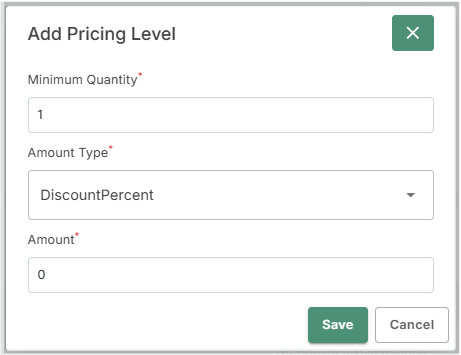
Add one or more Pricing Levels (breakpoints) using the + button. Each level defines:
-
Minimum Quantity: The quantity at which this level becomes active (for example,
1for per-item,10for bulk). - Amount Type: How the amount is applied (Dollar Adjustment, Percent Adjustment, Override Price, or Percent Markup on Cost).
-
Amount: The numeric value (for example,
10for 10% off, or5.00for $5.00 discount).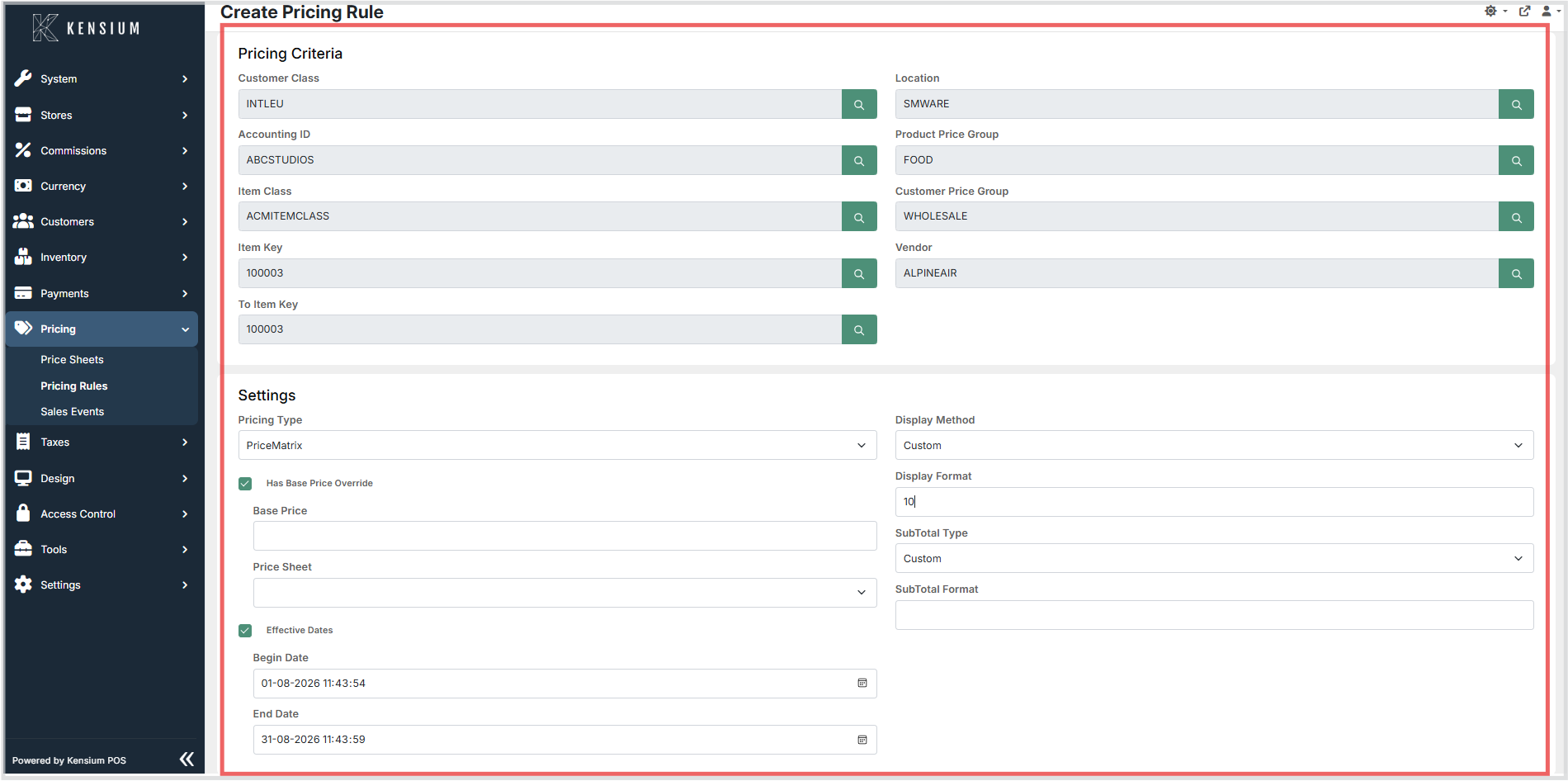
-
Click Save to apply the configuration.
To edit an existing rule, open it from the list, update the fields, and click Save. To remove a rule, use the Delete action from the list view.
Available Fields
Pricing Criteria Section
| Field | Description | Field Behavior |
|---|---|---|
| Location | Restricts the rule to a specific store or location. | Optional. Click the search button to select. Leave blank to apply to all locations. |
| Customer Class | Restricts the rule to customers in a specific class (for example, Wholesale, Retail). |
Optional. Click the search button to select. Use when pricing applies to a customer group. |
| Accounting ID | Restricts the rule to a specific customer account. | Optional. Click the search button to select. Use for single-customer pricing. |
| Item Class | Restricts the rule to a group of items (product category). | Optional. Click the search button to select. |
| Item Key | The starting item for a single item or inclusive range of items. | Optional. Click the search button to select. |
| To Item Key | The ending item for an inclusive range of items. | Optional. Click the search button to select. Used only when defining an item range. |
| Product Price Group | Applies the rule to products in a defined price group. | Optional. Click the search button to select. |
| Customer Price Group | Applies the rule to customers in a defined price group. | Optional. Click the search button to select. |
| Vendor | Restricts the rule to items from a specific vendor. | Optional. Click the search button to select. Useful for vendor-specific pricing. |
Settings Section
| Field | Description | Field Behavior |
|---|---|---|
| Pricing Type | The kind of rule: SpecialPrice (managed in Admin) or PriceMatrix (managed in ERP). | Required. Determines where the rule is managed. |
| Display Method | How the price or discount appears: NewPrice, Discount, or Custom. | Required. Determines how the rule is displayed on receipts and in the UI. |
| Display Format | Custom text to display when Display Method is set to Custom. | Optional. Leave blank unless a custom label is needed. |
| Has Base Price Override | Enable to override the item's standard base price. | Optional. When enabled, specify either a fixed price or a price sheet. |
| Base Price | Fixed base price value (when Has Base Price Override is enabled). | Optional. |
| Price Sheet | Price sheet to use as the base price (when Has Base Price Override is enabled). | Optional. Choose a price sheet to override the item's standard base price. |
| Has Effective Dates | Enable to limit the rule to a specific date range. | Optional. When enabled, specify Begin Date and End Date. |
| Begin Date | Start date and time for the rule (when Has Effective Dates is enabled). | Optional. Rule is active on or after this date. |
| End Date | End date and time for the rule (when Has Effective Dates is enabled). | Optional. Rule is active up to and including this date. |
| SubTotal Type | Whether to create a subtotal line: None (no subtotal) or Custom (with custom text). | Optional. |
| SubTotal Format | Custom text for the subtotal line (when SubTotal Type is Custom). | Optional. Label shown on receipts for this rule's subtotal. |
Pricing Levels (Breakpoints)
Pricing levels define how the price or discount changes at specific quantities. Add one or more levels to configure quantity-based pricing. Each level applies when a purchase reaches or exceeds the minimum quantity.
| Field | Description | Field Behavior |
|---|---|---|
| Minimum Quantity | The quantity at which this pricing level becomes active. | Use 1 for per-item pricing, or a higher number for quantity breaks (for example, 10 for bulk pricing). |
| Amount Type | How the amount is applied: ActualPrice, DiscountPercent, DiscountAmount, MarkupPercent, MarkupAmount, or CostMarkupPercent. | Required. Choose based on how you want to adjust pricing. |
| Amount | The numeric value used in the pricing calculation. | Required. Examples: 10 for 10% discount/markup, 5.00 for $5.00 discount/markup, 29.99 for actual price. |
Example: 10% Discount for a Single Item
- Click + to create a new pricing rule.
- In Pricing Criteria, click the search button next to Item Key and select the target item.
-
In Settings, set:
-
Pricing Type =
SpecialPrice - Display Method =
Discount -
Leave Has Base Price Override disabled (use the item's standard base price).
-
Click the + button in the Pricing Levels section and add:
-
Minimum Quantity =
1 - Amount Type =
DiscountPercent -
Amount =
10 -
Click Save on the level dialog, then Save on the rule.
Important Constraints
- Mutually exclusive customer fields: You can select only one of: Customer Class, Accounting ID, or Customer Price Group. Selecting more than one will cause a validation error.
- All selector fields (Location, Customer Class, Item Key, etc.) have search buttons - click to select from a list rather than typing.
- Item Key is the primary way to target a single product. Use To Item Key only when you need a continuous range of items (for example, Item Keys 100001 through 100050).
- When using price groups (Customer Price Group or Product Price Group), ensure those groups are already defined in the Price Sheets or Price Groups screens.
- Pricing Type determines where the rule is managed: SpecialPrice rules are managed in Admin, while PriceMatrix rules are typically managed in the ERP system.
- At least one pricing level is required for every rule.
Operational Considerations
- Customer field exclusivity: Customer Class, Accounting ID, and Customer Price Group are mutually exclusive - you can only select one of these three. Attempting to set more than one will result in a validation error.
- SpecialPrice vs PriceMatrix: SpecialPrice rules are managed in Admin UI and can be edited directly. PriceMatrix rules are typically managed in the ERP system; do not edit PriceMatrix rules unless your integration team explicitly approves.
- Pricing Criteria: Leave criteria fields blank to indicate "all" for that dimension. For example, leaving Location blank means the rule applies at all locations.
- Item ranges: Use To Item Key only when defining a continuous item range. Do not use it for single items.
- Quantity breakpoints: Set the first Minimum Quantity to
1for rules that apply to all purchases, or to a higher number (like10) for rules that only apply to bulk purchases. -
Amount types: Different amount types affect pricing in different ways:
-
ActualPrice: Overrides the price to a fixed value.
- DiscountPercent: Applies a percentage discount on the base price.
- DiscountAmount: Applies a fixed dollar discount.
- MarkupPercent: Adds a percentage markup on the base price.
- MarkupAmount: Adds a fixed dollar markup.
-
CostMarkupPercent: Adds a markup based on a percentage of the item's cost.
-
Testing changes: Test any pricing rule changes at a single register before rolling them out broadly.
- Effective dates: When using date ranges, verify start and end dates carefully. Start dates are interpreted as the beginning of the date, and end dates as the end of the date (23:59:59).
- Base price overrides: Use a fixed base price for manual one-time adjustments, or a price sheet when the rule should follow another price list.
-
Display methods: Choose based on how you want the pricing to appear:
-
NewPrice: Displays the final price.
- Discount: Shows as a separate line item on receipts (best for promotional discounts).
- Custom: Displays custom text as a separate line item.
Tips
- Start with Minimum Quantity = 1 to ensure the level applies to all purchases. Add higher quantities only when you need tiered pricing.
- Use Display Method = Discount when the promotion is a discount, so staff and customers see it clearly.
- Test date ranges for time-limited promotions before activating them, especially if they span midnight or time zones.
- Use Has Base Price Override to ensure consistent pricing when a rule should override all other pricing logic.
- Remember: only one customer field (Class, Accounting ID, or Price Group) can be set at a time.