Changing Item Quantities
Edit the quantity of an item after it has been added to a transaction without removing and re-adding the item.
Item quantities can be adjusted after addition to a transaction without losing item details, discounts, or special notes. This function supports correction of scanning errors, customer quantity changes, and weighed item modifications. Quantity changes affect only the selected item and do not require re-entering any other item information.
Change Quantity applies to:
- Correction of incorrect quantities entered during scanning (e.g., scanned twice by mistake).
- Adjustment when customers request different amounts (e.g., "Make that 3 instead of 1").
- Modification of weighed items requiring quantity adjustment (e.g., 2.5 lbs instead of 3 lbs).
- Updates before proceeding to payment (final quantity verification).
Quantity changes affect only the selected item in the current transaction and preserve any comments or discounts already applied to that item.
Navigation:
Process Sales → Change Quantity (F6)
Changing Item Quantities
Item quantity modification process:
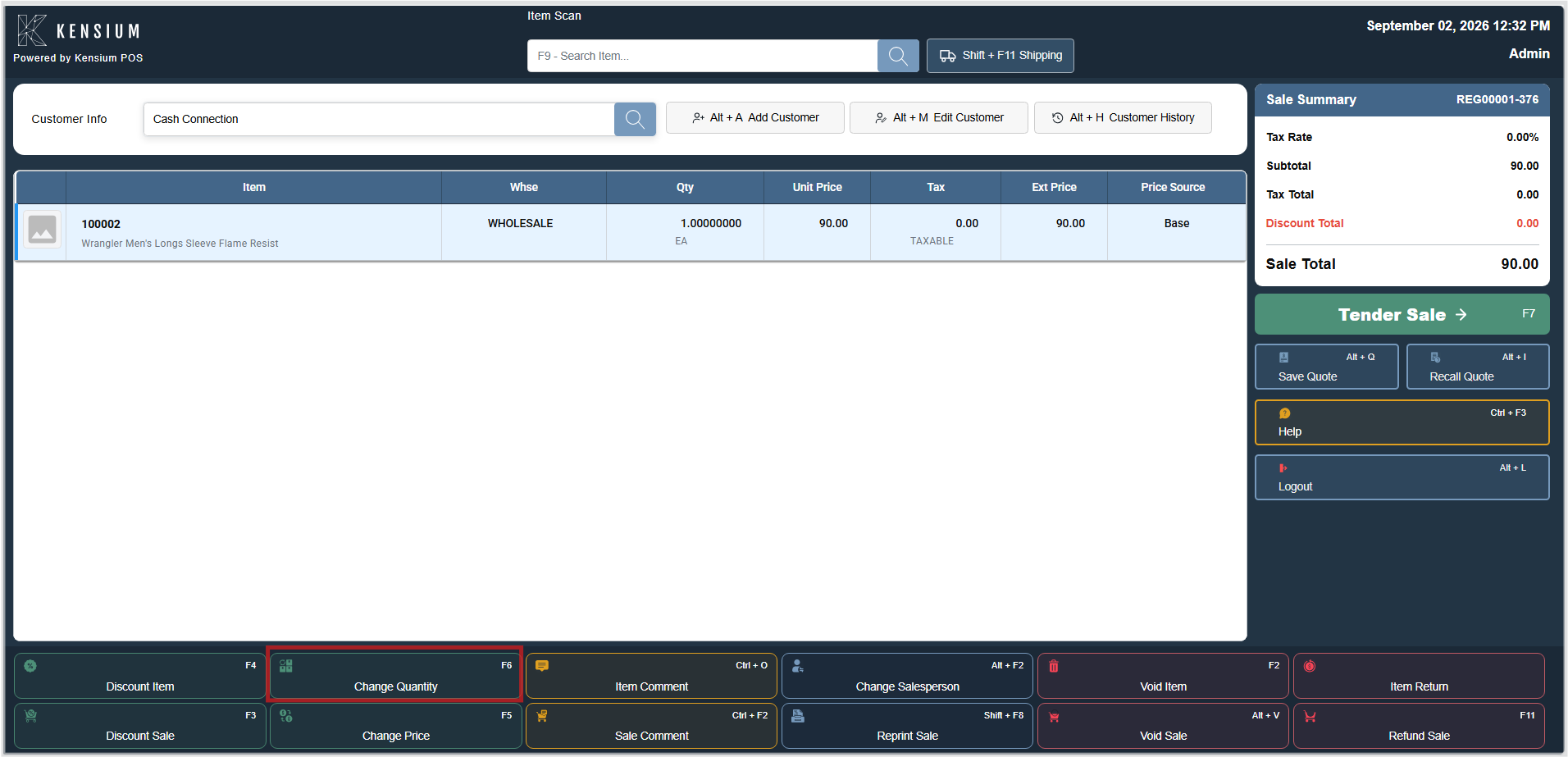
- The item in the sales list should be selected.
- F6 should be pressed or the Change Quantity button should be clicked.
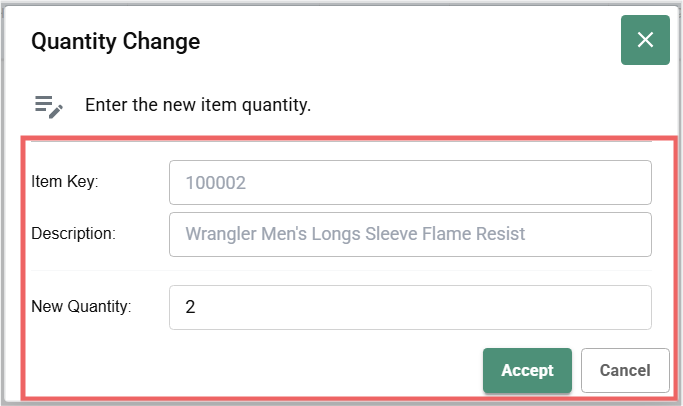
- The Change Item dialog opens.
- Edit the New Quantity field.
- Click Accept to apply, or Cancel to discard.
Keyboard Shortcuts
| Shortcut | Action |
|---|---|
| F6 | Open Change Item dialog. |
| Alt+D | Change item description. |
Available Screen Fields
The Change Item dialog displays:
| Field | Description |
|---|---|
| Item Key | Unique identifier for the item (SKU or product code). Read-only reference to identify which item you're changing. |
| Description | Name and details of the selected item (e.g., "Spring Hinge - 3 inch Stainless Steel"). Read-only, shows what item you have selected. Verify this is the correct item before changing quantity. |
| Current Quantity | The quantity currently in the sale (shown for reference). This is what you're changing FROM. |
| New Quantity | The editable field where you enter the new quantity. This is the updated amount that will replace the current quantity when you click Accept. |
| [Accept] | Applies the quantity change and closes the dialog. The item quantity in the sales list updates immediately. |
| [Cancel] | Closes the dialog without applying any changes. The quantity remains unchanged. |
Related Documentation
Remember
The correct item must be selected before changing quantity. Accept should be clicked to confirm changes. The new total should be verified before proceeding to payment.