SQL Server Install
This guide outlines the procedure for installing SQL Server 2022 and SQL Server Management Studio (SSMS) to support Kensium POS.
Note
The installation process for SQL Server Express edition are illustrated. Standard (or other) editions should follow a similar configuration.
Installation Files
Ensure SQL Server 2022 Express Edition Installer (SQL2022-SSEI-Expr.exe) is downloaded to the server that will receive the installation. The installation file can be found at:
- Kensium file share: SQL Server and SSMS 2022
- Microsoft (including other Editions): https://www.microsoft.com/en-us/sql-server/sql-server-downloads
Process
Step 1. Run the SQL Server installer (e.g. SQL2022-SSEI-Expr.exe) as an administrator.
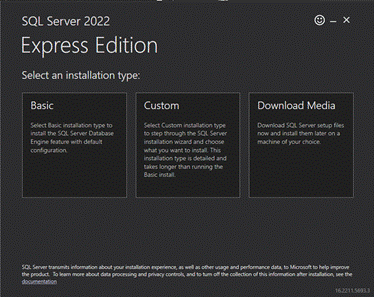
Step 2. When prompted, select the Custom installation option:
Step 3. After the setup starts, select install:
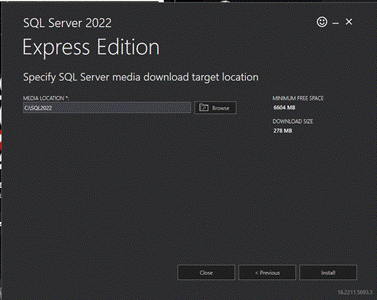
Step 4. After extraction completes, the SQL Server Installation Center will launch automatically. From the left menu, click Installation. Select New SQL Server stand-alone installation or add features to an existing installation:

Step 5. On the Product Updates screen, click Next. Updates can be skipped for this deployment.
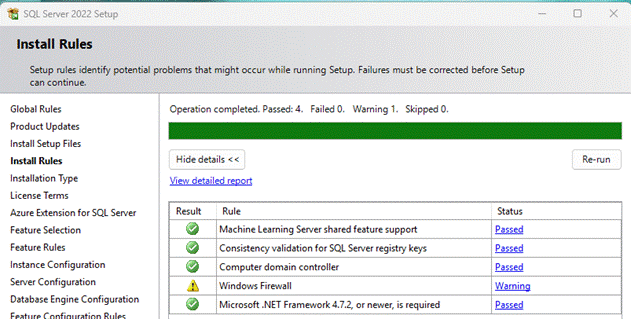
Step 6. Ensure all rules pass. Ignore the Windows Firewall warning, as it does not block local access. Click Next:
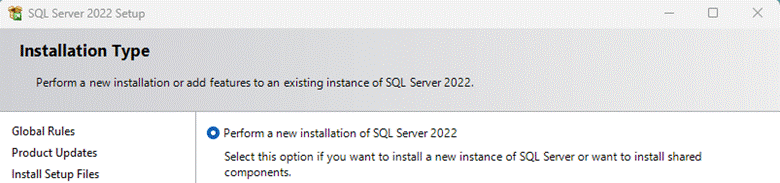
Step 7. Select Perform a new installation of SQL Server 2022, then click Next:
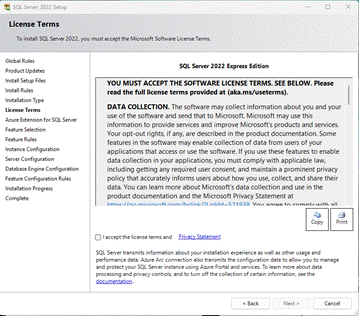
Step 8. Accept the license terms by checking I accept the license terms and Privacy Statement. Click next:
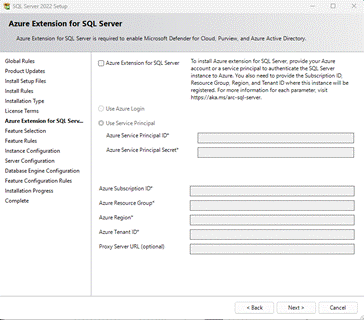
Step 9. Uncheck the box for Azure Extension for SQL Server. Click next:
Step 10. From the Feature selection screen, select the options:
- Database engine services -> SQL server replication
- Shared Features -> LocalDB
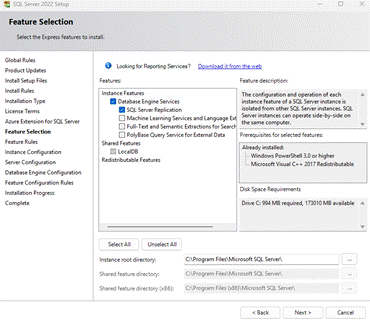
And press Next.
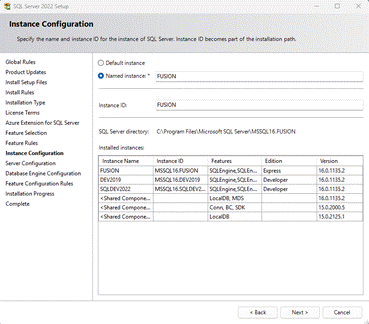
Step 11. Select Named Instance and set the Instance ID to: FUSION
Step 12. From the Server configuration, Click next.
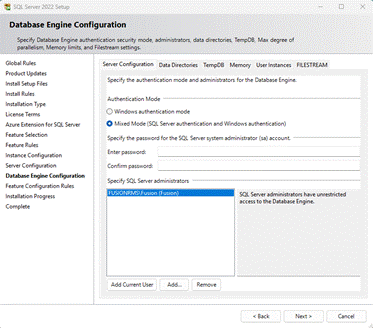
Step 13. From the Data Engine Configuration check the options: Mixed Mode (SQL authentication and Windows authentication) option, enter the password: Sql2022!, and press Next.
Step 14. Now the system will start the installation, and the process may take several minutes to complete.
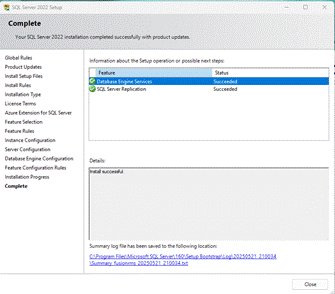
Step 15. Once the installation is complete, click Close to exit the SQL Server Installation Center.